Error 0xE0001068 can trap OneNote for Android in a failed work-account sign-in. Owners got past it with a personal Microsoft account first, then their work account. Managed devices may also need organizational approval.
If the app closes before account settings appear, try opening it briefly without internet access. Keep existing notes safe before considering a reinstall, especially when the phone holds pages that haven't synced anywhere else.
In this guide
1. Start with a personal account, then add work
When OneNote lets you choose a sign-in, use your personal Microsoft account first. This means a Microsoft account, such as one used for Outlook.com, rather than your Google account simply because the phone runs Android.
Once the app opens, tap the account picture at the top left, then choose Add Account. Enter your school or company credentials and open its work notebook.
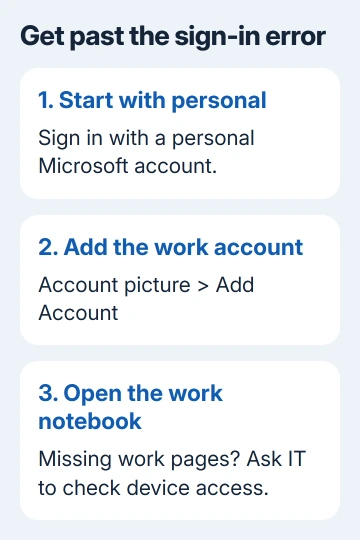
Microsoft's Android sign-in instructions confirm the current account-picture and Add Account controls. Owners confirmed the personal-account-first workaround in older reports.
Several owners with this exact error reported success after using that order. It got them into the app and let them open their work notebook without starting the session through the failing work-account sign-in.
Open a few pages to check that the work notebook is available. Seeing your work address in the account list isn't enough. Another owner could add their work account but still saw no work notebooks.
The notebook stays in its work location; this sign-in order doesn't move company notes into personal OneDrive or give you extra permissions. If it still won't open after you add the account, check organizational access in step 3.
2. Break the Retry or Close loop without resetting data
A Retry or Close screen on every launch can keep you from reaching the account controls. One owner got far enough into OneNote to choose an account by temporarily disconnecting the device from the internet.
Turn off Wi-Fi and cellular data, then open OneNote again. If the app now lets you reach account settings, choose the correct account. Restore internet access when it's time to complete the sign-in.
On a Wi-Fi-only tablet, disconnecting Wi-Fi is enough to try this. On a phone, turning off Wi-Fi alone leaves cellular data available, so the app may still attempt the same online sign-in.
The owner reported that reconnecting was necessary to finish signing in. Going offline briefly lets you reach the account controls before the startup sign-in fails. You'll still need to reconnect to open cloud notebooks.
If the same error still blocks the screen while offline, reconnect and move to the access checks. Repeated network changes won't show whether the notebook itself has been damaged.
I'd try this before reinstalling, because it changes the connection without removing the app's stored notes. This worked in an older Android report, but the current app may still keep its account controls out of reach.
3. Check company or school device access
An organization can allow browser access while restricting mobile apps or unmanaged devices. In the original discussion, one owner learned that workplace security rules prevented access from devices that weren't registered.
If your organization uses Intune Company Portal, open that app with your work account. Select Devices, choose this device and tap Check device settings. Wait on the device details screen for the result.
Apply the settings changes Company Portal requests, then repeat its check. A result of Not in Compliance means the device isn't allowed to access work or school resources under those requirements.
The Company Portal compliance steps distinguish that status from In Compliance and from access that's temporarily allowed while action is required.
One owner restored OneNote access by unregistering and registering their device with Intune again. Ask IT to handle registering the device again, since removing its management affects other work apps too.
If OneNote displays a permission message after sign-in, use the notebook access checks. An account appearing in the app doesn't override a restriction on the notebook or device.
4. Check the work notebook and its storage setup
Open the work notebook in a browser with the same work account. If it won't open there, give IT that result before resetting the Android app. A fresh app installation won't change which notebooks your account can access.
For a newly created work account, ask IT to check that OneDrive is available and that its storage space has been set up. The original discussion included this check, but didn't confirm it as the fix for every affected account.
Avoid buying a different Microsoft 365 plan based on that old thread's license names. Have your administrator check the services assigned to your current account and whether they include the notebook's storage.
If the notebook opens online but not on the phone, compare its account and location. Recovering a missing notebook separates reopening from restoring deleted notes.
5. Reinstall only after protecting unsynced pages
A separate owner reported that reinstalling OneNote resolved the error on an Android device. Another reported repeated clearing and reinstalling without success, so treat this as a later option rather than a reliable cure.
Before uninstalling, confirm that recent phone notes appear in the online notebook or save those pages elsewhere. Uninstalling can erase locally stored work before it has uploaded.
Open Google Play Store, tap your profile, choose Manage apps & devices > Manage, select OneNote and tap Uninstall. Reinstall OneNote from its Play Store listing, then choose the intended account when the app starts.
If your organization manages the OneNote app, ask IT to reinstall it through their approved method. Don't remove Outlook, other Microsoft apps or every account from Android just to force OneNote to ask for credentials.
Report the blocked sign-in with its account details
For an organizational account, use the Support tab in Company Portal or your IT help desk. Provide 0xE0001068, the Android and OneNote versions, the account type, device compliance result and whether the notebook opens online.
When a personal Microsoft sign-in still fails, use OneNote's Help feedback or Microsoft support. Explain whether the app closes immediately or lets you sign in but shows no notebooks.
The Short Version
Try a personal Microsoft account first, then Add Account for work. If Retry or Close hides the controls, briefly disconnect and reconnect to choose the account. Check company device access, and protect unsynced notes before reinstalling.
Checked November 21, 2026.
 If you have any business, I can build it online