OneNote's permission error can mean a blocked account, the wrong account, or missing editing rights. Open the notebook in your browser first: a security prompt calls for account recovery, while a read-only notebook needs an access check.
An owner who suddenly lost access to their own notebook recovered it after discovering an unusual-activity block and resetting their password. Start with that account check before changing the notebook or reinstalling OneNote.
In this guide
1. Check whether the account itself is blocked
Keep the existing OneNote notebook open while you check. A page that still displays in the app can be a stored local copy, even when the account can no longer reach its online notebook.
Open a browser and use the notebook owner's Microsoft account to sign in. For a personal notebook, use account.microsoft.com, then open OneDrive and locate that notebook. For a work notebook, use your organization's Microsoft 365 account.
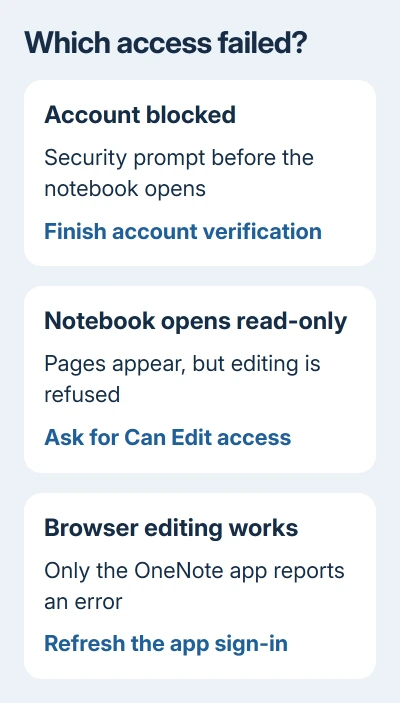
Read what happens at sign-in. A locked-account or unusual-activity message means the account needs attention before OneNote can connect again. Repeatedly clicking the error banner inside OneNote won't remove an account block.
Follow the verification or password-reset prompt shown for your account. If you need a password reset, open account.live.com/password/reset and choose one of that account's existing recovery methods.
The original owner found this block only after trying another notebook. Their usual notebook had opened automatically, making the failure look like a permissions change to that notebook alone.
Microsoft's locked-account instructions cover sign-in and reinstatement. If the screen gives an aka.ms appeal link, use it rather than repeatedly requesting password resets.
Once browser access returns, click OneNote's sign-in or sync error. Enter the updated password when asked. Check that the notebook accepts edits and syncs, rather than stopping after a successful account login.
2. Match the notebook to the correct account
Your browser may be using a different account from OneNote. This is especially easy to miss when personal and workplace Microsoft accounts use similar names or email addresses.
Check the account displayed in OneNote. On Windows, open File > Account. On a Mac, use the account information in OneNote; compare the full email address with the account that opened the notebook online.
In the browser, check the profile menu as well. Open the notebook from its actual OneDrive or SharePoint location, rather than an old browser tab that might belong to another signed-in account.
If the intended account isn't present in OneNote, add it through the app's account controls. Then open that account's notebook. Don't create an empty notebook named after the original and expect the original pages to appear.
Click the app's sync error again after adding the account. A refreshed sign-in can restore access when stored account information has expired. If the browser also refuses the exact notebook, continue with its sharing permissions.
3. Restore editing rights with the owner
A notebook that opens in the browser but won't accept edits can have view-only access. Your Microsoft account can be working normally while the notebook's owner has removed your editing permission or replaced a sharing link.
Ask the owner to locate the notebook in OneDrive, right-click it, and choose Share > Manage Access. They should check your specific account under People, or the permission attached to the link under Links.
The permission needs to be Can Edit, rather than Can View. If an old link was removed, ask for a fresh invitation addressed to the account you actually use in OneNote.
Open that invitation and check that you can change a page in the browser. Once browser editing works, reopen the notebook in the app if needed. A missing invitation won't be repaired by resetting Windows file permissions.
For a notebook stored on a school's or employer's SharePoint site, ask the site owner or IT team to check access at that location. They may need to restore site membership rather than change a personal OneDrive link.
4. Refresh the app without risking unsynced notes
If you can edit in the browser but OneNote still shows the old permission error, click the error message to sign in again. When prompted, enter the account linked to that notebook, then let synchronization finish.
On desktop OneNote for Windows, open File > Info > View Sync Status to read the notebook's full error. Note the code as well as the wording. A separate 0xE000002E sync error needs its own refresh steps.
Before closing a notebook or signing out, copy any changes missing from the browser to a safe document. Once those changes are safely copied, you can close and reopen the notebook.
Use the notebook's menu to close the affected notebook, then open its online copy and choose Open in OneNote. This refreshes the connection to that notebook, rather than replacing the whole app.
Compare a recent page after reopening. The browser and app should contain the same new text. On a Mac, a notebook still saved offline needs sync checks rather than another permissions change.
When access still fails
If the account is locked, continue through the reinstatement link on the sign-in screen. For a shared notebook, send the owner the exact account address, notebook link and whether browser editing is allowed.
For an app-only failure, find support through OneNote's Help menu. Send the app version, full error code and browser result. Mention any changes that haven't synced so the adviser knows that work needs protecting.
The Short Version
Resolve a browser account block first, match OneNote to the notebook's account, then check Can Edit permissions. If browser editing works, refresh the app's sign-in and protect unsynced changes before reopening the notebook.
Checked November 21, 2026.
 If you have any business, I can build it online