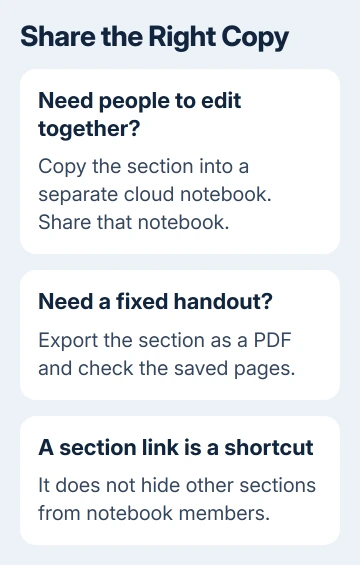
No, OneNote doesn't give a section its own sharing permissions inside a notebook. To collaborate on just one section, copy it into a separate notebook and share that notebook; for a read-only handout, send an exported copy instead.
A link that opens a particular section is only a shortcut to that location. It doesn't keep the other sections private from someone who has access to the notebook.
In this guide
Choose between live collaboration and a fixed copy
Decide whether the recipient will edit alongside you or simply read the notes. A separate shared notebook supports ongoing work. An exported document captures the notes as they were when you saved it.
Keep private and shared material in different notebooks when they need different audiences. Section names, section groups and links organize a notebook; they don't create separate invitations for each part of it.
Microsoft's notebook sharing guidance warns that people you've shared with can see the whole notebook through a section link. Choose the notebook's contents before you choose its recipients.
This matters for a student notebook containing both class notes and private material, or a work notebook holding several clients. Sending a link to the right section doesn't restrict someone to the intended project.
If a notebook is already shared too broadly, review its access before adding anything sensitive. Copying one section into a new notebook won't cancel permission you've already granted to the original notebook.
Copy the section into a new notebook on Windows
Open the Windows desktop version of OneNote and create a notebook through File > New. Choose OneDrive or your organization's SharePoint location so it can be shared. Give it a name that clearly identifies the shared project.
Keep the original and new notebooks open. In the original notebook, right-click the section's tab and choose Move or Copy. Select the new notebook as the destination, then choose Copy.
Choose Copy to keep the original section available for comparison. If you move it straight away and an attachment arrives in the wrong place, it's harder to compare the two.
Open the copied section and check its page list. Inspect important attachments, handwritten notes and long pages. Then let the new notebook sync and confirm that the copied material appears in its online version.
The current Windows desktop app uses this notebook and section approach, as do older desktop editions such as OneNote 2013. OneNote for Windows 10 is a retired app; don't install it to follow old sharing instructions.
If a desktop export fails while you're preparing a separate copy, the OneNote package export repair covers that specific error. Moving a section into another notebook doesn't require a whole-notebook package export.
Share the new notebook with the intended people
Open the new notebook before using Share > Share Entire Notebook. Check its name in the sharing window. Choosing the wrong notebook here can expose more notes than you meant to send.
Enter the recipients' names or email addresses. Choose viewing or editing permission, add a message if needed and select Send. Choose editing permission only when they need to change the shared notes.
Ask one recipient to open the invitation using the account you invited. They should see the new notebook and its copied section. Test with their account rather than your own owner account, which can already access the original.
If the invitation doesn't arrive, use the missing OneNote invitation steps. Check delivery separately from the permissions: a message can be missing even though access was granted correctly.
From this point, make collaborative edits in the new notebook. The original and copied sections are separate. Editing either section leaves its separate copy unchanged.
I'd rename the original section to make that distinction clear if you need to retain it. Otherwise, it's easy to keep writing privately and wonder why the people in the shared notebook can't see your changes.
Send a section as a document when editing isn't needed
In the Windows desktop app, select the section you want to send and choose File > Export. Under the export selection, choose Section, then select a suitable offered format, such as PDF, and save it.
Before sending the export, open it. Inspect both ends of long pages and any material arranged far across OneNote's canvas. Even when all the notes are there, awkward page breaks can make them hard to read.
Review the entire section, including pages you don't usually open. Selecting Section means you're exporting its contents, not just the page currently on screen. Remove private material from the copy you plan to distribute.
A PDF gives the recipient a fixed document without access to the notebook. It doesn't provide live collaboration, and later edits in OneNote won't appear in the file you've already emailed or uploaded.
Keep important attachments separate if the recipient needs to open or edit them. A visible attachment icon in an exported page isn't a substitute for checking that the recipient actually receives the original file.
Mac, web and phone sharing use the same notebook boundary
On Mac, File > Share > Invite People to Notebook shares the notebook, with an editing choice for recipients. It doesn't turn the selected section into a private sharing area. Use a separate notebook for a separate audience there too.
The web and iPhone apps also share whole notebooks. Android doesn't offer notebook sharing in the app; use a PC, Mac or the web for that. These options share notebooks, not individual sections.
If your app doesn't offer the section-copy or export controls described here, prepare the separate notebook in the desktop app.
For a single page, a send-copy or PDF option can be enough. Check the command's result: sending a copy is different from sending an invitation, and a notebook link gives access to the notebook, not just one page.
Don't follow old instructions promising public single-page sharing from personal notebooks. That feature was removed. The practical choices are a separate notebook for collaboration or a static copy for reading.
Check access when the information is sensitive
Use the notebook's sharing controls to review existing recipients and links. If an old notebook was shared accidentally, remove its unwanted access as well as creating the new one. Ask workplace IT for help if policy hides those controls.
Tell IT which notebook must stay private, which section needs collaboration and which people should edit it. They can then help set up the right access without relying on a section-only sharing feature OneNote doesn't have.
The Short Version
Copy the section into a separate cloud notebook for live sharing, or export it for a fixed handout. A section link doesn't hide the rest of the notebook. Check the new copy and the original notebook's access before sending anything.
Checked November 21, 2026.
 If you have any business, I can build it online