OneNote 2013 can keep uploading after a large printout import even when the pages already appear online. Check that your newest notes reached the web copy, then close and reopen the affected notebook to reset its sync connection.
If the web copy is missing pages, save those pages elsewhere first. The spinning icon alone won't tell you whether OneNote is uploading the same material again or still sending new notes.
In this guide
1. Check what actually reached the notebook online
With the troublesome notebook open in OneNote 2013, choose File > Info. Copy the web address shown for that notebook, then open it in your browser. Use an account with access to those notes.
Find the most recent pages, especially the material added through Send to OneNote. Compare the end of a long printout as well as its first page. A notebook title appearing online doesn't mean the entire import arrived.
In the original report, a 226-page printout produced an approximately 60 MB local section, yet the owner saw 1.9 GB uploaded while sync never finished. Those are that person's figures, not a normal upload size to expect.
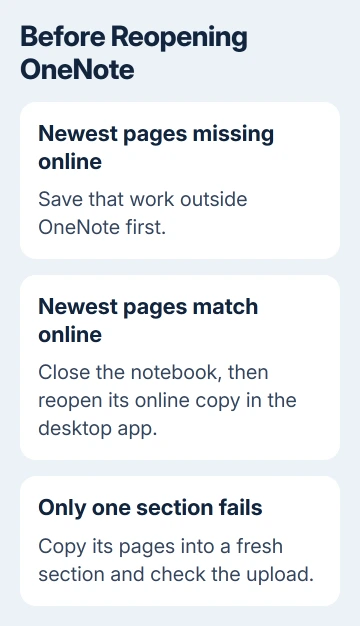
What matters is whether the online pages match your desktop copy. If they do, the desktop sync connection may be stuck. If they don't, save the missing changes before closing the notebook.
If that notebook also refuses to open online, check the account and storage service with your administrator. For a OneNote permission error, restoring access comes before resetting the desktop connection.
2. Preserve pages missing from the online copy
Keep the desktop notebook open while you save missing text and attachments in separate files. For a printout, keep its original document too. It can replace the imported pages if those pages aren't recoverable later.
Inspect handwritten annotations and comments separately from the printed document. The source file won't contain notes you added afterward in OneNote. Copy or export that work while the desktop app can still display it.
In OneNote 2013, File > Export lets you choose the current page, section or notebook and an offered output format. Check the saved result before treating it as your spare copy, including any attachments or ink you need.
A PDF gives you readable pages; a OneNote-format copy keeps the notes in a notebook format. Don't assume a PDF preserves editable notebook structure or every attachment. Keep the original notebook until the replacement is checked.
I'd spend time checking the last edited pages before trying a cache reset. A repeated upload is inconvenient; losing the notes that never left the PC is much harder to put right.
For a notebook that has actually vanished from the list, use the missing notebook recovery steps. The sync procedure here assumes the desktop can still open the affected material.
3. Read the sync result before changing settings
Choose File > Info > View Sync Status. In the Shared Notebook Synchronization window, find the affected notebook and note its message. Expand any warning to see whether the failure names a particular section or an error code.
Select Sync Now for that notebook. Let it run without starting more imports or making changes on several devices. Large notebooks and first-time transfers can need time, so look for progress rather than just the spinning icon.
If the status becomes up to date, check that a small new edit reaches the online page. That confirms new changes are syncing again. If an error appears, write down the full code to give support the specific error.
The old thread suggests automatic sync, but the follow-up says uploads continued and the notebook never became up to date. Switching between manual and automatic sync wasn't a confirmed fix.
Closing the sync-status window also isn't the same as closing a notebook or quitting OneNote. The original report saw uploading continue after that window closed. Use the notebook controls in the next section once your notes are safe.
4. Reopen the notebook from its online copy
Microsoft's sync repair instructions explain that closing and reopening a notebook can reset the connection. They also warn to copy unsynced recent work before doing it.
Return to File > Info and keep the copied notebook address handy. Beside the affected notebook, choose Settings > Close. Close only that notebook; leave unrelated notebooks and OneNote's storage folders alone.
Open the copied address in the browser. From the online notebook, choose Open in Desktop App. Older web versions called the command Open in OneNote. Accept the request to open OneNote and let the notebook reconnect.
One owner reported that closing the notebook and opening it from the web app worked. Other replies describe continued trouble, so use the online comparison to decide whether your own notebook recovered.
Check Sync Status again after the notebook opens. Then make a small, recognizable edit and confirm it appears online. The app can reopen even when uploads still fail, so check that the edit reached the web copy.
5. Repair one failing section separately
If Sync Status singles out the section containing your printout, create a new section inside the same notebook. For each troublesome page, use its Move or Copy command, choosing Copy.
Press Shift+F9 to sync the notebook, then open the new section online. Check that its pages and annotations arrived. Copying keeps the old section available while you test the new one.
Only remove the original section after the new copy is complete and readable. If both sections fail, stop making duplicate imports and give support the section name and exact sync error.
Microsoft has retired support for Office 2013. For ongoing use, move to a supported OneNote edition rather than relying on repeated repairs to this old client. Preserve the desktop-only material before changing installations.
Get help with the failing upload
Use OneNote's Help support route, or ask your workplace administrator to check notebook syncing. Provide the error code, section name, printout source size and whether the newest pages appear online.
Explain whether all notebooks fail or only the one containing the import. That gives support a concrete problem to work on without asking you to delete a cache containing notes that haven't uploaded.
The Short Version
Compare the newest desktop and online pages. Save missing work, read Sync Status, then reopen the notebook through its web copy. If one section fails, copy its pages into a fresh section and verify the upload before removing the old one.
Checked November 21, 2026.
 If you have any business, I can build it online