

PowerPoint 2021's Symbol button can stay gray in an empty text box even with a flashing caret. Type a letter or a space first, then try Insert > Symbol again. An owner running Windows 11 got Symbol working with that extra keystroke.
If it stays dimmed even while you can type, Windows Character Map lets you paste the character without using that button. An active Equation button doesn't mean Symbol has the text selection it needs.
In this guide
1. Put the cursor inside ordinary slide text
Choose Insert > Text Box, then drag out a box on your slide. Click inside it and type a short word. The important difference is between selecting the box's outside edge and editing the letters inside it.
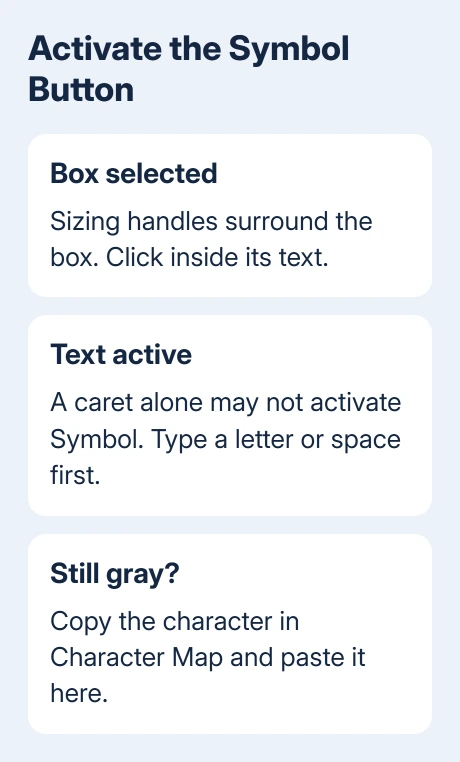
Sizing handles mean you've selected the whole box. A flashing vertical caret between letters means you're editing text. With that caret visible, open Insert > Symbol and see whether the button is available.
Use the Text Box command on Insert, rather than a control from the Developer tab. Developer controls handle a different task; they aren't the ordinary slide text box used for this check.
Try an existing title placeholder too: click after its text, type a letter and check Symbol. If it works there, the original object or its selection is causing trouble, rather than all slide text.
One owner confirmed that a flashing caret was already present. Entering any character, including a space, activated Symbol. If clicking inside the empty box hasn't helped, the typed character is the important extra step.
Their Windows 10 installation didn't need that keystroke. Another Windows 11 owner also didn't need it, so this isn't a rule for every Windows 11 PC. If typing still leaves Symbol gray, use Character Map next.
2. Paste the character from Windows Character Map
Press Windows key + R, enter charmap and press Enter. This opens Character Map, the Windows tool that shows characters in an installed font. It works independently of PowerPoint's dimmed ribbon command.
- Select the font you want in Character Map's Font list.
- Double-click the character so it appears in Characters to copy.
- Select Copy.
- Return to PowerPoint, click between letters in your text box and press Ctrl + V.
Microsoft's own steps describe copying with Character Map as a way to insert characters into programs that display them. You're inserting text, so the result should sit with the surrounding letters.
I'd use this route before reinstalling Office when a presentation needs finishing. It gets the character onto the slide while giving you time to work out why the ribbon button isn't working afterward.
Check the pasted result at the size you'll actually present it. A tiny character can look like the right symbol while differing in shape or meaning, especially with mathematical notation and specialized fonts.
If it arrives as a square, select that character and apply the font you chose in Character Map. A font without the required character can't draw it correctly, even when the paste itself succeeds.
For a check mark specifically, the PowerPoint check-mark choices explain when a text character, a list bullet or a separate icon fits the slide better. Those are different types of slide content.
3. Separate a dimmed button from a missing character
A gray Symbol button and a symbol missing from the dialog are different problems. A gray button means you can't open the command. A missing symbol means the selected font doesn't contain that character.
If the dialog opens, select a font that contains the character you need. Don't assume every font includes the same Greek letters, technical signs or private symbols. Switching fonts can change the available selection.
Select the character, choose Insert, then close the dialog when you're finished. The character goes wherever your text caret is, so check that it landed in the right sentence rather than a different placeholder.
For a superscript or subscript character, the Windows dialog also has a Subset list. Choose Superscripts and Subscripts when using a suitable text font, then select the required character.
A character's position and its design are separate decisions. Formatting ordinary text as superscript isn't the same thing as selecting a dedicated superscript character, so use the method your document or formula requires.
If the dialog works but only a custom symbol fails on another computer, read the private symbol font checks. That problem follows the font and receiving app rather than a disabled Insert command.
4. Test a blank presentation, then consider repair
Create a blank presentation and repeat the typed-word check in a new text box. Keep the original presentation open separately to compare that action without changing its design.
If Symbol works in the blank file, check the original presentation and its object. Send support a copy with only the affected slide and private content removed. That points to a problem in that file rather than the Office installation.
If both files fail, record File > Account > About PowerPoint, including the version and build. The original report involved Office Home and Student 2021 on Windows 11; another Windows 10 installation worked for that owner.
That comparison doesn't mean Windows 11 itself is broken. Safe Mode, Office repair and checking for updates didn't solve that owner's case; entering a character did.
For a failure across presentations, the normal maintenance route is File > Account > Update Options > Update Now. Save your work first. Retest the same blank slide after any update so the comparison stays useful.
If repair is still needed, Windows 11 offers it through Settings > Apps > Installed apps, the Office entry's three-dot menu and Modify. Windows 10 uses Settings > Apps > Apps & features, then the Office entry and Modify.
For Click-to-Run, the choices are Quick Repair or Online Repair. An MSI installation uses its own Repair option. Choose the route shown for your installation rather than looking for a button your setup doesn't have.
When the button remains unavailable
Use Help > Feedback in PowerPoint to report the disabled Symbol command, or open Microsoft's support contact route for Office. Include the build, Windows version, blank-file result and whether Character Map pastes correctly.
Ask for help with a disabled command while an editable text caret is present. That helps support tell this problem apart from a missing font, a protected presentation or a symbol that simply isn't in the chosen font.
The Short Version
Type inside a normal slide text box and check Symbol with the caret visible. If it stays gray, paste the character from Character Map. Compare a blank presentation before spending time repairing the Office installation.
Checked November 22, 2026.
 If you have any business, I can build it online






