

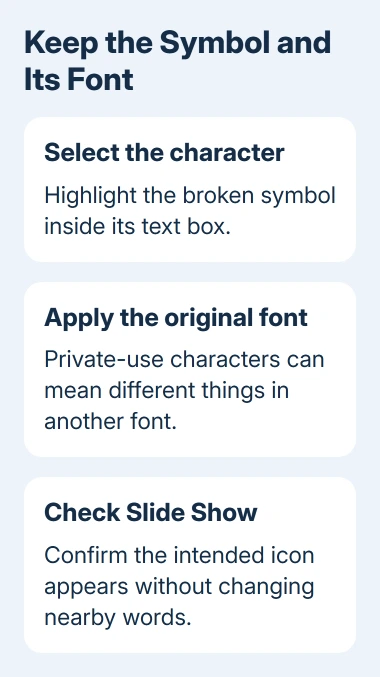
Missing private symbols in PowerPoint usually mean their custom font is absent or changed. Select the symbol and apply its original font. Private-use characters rely on that font's drawings; another can show a square or a different icon.
If the symbols work on your computer but fail after sharing, check font embedding. A presentation opened in a browser also has different font limits from the desktop app.
In this guide
1. Find the font that originally supplied the symbol
Select the actual character inside its text box, not just the box's outer edge. On Home, check the Font field. Compare it with a working copy of the slide or ask the person who made the presentation for the original font name.
A Symbol button that stays gray needs its text-selection checks before a missing character can be inserted.
Each custom icon font decides which drawing belongs to each private-use character. Switching the text to a familiar font doesn't necessarily recover the same icon, even when the character itself is still present.
A Mac command that stays as letters instead of becoming Greek needs the equation AutoCorrect checks.
If the font isn't installed, get the exact font and version from the presentation's creator or the font's official provider. Two releases of an icon font can use different names or character arrangements.
On Windows, open the downloaded font file and choose Install when permitted. On a Mac, open it in Finder and install it with Font Book. Quit and reopen PowerPoint if it was running during installation.
Select the affected character again and apply that font. If it becomes the intended symbol, the missing font was responsible. Check another slide before changing the whole deck, especially when words share a box with icons.
The PowerPoint font installation guide explains installing a font on Windows or Mac. Keep the original presentation until the repaired copy opens correctly.
2. Reapply the font only to the missing characters
If the font is installed but the symbol remains wrong, compare its name with the font selected on the character. A pasted icon may have picked up the destination text's font instead of keeping its original formatting.
Select only that symbol and choose the correct font from Home > Font. Leave adjacent words in their normal text font. An icon font applied to an entire sentence can turn ordinary letters into unrelated shapes or empty spaces.
Think back to any recent theme change or presentation-wide font replacement. The whole-deck font guide explains that broader operation; use it carefully when a deck also contains symbol fonts.
If you no longer have a working character, ask the creator for a slide or font specimen containing the exact symbol. Copy it from that working source, then apply its font. Don't pick a similar-looking square from an unrelated font.
Test the edited slide in Slide Show, not just in the editing window. A repaired character should display as the intended icon at presentation size, without changing the surrounding words.
If it works on your computer but fails on another, keep the character as it is and check how you're sharing the font. Replacing every symbol won't fix a missing font on the recipient's device.
3. Embed the font before sending an editable file
In PowerPoint for Windows, open File > Options > Save. Select the intended presentation in the font-sharing section, then enable Embed fonts in the file.
Choose Embed all characters when other people need to edit the deck. Embedding only the characters already used can reduce file size, but it limits editing with that font. Save the presentation after changing the setting.
Microsoft's font-embedding instructions explain these choices. Installing a font on your computer doesn't put it in the presentation file. You need to embed it, or the recipient needs access to the font too.
On supported Mac editions, including Microsoft 365, PowerPoint 2024 and PowerPoint 2021, open PowerPoint > Preferences > Save and enable font embedding. Choose all characters for an editable presentation, then save.
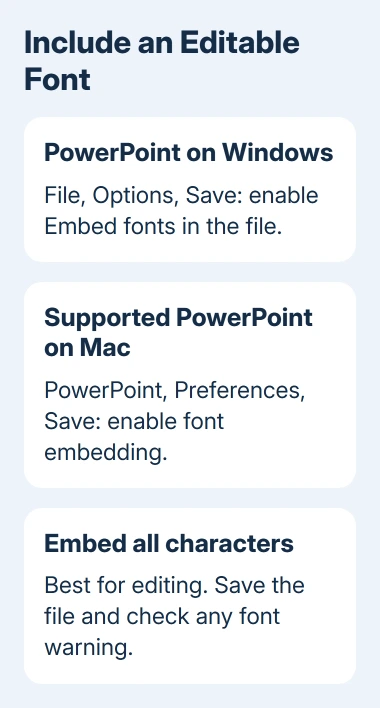
Reopen the saved copy and send that file, rather than an earlier attachment. Ask the recipient to check the problem slide in their desktop PowerPoint. You can then fix missing symbols before it's time to present.
If PowerPoint warns that a font can't be embedded, don't dismiss that warning and assume it traveled. Continue with the font's embedding rights or change the delivery format.
A persistent font-not-available warning during saving also calls for checking old references in the template's masters.
4. Check restrictions when embedding fails
Font creators can restrict embedding. A font can work on your computer but still block embedding or allow it only for previewing and printing. The presentation's creator may need to supply an allowed alternative.
On Windows, open Control Panel > Fonts, select the installed font, and check Font embeddability. On a Mac, inspect its information in Font Book; embedding information is available for many fonts, though it isn't shown for every font.
Ask the font provider what the license permits and whether an embeddable OpenType or TrueType version exists. Changing the file extension or copying the font into the presentation's folder doesn't change those rights.
If the license lets the recipient install the same font, ask them to install it and reopen PowerPoint. If that isn't possible, choose a different symbol source rather than sending a file that depends on a font they can't use.
For a symbol meant only to be seen, ask the creator for an approved image version. With a picture, the recipient won't need the font to see the symbol, but they won't be able to edit it as text.
5. Separate desktop sharing from the browser version
If the symbol works in desktop PowerPoint but shows a placeholder in PowerPoint for the web, check the desktop file first. The web app has a limited symbol set and displays a placeholder when the required font isn't available.
Use Open in Desktop App when your account and installed PowerPoint offer it. Confirm the original font is available there. Installing a font on one computer isn't the same as making that font available in a web service.
Don't keep replacing a working desktop symbol just because the browser can't display its font. For browser-based collaboration, use a symbol supported by that environment or a permitted image version of the custom artwork.
For a presentation that only needs viewing or printing, export a PDF and inspect the problem slides. Check the resulting file on the receiving device before relying on it. Keep the editable PowerPoint separately for future changes.
I'd ask the author for the original font before trying another icon library. A private-use character's number alone doesn't tell PowerPoint which drawing the author meant.
If the exact font still fails in desktop PowerPoint, send the font provider or your Microsoft 365 support contact a small sample slide. Include the font name, PowerPoint version, operating system and whether embedding produced a warning.
The Short Version
Apply the original font to the symbol. Install it if missing, then embed all characters for editable desktop sharing when licensing allows. A browser placeholder may need desktop PowerPoint or an approved image alternative.
Checked November 15, 2026.
 If you have any business, I can build it online






