A PowerPoint font-not-available warning means the file can't include a font used in the presentation. Replace the named font with an installed, embeddable family. If changing visible text doesn't clear it, check the slide masters too.
For a company template that must carry its fonts, turning embedding off only bypasses the requirement. The finished file needs fonts that allow embedding, with unwanted font names removed even from text that isn't on the current slide.
In this guide
1. Read the font name before changing the file
Make a working copy first, and record the warning's font names. Keep that list beside you as you work. The font causing the message may belong to an old template rather than the text you're looking at.
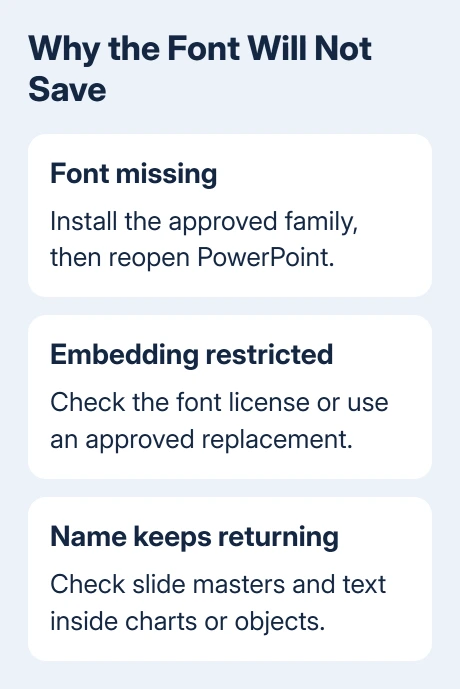
There are three useful questions: is that font installed, does its license allow embedding, and does the presentation still reference it somewhere? Installing a font answers only the first question.
Check the same family in another application's font picker. If it's missing there too, get the correct file from your organization or font supplier. Don't use a similarly named download from an unrelated source.
For a newly installed font missing only in PowerPoint, the PowerPoint font-list checks cover restarting the app and checking the installed family. Return to the save warning once the actual font is available.
If the file saves with embedding turned off, PowerPoint can save the presentation but is having trouble including its fonts. It doesn't mean the template is ready for colleagues who don't have the font.
2. Check whether that font permits embedding
In Windows, open Control Panel > Fonts, select the font and look for Font embeddability. The available permission levels include Non-embeddable, Preview/Print, Editable and Installable.
On a Mac, open Font Book, select the font and open its information view. Embedding information appears for many fonts, though not every font supplies it there. Ask the supplier when the permission isn't clear.
Microsoft's font embedding reference recommends OpenType or TrueType files and explains that font creators control embedding permissions. A .ttf extension alone doesn't grant permission.
For a corporate deck, ask your brand or IT team for approved Office-compatible font files and editing rights. A preview-and-print license doesn't meet the same requirement as an editable template.
If the supplier offers a suitable version, install it through the normal font installer and reopen PowerPoint. If the font can't be embedded under its license, choose an approved replacement instead of trying to override the restriction.
3. Replace the unwanted font throughout the deck
On Windows, open Home, expand the menu beside Replace and choose Replace Fonts. Select the unwanted family in Replace, pick the installed replacement in With, then choose Replace.
On Mac, use Format > Replace Fonts. Work through the exact names from the save warning, then save the working copy again. Read the new warning rather than assuming the same font is still responsible.
A replacement can alter line breaks and spacing. Check titles, narrow labels, tables and text that nearly filled its box. Even when the font replacement works, you may need to adjust a slide's wording or layout.
If the unwanted name disappears and the file saves with embedding enabled, close and reopen the copy before sharing it. Make sure both the text and the embedding setting survived the save.
If the name keeps returning, changing visible slide text wasn't enough. The asker tried replacing fonts on both Windows and Mac without removing the warning, which is why the next check matters.
4. Inspect slide masters and content inside objects
Open View > Slide Master and inspect the large master thumbnails and their layouts. Select title and body placeholders containing the old font, then apply the replacement. Repeat for every master used by the presentation.
The Slide Master > Fonts control changes the theme's font choices. Text formatted directly with a different family may need its own change, so don't stop after changing the theme name.
Notes masters and handout masters can hold font references too. Have the template owner inspect those when the warning survives slide cleanup, particularly in a template assembled from several older decks.
Use Close Master View to return to the slides. Save again and compare the font list in the warning. A shorter list tells you which fonts you've removed and which one still needs attention.
Charts and embedded objects can contain their own text. Open the chart or object in its editing view and check the lettering there. Replacing a slide's text isn't the same as replacing text stored inside another object.
I'd check notes and handout masters before deleting layouts. In a corporate template, an empty placeholder may still define the formatting colleagues need for future slides.
The existing font installation guide explains the difference between installing a font locally and carrying it with a shared presentation. For this save error, check both.
5. Save with the right embedding option
In Windows PowerPoint, use File > Options > Save. Find the Preserve fidelity section for your presentation and enable Embed fonts in the file.
On Mac versions that support embedding, open PowerPoint > Preferences > Save and use Font Embedding. Mac editions with embedding include PowerPoint for Microsoft 365, PowerPoint 2024 for Mac and PowerPoint 2021 for Mac.
Choose Embed all characters for a template other people will edit. The used-characters-only option can prevent recipients from typing additional text in that font, even though the existing slides look right.
Send a test copy to a colleague who doesn't already have your custom font installed. Ask them to open it and edit a short line, then inspect the layout. Keep the original template while checking that result.
When the same hidden font still blocks saving
Ask the organization's template owner or Microsoft Office support to inspect a sanitized copy. Include the exact font names, PowerPoint version, font file formats and the replacement steps already tried.
One owner eventually confirmed that cleaning the file's internal font references worked. Replacing visible text, trying a macro and even deleting slides and slide masters had left the warning in place.
Ask the template specialist to inspect the presentation's XML, the text files inside the PowerPoint package. They should unpack a copy, replace the exact unwanted font references throughout those files, then rebuild the original file type.
In that case, the unwanted names included .PingFang SC Regular and Helvetica. Those are examples from that template, not names to replace in every deck. Use the names in your own warning and an approved replacement family.
The package must be rebuilt from its contents, not with an extra enclosing folder. Ask for the repaired file to be reopened, saved with embedding enabled and checked for layout changes before sharing it.
The Short Version
Check installation and permissions for the named font, replace unwanted references, then inspect masters and embedded content. Save with all characters embedded for an editable template and test it on a computer without the custom font.
Checked November 22, 2026.
 If you have any business, I can build it online