Embedded GraphPad Prism graphs stopped opening in PowerPoint after a December 2023 WebView2 update. Prism 10.1.2 fixed that Windows failure. Update an affected older installation before trying the older administrator workarounds.
For a current installation, check whether the object is truly embedded and whether Prism opens by itself. Once access returns, save important graphs as separate Prism files rather than keeping their only editable copy inside a presentation.
In this guide
1. Match the error to the Prism version
The PowerPoint alert mentions a server application, source file or item that can't be found, or that returned an unknown error. Here, server application means the program opening the embedded object, not a website server.
Open Prism on its own and check its version through its About dialog. The reported December 2023 problem affected Prism versions 9.3.0 through 10.1.1, which used the affected WebView2 Windows component.
GraphPad's Prism 10.1.2 release notes identify the Windows-only repair, released December 14, 2023. They connect the failure to WebView2 build 120.0.2210.61 after the December 7 update.
In Prism, open Help > Check for Updates, then follow the offered update prompts. For a managed installation, ask IT to install a supported Prism release for Windows with the repair. Reopen the presentation copy afterward.
A follow-up owner reply confirmed that installing the GraphPad update resolved the problem. That supports updating before trying the older launch workarounds.
That older bug doesn't explain every embedded-object error today. If your Prism version already includes it, continue with the object checks rather than downgrading Windows or removing WebView2.
On a Mac, don't use these Windows OLE recovery instructions. OLE is the Windows feature that lets a presentation carry an editable object belonging to another program; the described Prism embedding workflow is Windows-only.
2. Confirm whether the graph is embedded or linked
Open Prism normally and try a separate known-good Prism project. If the program itself won't start or open its own files, get Prism working first. PowerPoint can't hand an object to a program that isn't working.
Next, test a second embedded Prism graph in a copy of the deck. If graphs fail across several presentations, the problem is broader than one damaged object on one slide. Note which happens on your PC.
An embedded graph carries its Prism data and results inside the presentation. A linked graph points to a separate source file. A moved or deleted linked source needs its source file restored or relinked instead.
If you're unsure which was used, ask the person who created the deck and locate any original Prism projects. Don't assume a visible chart is editable Prism content; a pasted picture can look identical while containing no underlying project.
For broader app trouble, Office repair is a separate maintenance option after saving your work.
For an object created by an older Prism version, right-click it in PowerPoint and choose GraphPad Prism Object > Convert. Select the installed Prism version, then try opening it. Keep the unconverted original copy.
If Word or Excel objects also fail, the general PowerPoint embedded-file checks cover a separate security-software conflict. The Prism-specific release fix doesn't explain every object type.
3. Save a standalone project as soon as it opens
Double-click an accessible embedded Prism graph. In Prism, choose File > Save As and save a separate Prism file with a name that identifies the presentation and graph. Keep the presentation copy as well.
Open that saved project directly in Prism and check the graph and its associated data. Check that you've saved an editable Prism project. Exporting a chart image won't let you edit its data later.
The embedded-graph extraction instructions describe this single-graph method. It preserves the sheets associated with the embedded graph rather than promising the whole original research project.
For many accessible graphs, that page also offers a PowerPoint add-in for Prism 8 or later on Windows. Its Backup Graphs command extracts objects into separate Prism files; Export Graphs to TIFF produces images instead.
Use the add-in only from that official download and follow its installation instructions with your organization's permission. The page names a Prism8.ppa file and the PowerPoint Add-ins manager, not a normal Windows application installer.
The extraction tool isn't a fix for every object that won't open. If the current Prism release still cannot access the objects, ask support for help before assuming batch extraction can recover them.
4. Use the vendor fallback when an update isn't possible
The current embedded-object support page gives this launch order when updating isn't possible. Save all work first so restarting doesn't discard edits.
- Restart Windows so PowerPoint and Prism are fully closed.
- Immediately start PowerPoint using Run as administrator. Don't open related apps first.
- Open the trusted presentation and double-click its embedded Prism graph. Let that action launch Prism automatically.
Don't launch Prism separately for this procedure. The order matters because Prism already running in the background can stop the workaround from working. On a managed PC, have IT handle the administrator step.
Older owners also confirmed a longer sequence that involved launching and closing Prism manually. Follow the current instructions first, since they specifically warn that a manual Prism launch can interfere with opening the object.
One owner recovered access while keeping a Prism window open, saved the projects separately, then lost access again after closing every Prism window. Use a successful opening to save your projects; arrange the update afterward.
Get the right help when the object still fails
Send GraphPad support a copy of one affected presentation with confidential data removed, plus the Prism version, Windows version and full alert. Explain whether standalone projects and other embedded graphs open.
If the graph is your only editable copy, say that clearly and ask whether they can recover the Prism project inside it. Avoid converting it to PDF as a data-recovery step. A readable chart doesn't restore its editable source data.
For a deadline that needs only a readable deck, keep a separate PowerPoint PDF export while support handles the project. Preserve the original presentation throughout that process.
The Short Version
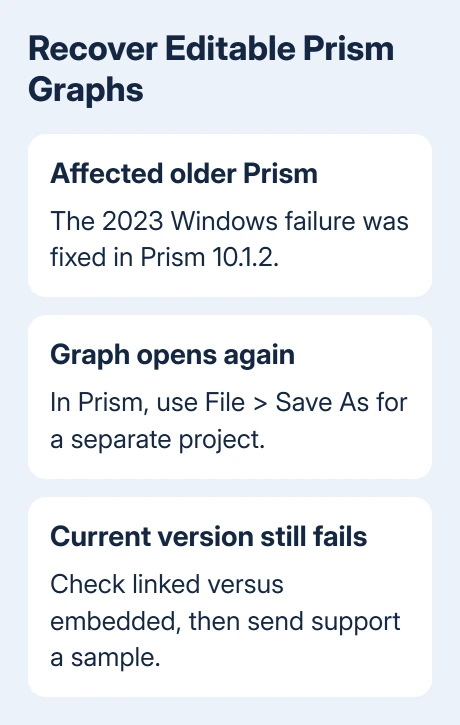
Update Windows Prism versions affected by the 2023 WebView2 failure. Check embedded versus linked content and save accessible graphs as separate Prism projects. Keep the vendor launch sequence as a fallback for trusted files.
Checked November 22, 2026.
 If you have any business, I can build it online