McAfee can stop PowerPoint from opening embedded files even when the presentation works on another PC. Owners recovered after removing the affected software and restarting; one also needed to remove WebAdvisor.
That's a useful place to start when every embedded Word, Excel or other document fails on one PC. Check for a single broken attachment, a missing source app or an object opened in the web viewer before you change security software.
In this guide
1. Check whether the failure follows this computer
Save the presentation and close PowerPoint when it asks you to restart. Reopen the same file in the Windows desktop app, then double-click the embedded object. Note the full message if it fails again.
The original report showed an error saying something went wrong that might make PowerPoint unstable. It affected existing presentations, locally stored copies and newly created objects on one Surface Pro 4.
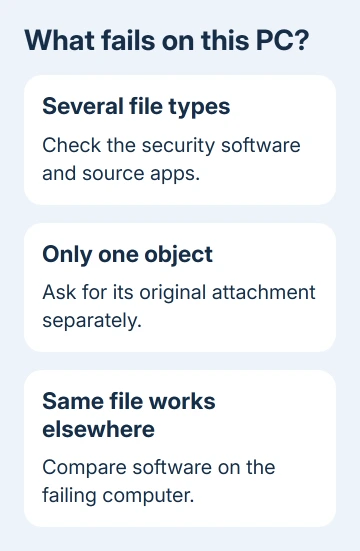
If you have access to another trusted computer, try opening the same presentation on it. The original files worked on other computers, which made changing their contents a poor first repair.
Next, open the file's source application directly. For an embedded Word document, start Word; for a workbook, start Excel. A program that can't open normally needs its own repair before PowerPoint can use it.
For embedded Excel objects failing in Word, the confirmed causes and controls differ. Keep track of which host app displays the error rather than treating all embedded-document failures as one problem.
If only one object fails while another of the same type opens, ask the sender for that original attachment separately. That way, you won't end up changing the computer's security software for one damaged attachment.
2. Test the confirmed McAfee conflict
Look in installed programs for McAfee Total Protection, McAfee LiveSafe or another McAfee product. Owners confirmed these fixes in 2017 and 2018. Having McAfee installed doesn't mean it's causing your error today.
On a company-managed computer, have IT handle the security-software change and replacement protection. Don't remove an organization's antivirus to get around its policy.
For Windows 11 on a PC you manage yourself, open Settings > Apps > Installed apps. Find the affected McAfee product, open its three-dot menu and select Uninstall. Follow the removal program's prompts and restart Windows.
In Windows 10, open Settings > Apps > Apps & features, select the McAfee product and choose Uninstall. If that entry won't remove it, the Windows uninstall instructions also offer Control Panel's Programs and Features route.
After restarting, open the same presentation and try the same embedded object. This got embedded files opening again for an owner on two Surface Pro 3 devices. The original asker later confirmed that removing McAfee restored opening too.
If the files now open, give IT or McAfee support your PowerPoint and McAfee versions before reinstalling the same package. Tell them which embedded files now open.
3. Look for WebAdvisor left in the apps list
If removing the antivirus suite didn't help, return to the installed-program list and search for WebAdvisor. Look for WebAdvisor by McAfee or McAfee WebAdvisor, even if the main McAfee product is gone.
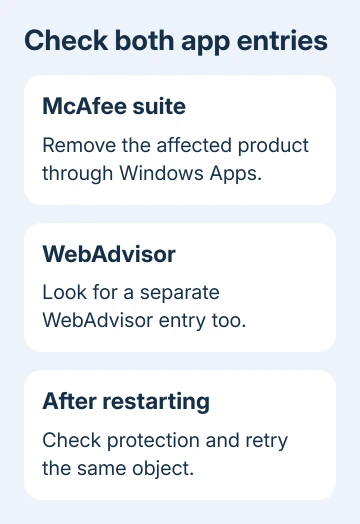
Choose Uninstall for that entry, follow its prompts and restart. Check that WebAdvisor no longer appears in the program list, then retry your saved presentation in desktop PowerPoint.
In the later report, an owner removed McAfee virus protection and reinstalled Office without success. They then found WebAdvisor, removed it, reinstalled Office again and restarted. Embedded Word, Excel and Minitab files opened afterward.
Test after removing WebAdvisor and restarting, before reinstalling Office again. The owner made those final changes together, so the report can't tell us whether the extra Office reinstall was necessary.
If the error remains, write down that both the suite and WebAdvisor are absent. Tell support what you removed, rather than saying the antivirus was switched off. Removing one component can leave another installed.
4. Confirm protection before returning to normal work
Open Windows Security from Start and select Virus & threat protection. Check the protection status. If no antivirus provider is active, restore protection before downloading or opening unfamiliar files.
Use Manage settings when Microsoft Defender Antivirus is the active provider and check its real-time protection setting. An organization's security settings may be managed by IT, so give them any warning rather than trying to override it.
The Windows Security protection controls show the available settings. Removing the conflicting product is a troubleshooting result, not a reason to leave the computer unprotected.
When you test PowerPoint again, use the same presentation from step 1. I'd keep the file and object unchanged while comparing the result, so a newly inserted attachment doesn't confuse the outcome.
5. Check a different object type or Office installation
If McAfee isn't installed, or removing its components didn't help, compare another embedded file type. If a Word object opens but a PDF fails, check the PDF application next. The failure isn't affecting every embedded object in PowerPoint.
Use the PowerPoint PDF insertion method to distinguish a picture of a PDF from an attached document. A picture on a slide has no original document to launch when double-clicked.
If several object types fail, tell IT before repeating Online Repair. The original report describes unsuccessful attempts with Safe Mode, clean boot, Protected View changes, Online Repair and reinstalling.
Leave Protected View enabled. Disabling it didn't fix the original case and changes how Office handles files from potentially unsafe locations.
Open File > Account > About PowerPoint and copy its version details. Tell PowerPoint Help support or your administrator which file types fail, whether the source apps open, and whether a second computer can open the same objects.
For an ongoing conflict, ask McAfee support about updates or removal for your installed version. For one damaged attachment, request the original from its sender instead of repeating Office repairs.
The Short Version
Compare the object on another PC. On the failing computer, check McAfee and WebAdvisor, whose removal helped owners. Restart, confirm active protection and retest before another Office reinstall.
Checked November 22, 2026.
 If you have any business, I can build it online