

PowerPoint's older Reuse Slides pane could show a search box instead of Browse, leaving network files out of reach. Safe Mode restored browsing for owners, including people whose privacy workaround had stopped working.
For current PowerPoint, check the New Slide menu and use a local presentation file first. The current import instructions support local files. Older advice about cloud search and privacy controls may not match what you see in today's app.
In this guide
1. Look for the local-file command in the New Slide menu
Open the presentation you want to add slides to in Windows desktop PowerPoint. Choose Home > New Slide > Reuse Slides, using the New Slide menu instead of relying on the ribbon's separate Reuse Slides button.
In the pane, look for Open a PowerPoint File. Select it, locate the source presentation in the Browse dialog and choose Open. Click a preview slide to insert it at your selected position.
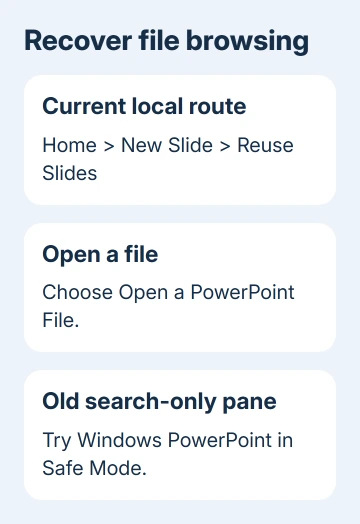
The current Reuse Slides instructions say importing from cloud files is deprecated. Save or download an accessible copy locally, then browse to that file instead of expecting the pane to search SharePoint.
A missing Browse control and a file that isn't in cloud search are different problems. If the file picker opens, the control is working. Check the local file's location and permissions rather than changing Office privacy settings.
On Mac, the route is also Home > New Slide > Reuse Slides, followed by selecting the presentation in the dialog. The Windows Safe Mode and Office Options steps in this article don't apply to the Mac app.
2. Open PowerPoint in Safe Mode on Windows
Finish saving, then quit PowerPoint. Hold Ctrl while opening PowerPoint from its shortcut. Keep the key held until the Safe Mode confirmation appears, then confirm that you want to start it that way.
Open the presentation you want to add to, choose where the slides should go and try Home > New Slide > Reuse Slides again. Look for Browse or the local file-opening control and select the source file.
If the Ctrl method doesn't bring up the prompt, press Windows+R, enter powerpnt /safe and press Enter. The space before /safe is required. Check PowerPoint's title bar for the Safe Mode label.
Owners confirmed this restored browsing in the final replies to the 2019 thread. I'd try it before reinstalling Office; another owner had already reported that repair and uninstalling didn't help.
If browsing now works, import the slides, save your results, then start a normal PowerPoint session. Check the imported material before sending it. Use Safe Mode to get the slides in, then return to normal mode for everyday editing.
If browsing works in Safe Mode, that doesn't automatically mean an add-in caused the problem. In the original case, disabling visible add-ins didn't restore normal browsing. The pane itself behaved differently in that startup mode.
3. Try the old sign-out sequence only on an affected build
If you're still using the older search-only interface and Safe Mode isn't practical, a temporary sign-out restored Browse for another owner. Save cloud work and make the source presentation available locally before signing out.
Open File > Account, sign out of the connected Office accounts, and restart PowerPoint. Open Home > New Slide > Reuse Slides before signing in again. The owner reported that Browse remained after they signed back in.
Another owner had to repeat sign-out after restarting the computer, so this repair didn't last on every setup. If the control disappears again, use Safe Mode or copy the slides directly instead of relying on that sequence every day.
On a managed work computer, ask IT before disconnecting the Office account. Signing out can affect the online services and files you use for work; the purpose is a short test of the old pane, not running Office permanently signed out.
Record the version under File > Account > About PowerPoint. The name Office 2016 wasn't enough to tell which pane owners had. Subscription Office builds changed how the feature worked over time.
4. Avoid a privacy fix whose controls have changed
The accepted 2019 workaround disabled Office Intelligent Services, Automatically show me design ideas, and a Trust Center option allowing Office to connect to online services. Several owners confirmed it restored Browse on their builds.
The privacy fix worked for one owner in version 1903, then failed in 1904 because the old checkbox was gone. Disabling optional connected experiences didn't help them either.
Don't substitute every current privacy switch for those old controls. Their names, effects and availability differ. Changing unrelated services is a poor way to recover a file picker when a working import route is available.
If IT still manages one of these older installations, give them the build number. Explain whether you see the old search pane or the local Browse pane. They can check whether a supported update is available for that installation.
I'd use the Safe Mode import before changing the organization's update channel. Owners discussed switching channels in 2019, but that isn't a suitable general repair for a current company installation.
5. Bring in the slides without the Reuse pane
Open the source and destination presentations side by side. In the source file, select slide thumbnails in the left pane, rather than selecting text or objects on the large slide canvas.
Copy the selected thumbnails, switch to the destination and paste after the intended slide. Choose Keep Source Formatting to retain the incoming design, or Use Destination Theme to match the receiving presentation.
The complete slide-copy method explains selecting several slides and choosing the insertion point. It gets the content across without depending on the faulty Reuse Slides pane.
Check charts, notes and media in the finished presentation. If type wraps differently after import, check PowerPoint font installation rather than shrinking every text box to compensate for a missing font.
Give IT or PowerPoint Help support your version, the Safe Mode result and whether the source opens normally. Say whether the local picker is missing or just can't reach the file.
The Short Version
Try New Slide > Reuse Slides with a local file. For the older search-only pane, test Safe Mode. Sign-out and privacy fixes had limits; copy slide thumbnails directly if you need to finish now.
Checked November 22, 2026.
 If you have any business, I can build it online






