
Saving PowerPoint as a PDF creates a version people can read without opening the presentation in PowerPoint. On Windows, use File > Export > Create PDF/XPS Document, then select Create PDF/XPS and review the output options.
Keep the original presentation for future edits. A PDF is useful for distributing slide pages, but it does not replace a running slide show when timing or playback matters.
Export the presentation from Windows
Save the current deck first. Open the export route and choose a filename and folder for the PDF. Confirm PDF is selected in Save as type, especially if the dialog also offers XPS.
Microsoft documents this conversion in its presentation export instructions. Select Open file after publishing when you want the result to open for inspection immediately.
Status: PowerPoint PDF export documented by Microsoft, checked November 1, 2026. Windows, Mac and browser routes differ. No presentation was converted during preparation.
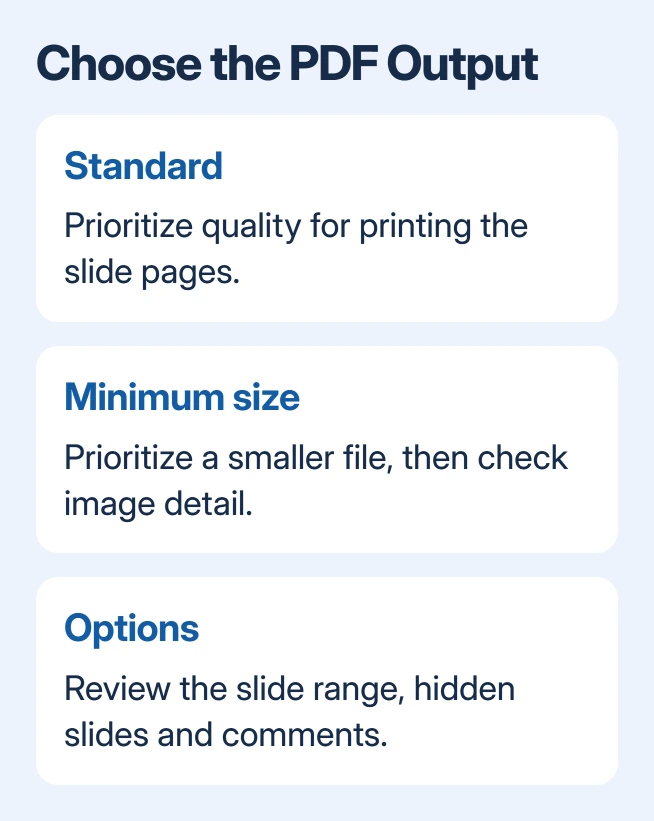
Under Optimize for, choose Standard when print quality matters. Choose Minimum size when a smaller attachment is the priority, then inspect small text and images in the saved result.
Open Options before publishing. Confirm the slide range and the type of content selected under Publish what. Review the choices for hidden slides and comments so material intended only for preparation is not included accidentally.
Select OK, then Publish. Open the saved file and compare its first and last pages with the intended range. Check a detailed slide as well, rather than judging only the title page.
For a presenter copy containing speaker text, use the separate PowerPoint notes-page instructions to understand that layout before choosing the output.
Save a PDF on Mac or in a browser
In PowerPoint for Mac, choose File > Save As, then select PDF in File Format. File > Export offers the same format choice. Pick the destination and complete the save or export.
In PowerPoint for the web, Microsoft gives File > Export > Download as PDF in its PowerPoint PDF guide. Save the downloaded file where it can be found again.
Microsoft says the Mac PDF export has fewer options than Windows, including limitations for handouts, notes and hidden slides. A missing Windows export option on a Mac is not evidence that the presentation is damaged.
That same page warns that Mac PDF export does not preserve hyperlinks. When clickable links are required, Microsoft's alternative is to save the deck to OneDrive and download its PDF through PowerPoint for the web. Test the resulting links.
Check what the recipient will receive
Read the PDF in a PDF viewer before sending it. Look for clipped text, unwanted comments, unexpected pages and missing links. Keep the editable deck alongside it so an error can be corrected at its source.
A PDF is not a protection against editing. Microsoft states in its Office PDF guidance that other software can edit PDF files.
For an unattended display that must repeat, keep using the PowerPoint looping controls. Sending a PDF does not carry those slide-show settings into a presentation player.
If one deck exports incorrectly while a simple new deck works, give Microsoft Support a nonprivate sample and the PowerPoint version. Include the PDF and selected export options so they can compare the result.
The Short Version
Export to PDF, choose the intended range and content, and inspect the saved pages. Mac and web have their own routes. Preserve the PowerPoint source, and verify links before distributing the PDF.

Isaac Smith is the founder and editor of PC Glance, a website that covers computers, laptops, and technology. He is a tech enthusiast and a computer geek who loves to share his insights and help his readers make smart choices when buying tech gadgets or laptops. He is always curious and updated about the latest tech trends.