To save a OneNote page as a PDF on iPad, use Share > Send Copy of Page > Send with Another App. Choose Create PDF when offered, then save it to Files so you can upload or attach it.
This works one OneNote page at a time. Repeat the export for each page you need from a section. Keep the notebook as your editable original. A notebook sharing link gives ongoing access to your notes instead of a separate file.
In this guide
Open the page that should become the file
In OneNote, open the notebook, select the section, then select the page. Check the page title and scroll through its content. It's easy to save the wrong page and only notice when you open the file.
Wait for the text, handwriting and pictures you need to appear. If a recent change is missing on the iPad, fix that before exporting. The PDF can only include what's available in the app when you create it.
For notes that exist on a computer but haven't reached the iPad, use the OneNote iPad syncing steps. Opening a second notebook with a matching name won't bring the original content into it.
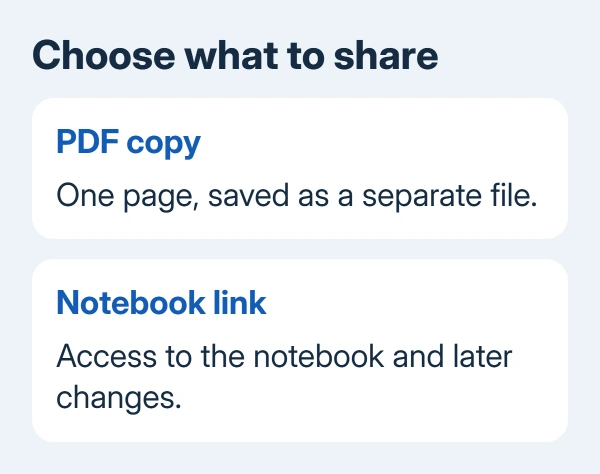
Check whether the person receiving your notes needs a copy to read or wants to keep editing with you. A PDF suits a handout, an assignment upload, or a fixed copy for reference. It won't receive later edits made in your notebook.
If they need to edit the actual notes with you, use notebook sharing instead. Review who will gain access before sending that invitation, particularly when other pages in the notebook contain private material.
Create the PDF using the page sharing menu
Tap Share at OneNote's upper right, then Send Copy of Page > Send with Another App. In the sharing choices, select Create PDF when offered. The PDF preview shows a copy of the current page.
Microsoft's iPad page-sharing instructions show how Create PDF turns the current page into a document. This is a mobile sharing command, so don't look for Windows' File > Export menu.
Check the PDF preview before leaving it. Scroll through the entire document and look at handwriting, images and the end of the notes. One long OneNote page can produce more than one page in the exported document.
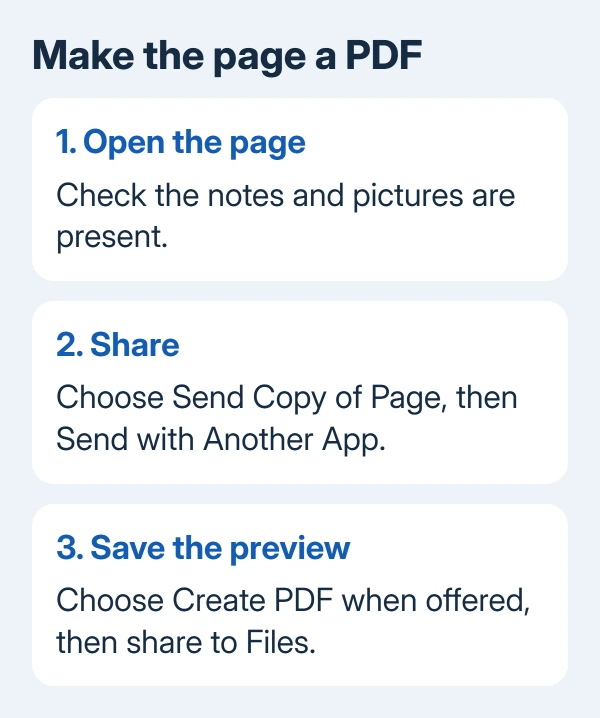
If the menu offers Invite People to Notebook or Copy Link to Notebook, you're looking at access-sharing choices. Choose the copy-of-page option again when you want a file for saving or uploading.
If the sharing panel already offers Save to Files for the generated page, use it to save that copy directly. With Create PDF, check the preview before choosing where to send the document.
Save the generated document to Files
In the PDF preview, tap Share. Find Save to Files among the available actions. Expand the action list or scroll through it if the option isn't initially visible.
Choose a folder under On My iPad for a local copy, or a folder in iCloud Drive when you want it available through iCloud. Other storage services can appear when they're set up in Files.
Name the document clearly, such as the subject and date, then tap Save. Note the folder you selected. Saving gives you a file you can choose later. Opening a preview inside OneNote doesn't save that file for you.
Open the Files app and browse to that same location. Tap the PDF to check that it opens. If you can't remember the folder, use Files' search field with the name you gave the document.
I'd open the saved copy before submitting it. That way, you know the PDF looks right and where to find it. Don't assume opening the preview saved it somewhere.
If Files shows a different or older copy, compare its name and location with the save destination. A document in iCloud Drive and another under On My iPad are separate copies even when their names match.
Attach, upload, or print the copy you saved
For an assignment upload, choose the attachment control and select the saved PDF in Files. Confirm the displayed filename before submitting. Use the document itself when the form requires an attachment.
For email, share the PDF from Files to your mail app, or attach it with the file picker. Check the address and attachment. The recipient gets this saved version, so export again if you change the notes.
To print the PDF preview, use Share > Print. Choose a compatible printer. Confirm the selected pages and requested copies before tapping Print. For a digital file without printing, choose Save to Files instead.
If the material is actually a slide deck, use the separate PowerPoint PDF export instructions. The original app gives you options for that document that you won't get from a picture pasted into OneNote.
Handle a missing option or incomplete export
If Create PDF doesn't appear, first check that you're in Send Copy of Page for an open page. Sharing a notebook and sending a copy of a page do different things, even though both start with Share.
Install an available OneNote update from the App Store, then reopen the page. App versions can arrange menus differently. Look for the page-copy command, which replaces the desktop export route here.
For missing text or pictures, compare the PDF with the page still open in OneNote. If it's missing in OneNote too, check the notebook or its sync. If it appears in OneNote but not the PDF, check the export instead.
Inspect the far-right notes and drawings on a wide page. A readable title doesn't show whether everything fits. Copy important notes before rearranging the original page for a better exported layout.
Report incomplete exports through OneNote's help or feedback option. Give the app and iPadOS versions, what's missing, and whether a plain text page exports. If a managed iPad blocks sharing, ask your help desk.
The Short Version
Use OneNote's page-copy controls, including Send with Another App. Save the generated PDF in Files and reopen it before attaching. A notebook sharing link provides ongoing access rather than a fixed file.
Checked November 12, 2026.