A PDF that opens with An error exists on this page after PowerPoint export can contain a troublesome picture or template graphic. Use a duplicate presentation to try hiding background graphics on the affected slide.
One owner got their presentation to export after cleaning up pictures and hiding an unwanted template graphic.
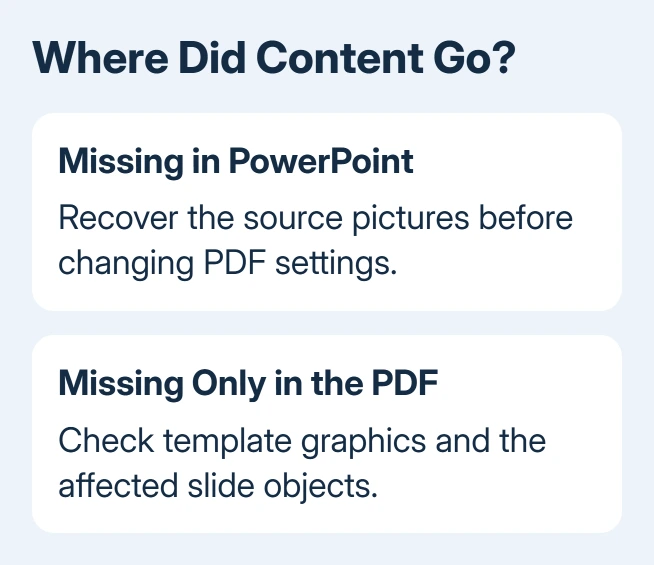
Check the PowerPoint slide too. Pictures already missing in the editable deck need recovering there first. When PowerPoint looks right but the exported PDF loses pictures or text, test the affected slide's contents and export settings.
In this guide
1. Export the affected slide on its own
Duplicate the presentation before changing any pictures or backgrounds. Keep the faulty PDF to compare against later exports. Use a different output filename for the repaired version.
In current Windows desktop PowerPoint, choose File > Export > Create PDF/XPS Document > Create PDF/XPS. Open Options, choose Current slide or a short slide range, then confirm and publish.
In PowerPoint 2010, PDF export is under File > Save & Send. In PowerPoint 2007, use the Office button > Save As > PDF or XPS when that export command is installed. Those older releases don't have the current File > Export panel.
Check the slide's contents in your new PDF. Creating the file doesn't mean all its content made it through. The original PDF opened after the warning was dismissed but showed only its border and color scheme, without pictures or text.
If only one slide fails, work on that slide's graphics next. If a small new deck with one plain text slide fails too, move to the app-and-viewer checks near the end. That points away from a fault specific to your original layout.
If the presentation itself won't save, protect the open PowerPoint work before restarting it.
2. Hide unwanted template graphics
Select the affected slide and open Design > Format Background. Depending on the PowerPoint version, right-clicking an unoccupied area of that slide also offers Format Background in its menu.
Select Hide background graphics. This hides graphics supplied by the slide layout or master; it isn't a command to remove every picture inserted directly on the slide. Watch what disappears from the slide before exporting again.
An unwanted object may come from the template. In the owner report, hiding background graphics removed a hard-to-spot graphic from the template, and the presentation then saved successfully as PDF after their picture cleanup.
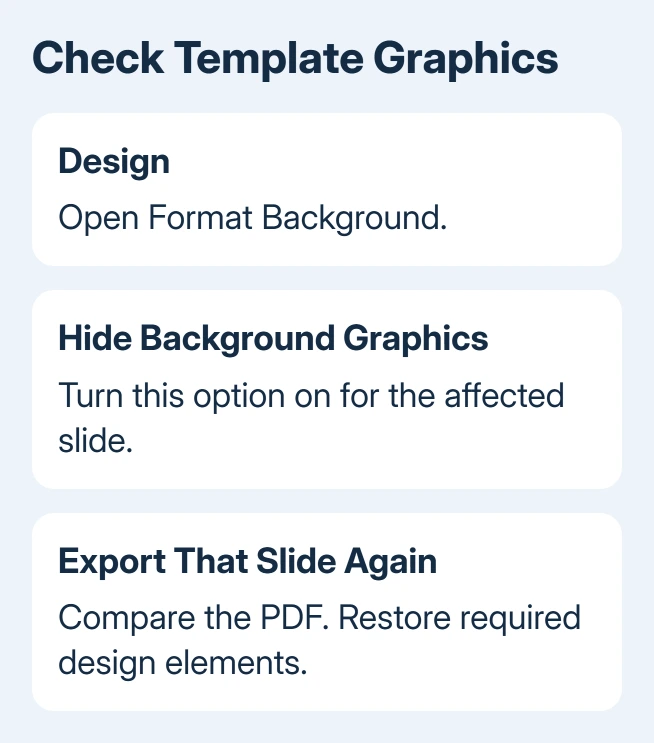
Export that slide again and reopen the resulting PDF. If the error stops, compare the new slide with the original design. Reinsert required elements in a clean form rather than sending a PDF missing its company logo or other needed content.
If the error remains, clear Hide background graphics to restore the design before moving on. I'd check this before replacing all the photos: it can reveal an inherited object that isn't obvious while editing normal slide content.
3. Reinsert a suspect picture from a clean file
Work on the duplicate presentation. Remove one suspect image from the failing slide and export that slide again. If the error disappears, reinsert the image from its original file through Insert > Pictures, then repeat the export.
Use Insert > Picture in older PowerPoint versions where the label is singular. Check size, cropping, and position afterward. Deleting and reinserting an image can remove adjustments that made it fit the layout.
The owner who reported success had also recropped and repasted PNG pictures before hiding background graphics. They didn't say whether either change worked on its own, so try one change at a time in your copy.
If a newly inserted version still fails, open the original image in an image editor, save a fresh copy, and try that copy. Use a format PowerPoint accepts that keeps any required transparency.
When the slide itself contains red placeholders or a relationship-ID message, follow the missing-image recovery steps. A different PDF setting won't rebuild missing source pictures.
4. Check the range and content being published
Open the PDF export's Options dialog. Check that Publish what is set to Slides when you want slide pages. Confirm the selected range includes the slides you expect, and check whether hidden slides should be included.
Those controls explain a PDF containing the wrong pages or layout. They aren't the same fault as Acrobat reporting an error on the page. Check them when the export completes but the result simply isn't what you intended.
Choose Standard quality for the comparison, especially when small labels or detailed images matter. Inspect the changed slide in the finished PDF. A smaller output file isn't useful if a chart label becomes hard to read.
For routine conversion across Windows, Mac, and web editions, follow the PowerPoint PDF saving steps. Use these repairs when conversion loses content or leaves the PDF showing a page error.
5. Compare the PDF viewer and the PowerPoint installation
Open the same PDF in another available viewer. On Windows, a browser such as Edge can display it. If one viewer shows every object and another raises an error, tell support which viewer works and which one fails.
If both viewers lose the same content, return to the presentation copy and its suspect slide. Update Office and the PDF viewer using their normal update controls before another export, especially if a simple new deck also fails.
The original asker had already updated Reader and tried a separate converter, which froze. Repeating that converter isn't a confirmed fix. Use the documented PDF export controls while narrowing the troublesome content.
If it still fails, send Microsoft 365 support the slide copy and its PDF, with private content removed. Include the PowerPoint version, viewer version, full error message, and whether Hide background graphics changed the result.
The Short Version
Export a failing slide separately, check background graphics, and reinsert suspect pictures in a copy. Check slide range and content type for unexpected output. Keep the original deck until you have opened and checked the repaired PDF.
Checked November 21, 2026.
 If you have any business, I can build it online