PowerPoint's image-export setting belongs under HKEY_CURRENT_USER in the Office version's PowerPoint\Options key. Looking in HKEY_LOCAL_MACHINE or an unrelated Wow6432Node branch will take you away from the export setting.
The setting you need is ExportBitmapResolution, a DWORD value. PowerPoint's picture-compression settings control a different part of the presentation and won't replace this export setting.
In this guide
1. Find the key for your PowerPoint version
Save the deck, then exit PowerPoint. Before editing the registry, make a backup of the key you intend to change: select it in Registry Editor, choose File > Export, and save the selected branch.
Press Windows + R, enter regedit, and press Enter. Accept the permission prompt if Windows displays one. In Registry Editor, start from HKEY_CURRENT_USER, which contains settings for the signed-in Windows user.
For PowerPoint 2016, PowerPoint 2019, and PowerPoint for Microsoft 365, use this path:
HKEY_CURRENT_USER\Software\Microsoft\Office\16.0\PowerPoint\Options
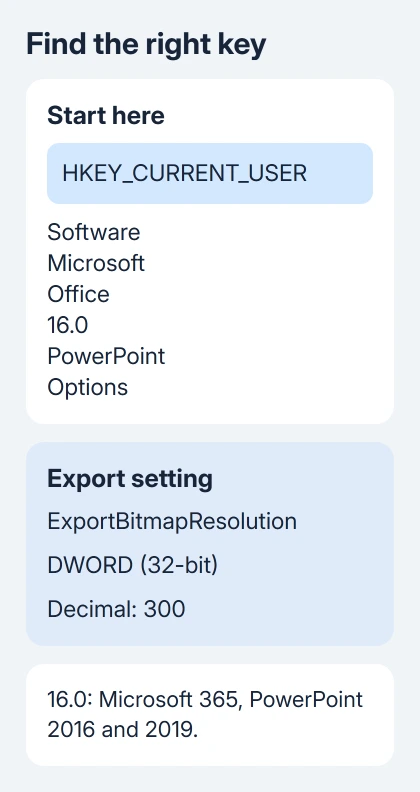
Microsoft's slide export resolution instructions list these older version branches too:
| PowerPoint release | Office branch |
|---|---|
| 2013 | 15.0 |
| 2010 | 14.0 |
| 2007 | 12.0 |
| 2003 | 11.0 |
The remaining path stays PowerPoint\Options. Don't choose a branch simply because its number looks newer; match the installed PowerPoint release.
In Microsoft 365 PowerPoint, check File > Account > About PowerPoint if you're unsure which version you have. The PowerPoint product name and version tell you which branch to use; the Windows version alone won't.
2. Check the full name when Options seems absent
Select the PowerPoint key and inspect Registry Editor's full address. On versions with an address bar, you can paste the complete path there and press Enter to navigate directly.
Check the name at the start of the path. HKEY_CURRENT_USER and HKEY_LOCAL_MACHINE are separate locations. A PowerPoint entry in one isn't a substitute for the export setting in the other.
The original missing Options discussion began with Office 2016 on 64-bit Windows. A suggestion to check Wow6432Node didn't help the asker find the required key.
The accepted reply pointed back to the exact current-user path. It also suggested selecting HKEY_CURRENT_USER and using Edit > Find for the value name GuidesVisible, with Values and Match whole string only selected.
Use that search to find existing PowerPoint settings. Leave GuidesVisible itself as it is. If you get a result, check its full path. A result under a different Office version isn't a reason to change that version's export settings.
If the correct branch has no Options key, don't invent one. Send your Office support team the copied registry path and release number, and ask why that branch is absent.
3. Add ExportBitmapResolution as a 32-bit DWORD
Once the correct Options key is selected, look in its right-hand pane for ExportBitmapResolution. It's fine if this value is missing: it's the item you need to add. The Options key itself should already be there.
- Choose Edit > New > DWORD (32-bit) Value.
- Name the value
ExportBitmapResolutionwithout spaces. - Select the new value and choose Edit > Modify.
- Select Decimal in the Base controls.
- Enter
300in Value data, then select OK. - Close Registry Editor.
Use DWORD (32-bit) even on 64-bit Windows. The export setting uses that value type regardless of how much memory your computer has.
If the named value already exists, modify that entry rather than adding a second name with an extra space or number. Keep its previous value in your notes so you can reverse the change.
Decimal matters. Entering 300 with Hexadecimal selected gives Windows a different number, so check the Base control before confirming the dialog.
This setting is for Windows desktop PowerPoint. Registry Editor steps don't apply to PowerPoint for Mac or PowerPoint in a browser.
4. Export one slide and check its pixel dimensions
Reopen PowerPoint and your presentation. Choose File > Save As, select a folder, and pick a picture format such as PNG or JPEG from the file-type list.
Select Save. When asked whether to export every slide or only the current one, choose Just This One for the first check. That keeps the comparison to a single image.
Open the exported file's Properties in File Explorer and inspect its image dimensions on the Details tab. At 300 dpi (dots per inch), a standard 10 by 7.5-inch slide exports at 3000 by 2250 pixels.
A standard widescreen slide exports at approximately 4000 by 2250 pixels at that setting. A custom slide size changes the expected dimensions, so check Design > Slide Size > Custom Slide Size before assuming the export failed.
Our PowerPoint slide-size guide explains how to inspect that layout. I'd verify one image's dimensions before exporting the entire presentation.
If you need a document containing slides rather than individual image files, saving PowerPoint as PDF is a separate export route. ExportBitmapResolution doesn't control the quality of every file type.
Why a bigger export can still look blurry
Increasing export dimensions gives the slide more output pixels. It doesn't restore detail missing from a small photograph placed on that slide, so inspect both text and pictures in the exported result.
The Image Size and Quality controls apply to pictures inside the presentation. Changing them doesn't add the registry export value or explain why Options was missing.
Larger isn't unlimited, either. PowerPoint 2013, 2016, 2019, and Microsoft 365 can export a bitmap image with up to 100 million pixels. Older releases have different limits.
Start with the 300 dpi example instead of picking a very large number. If the dimensions remain unchanged, record the exact export command, file type, slide size, registry path, and PowerPoint build.
When the setting still isn't taking effect
Report the export problem through Microsoft support or your company's help desk. Include whether Options is missing or the value exists but exports stay unchanged. Those are different failures.
Send the dimensions of one exported image and the slide's size along with the build. Support can then compare the actual image size with what you expected, rather than relying on a description that it looks blurry.
The Short Version
Use your Office release's HKEY_CURRENT_USER branch. In PowerPoint\Options, add ExportBitmapResolution as DWORD (32-bit), choose Decimal, and enter 300. Export one image and check its dimensions first.
Checked November 21, 2026.
 If you have any business, I can build it online