
To turn a PDF into editable PowerPoint slides, export it as a .pptx file with a PDF converter. In Acrobat, choose Convert > Microsoft PowerPoint PPTX; inserting the PDF into a slide only places a picture or an attachment there.
Convert the PDF for slides you can edit. Use page images when keeping the original appearance matters more than changing the words. Keep the PDF open beside the result to check what survived.
Choose editable slides or an unchanged page
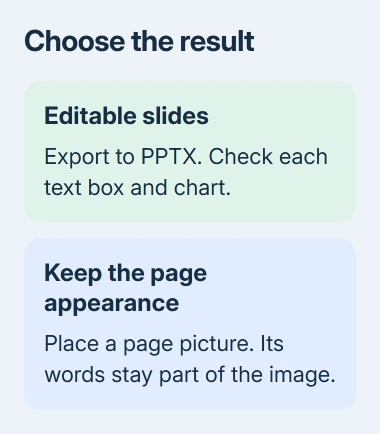
Start by asking what the presentation needs to do. For a report that needs new headings and shorter paragraphs, choose editable slides. A signed letter or a diagram that must look exactly as supplied is often better shown as an image.
Drag across a sentence in the PDF. If you can select the words, the document probably contains text. If the page behaves like a picture, it may be a scan that needs text recognition before its words become editable.
An ordinary PDF doesn't preserve the original deck's animations, speaker notes, or slide master for a converter to recover. Ask the sender for the PowerPoint source when you need those presentation features.
I'd ask for that original before spending time repairing a long converted deck. Even a good conversion can leave you with separate text boxes where the original had one carefully arranged layout.
Convert the PDF in desktop Acrobat
Check that your Acrobat plan includes PDF conversion. Opening a PDF in free Reader doesn't mean you can export editable PowerPoint slides. If a subscription or trial prompt appears, check what your plan includes before continuing.
- Open the PDF in desktop Acrobat.
- Select Convert on the global bar.
- Choose Microsoft PowerPoint PPTX in the Convert pane.
- Select Convert to PPTX.
- Choose a folder, enter a useful filename, and select Save.
These are the controls in Adobe's current conversion instructions. An older interface can look different, so follow the labels in your copy of Acrobat rather than a screenshot of another release.
Open the saved .pptx in PowerPoint. Click a paragraph and check whether you can place the cursor inside it. A selectable picture with handles around the entire page isn't the same as editable text, even though the file now ends in .pptx.
Save the converted file under a new name while you work. Keeping the original PDF gives you something reliable to compare against when a font, symbol, or table looks wrong.
Use the browser converter for a suitable document
For a document you're allowed to upload, open the PDF-to-PowerPoint converter. This route uses a website, so you don't need desktop Acrobat just to start the conversion.
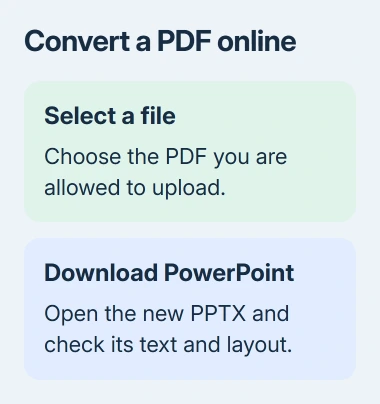
Choose Select a file, select the PDF, and wait for conversion. Download the PowerPoint file. The page also offers signing in to share it; follow your account's access prompt rather than assuming unlimited free use.
Check company rules before uploading customer records, financial reports, or internal documents. The website sends your file to the conversion service, so use an approved desktop method for material that must stay within company systems.
After downloading, open the actual .pptx rather than returning to the original PDF in another tab. Check the filename in PowerPoint's title bar so you know you're editing the new presentation.
If the website won't accept the file, note its exact message. A password restriction, an account limit, and a failed upload need different answers. Ask the document owner for an unlocked source when permission restrictions are the obstacle.
Fix the slides that conversion can't reconstruct cleanly
Compare the first slide, a text-heavy slide, and a slide with a chart against the matching PDF pages. Then work through the rest. This catches layout problems early without assuming that the first page represents the whole document.
Check line breaks, chart labels, bullet indentation, and equation symbols. A substitute font can wrap a heading onto another line and displace nearby content. Correct the layout before rehearsing.
For a scanned document, check names, dates, and figures especially carefully after text recognition. Text recognition reads the marks on the page; it can't tell whether a faint digit belongs in an invoice total or a phone number.
When a converted chart is only an image, editing its labels in PowerPoint won't change the underlying data. Ask for the spreadsheet or rebuild the chart from checked figures if it needs updating.
Split dense PDF pages into more than one slide when necessary. A page designed to be read close up can be unreadable on a meeting-room screen. Keep the main point on the slide and move supporting detail into notes or a separate handout.
Keep a page as a picture when editing isn't needed
For a page that must retain its appearance, use the PDF insertion workflow. It separates a visible page excerpt from a complete PDF attached as an object, so you can choose what the audience actually sees.
Microsoft's PDF insertion guidance describes pictures and objects. Those methods don't convert the document into editable slide elements, which is why they aren't a substitute for PPTX export.
Test the finished deck in Slide Show view on the computer you'll present from. Check that text fits and that any linked or attached material opens there. A deck that looks correct in the editor can still be awkward to use during a talk.
When you're ready to share the slides, save a PDF copy of the presentation for people who only need to read it. Keep the .pptx as your editable working copy.
If conversion still fails, send Acrobat support the error, app version, and whether other PDFs convert. For one troublesome file, ask its creator for the original slides or a fresh PDF export before rebuilding the presentation manually.
The Short Version
Export the PDF as .pptx for editable slides, then check the text and layout in PowerPoint. Use page pictures when keeping the layout matters most, and ask for the original deck when you need its notes, animations, or original chart data.
Checked November 8, 2026.

Isaac Smith is the founder and editor of PC Glance, a website that covers computers, laptops, and technology. He is a tech enthusiast and a computer geek who loves to share his insights and help his readers make smart choices when buying tech gadgets or laptops. He is always curious and updated about the latest tech trends.