
To root Android with Magisk, unlock the bootloader, patch the phone's firmware, and install that image. First check whether your exact phone and carrier allow unlocking; downloading a rooting tool won't change that limit.
There isn't one command that safely roots every Android phone. A compatible Pixel, a Samsung Galaxy, and an older phone that uses recovery mode need different steps. Identify the model and installed software build before choosing a path.
Check whether this phone can be unlocked
Write down the model and software build shown in Settings > About phone, or its Software information screen. Include the carrier variant: phones sold under the same retail name can have different unlocking limits.
The bootloader starts Android and decides which system images the phone accepts. Unlocking allows modified images. Root access is a separate permission that lets apps change protected parts of Android.
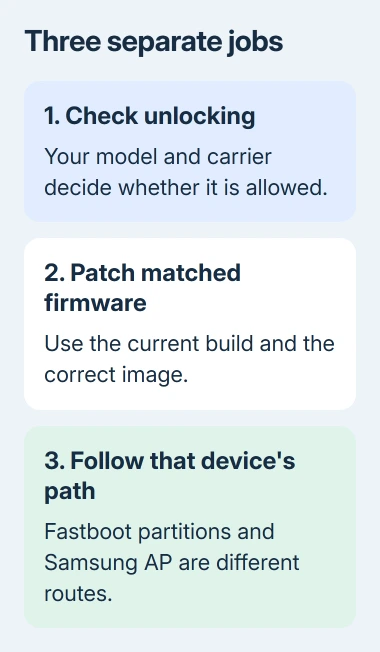
Check the manufacturer's unlocking policy for that exact variant. A grayed-out or missing OEM unlocking switch isn't something a universal rooting APK can reliably solve. A locked carrier model may have no supported unlocking route.
Check whether your task needs root. Changing a launcher, installing ordinary apps, and copying photos normally don't. I'd keep a phone used for work access or payments unmodified unless the task specifically needs root.
Google warns that a rooted Android installation loses security protection. Apps can also check device integrity, so don't plan on keeping every banking or workplace app working after modification.
To reveal Developer options, tap Build number seven times and confirm your screen lock if asked. Pixel places Build number in About phone; recent Galaxy models put it in About phone > Software information.
Back up before unlocking the bootloader
Make a separate copy of photos, documents, recovery codes, and app data that you need to keep. The Android backup guide separates account-backed data from files you'll need to save yourself.
Bootloader unlocking resets user data. Before starting, check that you can sign back into your accounts and restore any two-factor authentication you rely on. A backup you can't access after the reset won't help you finish setup.
For standard Android unlocking, enable OEM unlocking in Developer options and enter the model's bootloader mode. Run fastboot flashing unlock when that model supports it, then confirm on the phone.
Some manufacturers require an unlock code or another process. Samsung uses Download mode rather than this fastboot route. Use the instructions for that variant instead of trying commands intended for other phones.
After the reset, finish enough of the setup to use the phone and copy the files you'll need. Keep the model and build information with your downloaded firmware so you don't confuse it with an image for another variant.
Get the official tools and matching firmware
Download Android SDK Platform-Tools for your computer from the official Android developer site. It includes adb, for communicating with a running Android device, and fastboot, for working with the bootloader on supported devices.
To transfer files with adb, enable USB debugging in Developer options and connect a data-capable USB cable. Approve the computer authorization prompt on the phone.
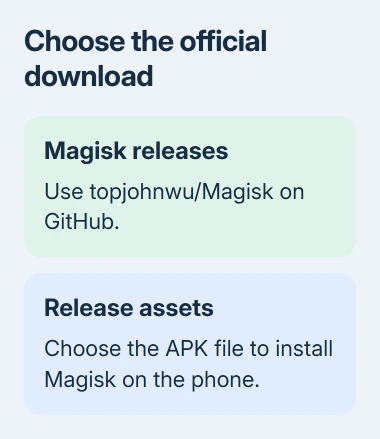
Get Magisk from its official release page. Install its APK on the phone. Avoid a repackaged download that promises to root every model with one tap.
Match the firmware to the model and installed build. On a supported Pixel, Magisk can fetch the matching factory image. Other phones need their official firmware package or the appropriate extracted image.
Open Magisk and read its Ramdisk result. This helps determine whether the installation uses a boot-related image or recovery. Don't choose a partition just because another phone running the same Android version uses it.
Patch and install the correct image
Follow the current Magisk installation instructions alongside your model's firmware directions. In the app, choose Install > Patch firmware / image, then supply the appropriate firmware or image through Select from storage.
Patch the file on the phone where it will be installed. The resulting filename starts with magisk_patched. Copy that result to the computer using adb and keep the original firmware available.
For fastboot devices, enter bootloader mode before flashing (writing the patched image to the phone). Match the image to its partition: boot.img uses boot, and init_boot.img uses init_boot. The guide also covers vendor_boot and recovery.
For the boot route, use fastboot flash boot followed by the patched image's path. Use fastboot flash init_boot only when the selected image and device instructions require it. Choose the matching command, rather than running both.
A phone without boot ramdisk needs the guide's recovery-specific instructions, including Recovery Mode when patching. Starting Android with root can then depend on the model's recovery key sequence, rather than an ordinary boot.
Treat Samsung as a separate installation
An unlockable Galaxy uses a Samsung-specific firmware workflow. Check its OEM Lock and KnoxGuard state using the current instructions, then follow its Download mode unlocking process. An active KnoxGuard lock prevents Magisk installation.
The initial Samsung installation wipes data again and permanently trips the Knox Warranty Bit. Read that consequence before proceeding, especially if Samsung security features are part of why you use the phone.
For Samsung, patch the firmware's AP archive in Magisk. Copy the patched archive back with adb, then use the guide's samloader flashing tool with matching BL, CP, and CSC files.
Use CSC for the initial install rather than HOME_CSC, then complete any reset and extra Magisk setup. Later Samsung firmware upgrades use a different procedure and file choices.
Confirm root and keep a recovery route
Reopen Magisk after startup and finish any setup it requests and reboot when asked. Check that it shows Magisk as installed. Grant root only to an app you trust and only when its requested job needs that access.
If the phone won't start, stop flashing additional partitions. Record the exact model, build, patched image, command, and error, then include that record when asking the project or device community for firmware help.
Use the Android no-start checks if the device no longer responds to normal power controls. If the power button gets no response, check charging and power. If the bootloader still opens after a failed flash, get help with the firmware.
The Short Version
Check unlock support, back up, and use firmware matching the phone and build. Patch with Magisk on that phone, then follow its exact partition or Samsung installation path. Stop when the model's unlocking or recovery route isn't clear.
Checked November 8, 2026.

Isaac Smith is the founder and editor of PC Glance, a website that covers computers, laptops, and technology. He is a tech enthusiast and a computer geek who loves to share his insights and help his readers make smart choices when buying tech gadgets or laptops. He is always curious and updated about the latest tech trends.