
Update a laptop through Windows Update on a Windows PC or Software Update on a Mac. Install the offered software, complete the requested restart, then check for anything still waiting.
An operating-system update, an app update, and a hardware upgrade are different jobs. A newer Windows or macOS version won't add memory or storage capacity. Use the software steps first if you want the latest fixes and security updates.
Prepare the laptop for an uninterrupted update
Connect the charger and use reliable internet. Save open work and back up irreplaceable files. Choose a time when the laptop can stay connected with its lid open until installation finishes.
Check which system is installed. On Windows, open Settings > System > About and read Windows specifications. On a Mac, choose Apple menu > About This Mac. That tells you which update steps to follow.
A work or school laptop may show that your organization manages updates. In that case, ask IT when the next approved update is scheduled. Don't remove management settings to make a missing update button appear.
If free storage is low, deal with the updater's space request before starting again. Keep personal files backed up before removing them, and use the system's storage controls rather than deleting unfamiliar Windows or macOS folders.
Install Windows updates and finish the restart
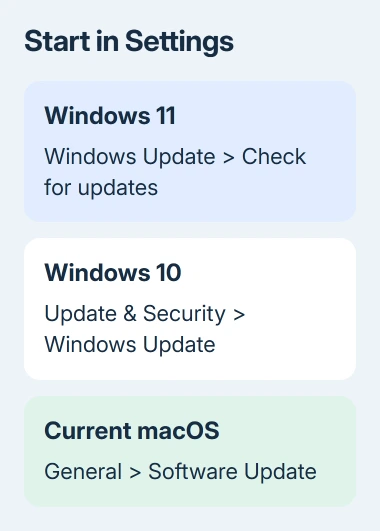
For Windows 11, open Start > Settings > Windows Update and select Check for updates. If the page offers Download and install, select it for the update you intend to install.
For Windows 10, the route is Start > Settings > Update & Security > Windows Update > Check for updates. The older settings layout is different, even though the basic check and restart process is similar.
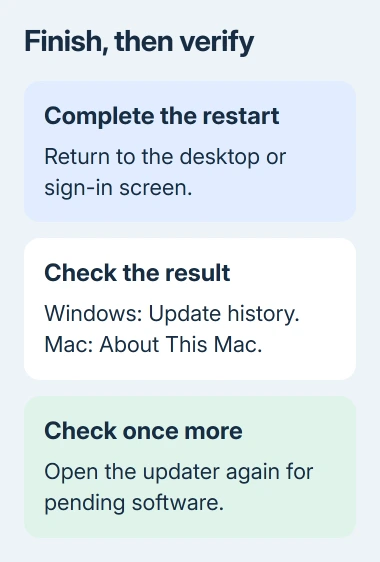
Follow the Windows update procedure and wait for downloads and installation to finish. When Restart required appears, select Restart now after saving your work, or schedule a suitable time.
I'd use Restart rather than assuming that closing the lid completed the job. Putting the laptop to sleep can leave the update unfinished until you restart.
After signing in, reopen Windows Update for another check. Open Update history to confirm what installed. A successful entry there is more useful than remembering that a download bar reached the end earlier.
Windows 10's ordinary free support stopped on October 14, 2025. Without Extended Security Updates, plan a supported upgrade or replacement. An empty update list doesn't mean the system still receives security fixes.
For a download that won't finish or repeatedly returns to the same stage, use the Windows Update stuck checks. Record any error code first so you can choose the matching repair rather than repeatedly clicking Check for updates.
Let Software Update choose the compatible Mac release
On a current Mac, open Apple menu > System Settings > General > Software Update. On older macOS versions, open Apple menu > System Preferences > Software Update instead.
Wait while it checks. Choose Update Now, Upgrade Now, or the restart option shown for the available software, then follow the prompts. An update usually keeps you within the current major release; an upgrade moves to a newer major version.
Apple's Software Update instructions explain that this check offers software compatible with the Mac model. A missing newer major version can mean your model doesn't support it, rather than that the download is broken.
Both Intel and Apple silicon Macs use Software Update for routine installation. There isn't a separate Terminal command you need to run just because the processor differs. Keep the laptop powered while the installer handles its restarts.
The display can go blank during installation, and progress can pause for a while. Don't turn the Mac off just because the screen temporarily changes. Allow the installer to return to the normal sign-in screen.
Afterward, check About This Mac for the installed version, then revisit Software Update. If installation fails, note the error and your Mac model for support. An incompatible release and too little storage need different fixes.
Update apps through the place they came from
On Windows, open Microsoft Store and check for app updates in Downloads or Library, depending on its version. Use the update control shown there. These updates cover Store-managed apps, not every program.
For directly installed software, use the app's own updater or its developer's official installer. Browsers, office suites, and specialist work apps can update separately from the operating system.
On a Mac, open the App Store and select Updates in the sidebar. Update the listed apps. Applications downloaded directly from developers need their own update controls or the developer's current installer.
Open an updated app and check its About screen if you need to check a specific version. The Windows or macOS version number won't tell you whether the app itself received its fix.
For a business laptop, check with IT before replacing an approved application version. A newer app can change file compatibility, add-ins, or connections to company services, even when the operating-system update completed successfully.
Use optional drivers only for the hardware that needs them
Windows installs recommended drivers through Windows Update. To review optional ones on Windows 11, open Windows Update > Advanced options > Optional updates, then expand Driver updates when it is available.
On Windows 10, look for the View optional updates link within Windows Update. Select a relevant driver, choose Download and install, then restart the laptop. An empty optional list doesn't mean every device needs a manual driver download.
Install a driver for a reason, such as a wireless adapter fault or a recommendation from your laptop's maker. Avoid installing an unrelated display or storage driver just to empty the list of available downloads.
For firmware or BIOS updates, use the laptop manufacturer's exact model page and its power requirements. Those instructions vary by model. A general Windows update guide can't choose the correct firmware file from a similar laptop's name.
If a new driver causes trouble, the driver rollback steps explain the return option when Windows still has the previous driver. Keep the affected device and update date in your notes.
For repeated failures, give Microsoft Get Help, Apple Support, or IT the error code, installed version, model, and update name. Ask about that specific installation failure rather than requesting a general cleanup.
The Short Version
Use the built-in updater, complete its restart, and check the installed result. Update apps separately and choose hardware drivers for a reason. If system support has ended, plan extended support or an upgrade. Rechecking won't change that.
Checked November 8, 2026.

Isaac Smith is the founder and editor of PC Glance, a website that covers computers, laptops, and technology. He is a tech enthusiast and a computer geek who loves to share his insights and help his readers make smart choices when buying tech gadgets or laptops. He is always curious and updated about the latest tech trends.