

Excel's #NUM! error means a number is invalid for the calculation, or the function can't reach a usable result. Check inputs such as negative square roots and financial cash flows before changing calculation settings.
A visible number isn't always valid for its function. SQRT, IRR, and an oversized calculation can show #NUM! for different reasons. Keep the failing formula visible during the checks for that function.
1. Check the function and its referenced numbers
Select the failing cell, then look at the formula bar to read the calculation. Note its function and the cells inside the parentheses. Check each referenced value, especially when formatting rounds what appears on the sheet.
For example, a value displayed as zero might contain a small negative number. That matters when the next formula expects a value of zero or greater. Increasing the displayed decimal places can make the input easier to understand.
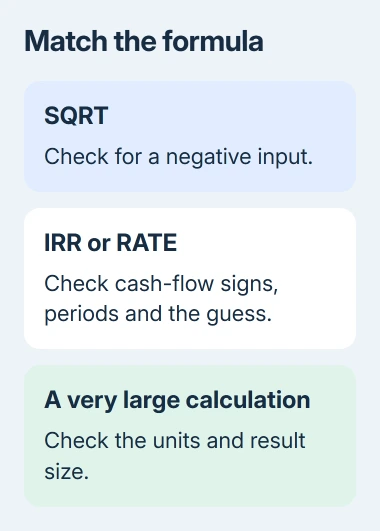
Compare the failing formula with a working row. Look for a shifted reference, a missing minus sign, or a formula copied into a total row that uses different inputs. Correct the reference when it points at the wrong value.
I'd check those cells before hiding the error with IFERROR. Returning an empty string can make a report look clean while leaving the calculation wrong, which is especially unhelpful when another formula depends on the result.
If the formula shows #VALUE! instead, use the text and input-type checks. That message has its own causes, so don't apply a text-cleanup fix automatically to every numeric error.
2. Give SQRT a number it can calculate
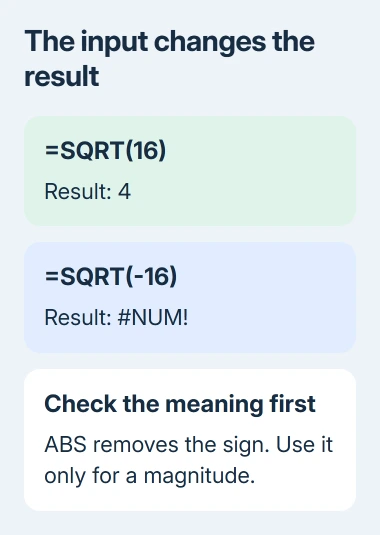
The ordinary SQRT function returns a square root that's zero or positive, using real numbers. =SQRT(16) returns 4, while =SQRT(-16) returns #NUM! because a negative input doesn't have a real square root.
Microsoft's SQRT function reference confirms this behavior. If the negative number came from a mistaken subtraction or cell reference, fix that earlier calculation rather than changing SQRT itself.
When you need the square root of a number's size without its sign, =SQRT(ABS(A2)) uses the positive size of the value in A2. For A2 equal to -16, that returns 4. Use this only when discarding the sign matches the calculation's meaning.
If your model needs complex numbers, which can express square roots of negative numbers, use a function designed for them. Making every negative number positive changes the math; it isn't a general fix for a scientific workbook.
After correcting the input, check a few neighboring rows. If only one item failed, compare what made that record different. If the whole column fails, inspect the shared formula or source calculation before editing individual records.
3. Check IRR cash flows and its optional guess
IRR calculates a rate from cash flows occurring at regular intervals. Its range needs at least one positive and one negative value. Entering every amount as positive doesn't correctly describe money paid out and received back.
For example, enter the money paid at the start as -1000 and the money received later as 400, 400, and 400 in four consecutive cells. A formula such as =IRR(A2:A5) then has both payment and receipt values to work with.
Keep the cash flows in chronological order. IRR uses their order as the order of the periods, so rearranging the amounts can change the answer even when the same numbers remain in the range.
The IRR function's calculation rules explain that it tries successive estimates. It returns #NUM! if it can't reach a result after 20 attempts. The optional guess defaults to 0.1, or 10 percent.
If the cash flows are valid but the formula still fails, try a different plausible guess, such as =IRR(A2:A5,0.05). Compare the result with the underlying cash flows; a returned percentage still needs to make sense for the model.
For irregular payment dates, use the date-aware XIRR function rather than assuming equal periods. Pair each value with its date and check XIRR's input requirements before moving an existing model across.
4. Check RATE units and payment signs
RATE also uses repeated estimates to find a result. Its inputs need to fit one payment schedule. Check the number of periods, payment each period, and present value (the starting balance). Timing and payment direction need to agree.
For a monthly loan calculation, enter the number of monthly payments rather than the number of years. A 24-payment schedule and a two-period schedule describe different loans, even if both came from the same two-year term.
Use opposite signs for money received and money paid. A loan received as a positive present value normally has negative repayments when you're calculating as the borrower. Check that convention before trying another guess.
Review the RATE argument definitions when a template uses extra inputs. A payment at the beginning of a period differs from one at its end, and a future balance changes the calculation too.
5. Reduce an oversized result without hiding it
A formula can also return #NUM! when its result is too large or too small for Excel's supported numeric range. Repeatedly raising numbers to powers can cause this, even when each starting value looks ordinary.
Check the math and units before changing cell formatting. A percentage entered as 50 instead of 0.5 can dramatically change a calculation. Formatting an already incorrect value as a percentage doesn't repair the underlying input.
The general #NUM! guidance also discusses iteration settings. Don't turn on workbook-wide iterative calculation as the first response to every IRR or RATE failure; check those functions' inputs and guess arguments first.
For a model designed around circular calculations, review its settings with the author. Windows desktop Excel uses File > Options > Formulas. On a Mac, calculation preferences live in a different menu.
If an edited formula starts spilling results into several cells, the #SPILL! checks address that different message. It means the array's output area needs attention rather than a new financial guess.
For a persistent error, send Excel support or the workbook's author a small example using invented data. Include the formula, expected result, Excel edition, and inputs that reproduce it, while keeping financial records private.
The Short Version
Check what the function accepts, then correct the inputs. SQRT needs a nonnegative real input; IRR needs valid signed cash flows and can need another guess. Review RATE's units and signs, and check the scale of oversized calculations.
Checked November 8, 2026.

Isaac Smith is the founder and editor of PC Glance, a website that covers computers, laptops, and technology. He is a tech enthusiast and a computer geek who loves to share his insights and help his readers make smart choices when buying tech gadgets or laptops. He is always curious and updated about the latest tech trends.