An Excel Note adds an explanation while keeping the cell's value or formula unchanged. Right-click the cell, choose New Note, and type your text. Click outside to finish. Use New Comment when you want replies instead.
Current Excel calls the yellow text box a Note. Older versions called this feature a comment, which explains why instructions and menus can seem to disagree. Start with the command your version actually shows.
In this guide
Add the first note to the right cell
In Microsoft 365's Excel app for Windows, select the cell that needs an explanation. Right-click it and choose New Note. Type your explanation in the box that opens, then click elsewhere on the worksheet to finish.
Use Review > Notes > New Note if you prefer the ribbon. Windows also supports Shift+F2 for inserting or editing a note. Right-clicking avoids the function-key shortcuts your laptop may assign to screen brightness and sound volume.
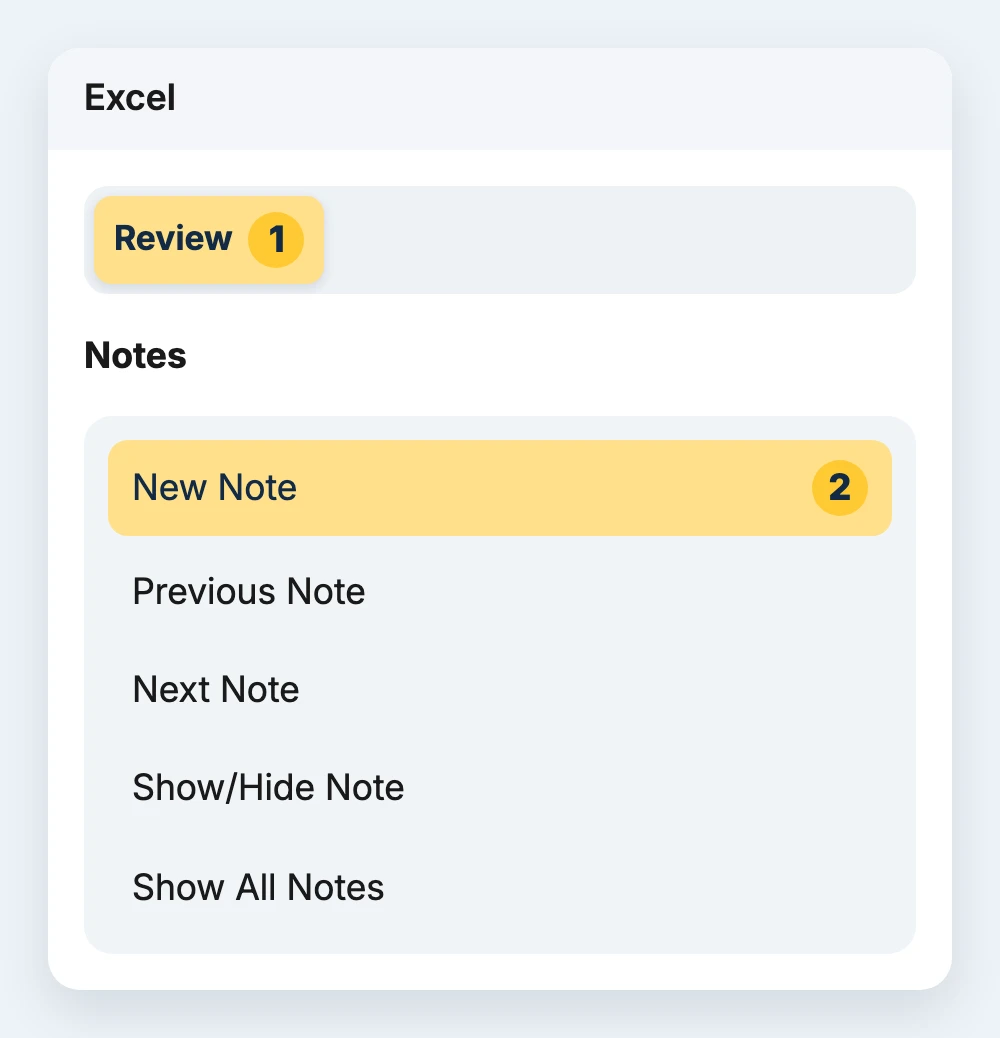
Microsoft's notes and comments instructions explain the difference between a note and a conversation with replies. A Note doesn't need a Post button or a reply; click outside it to finish.
Select the original cell again and check the formula bar. Its value or formula should still be there. Hover over the cell to read the note; the note stays attached to the cell without replacing its contents.
Write the reason behind a value, not another copy of the value. For example, a note can explain why a delivery estimate changed. That gives the next person context without making the worksheet harder to calculate.
Use the Notes command on Mac and the web
In current Excel for Mac, Control-click or right-click the cell and choose New Note. You can also use Review > Notes > New Note on the ribbon without needing a keyboard shortcut.
If an older desktop version offers Insert Comment instead, check what opens. The older yellow box without a Reply box is what Excel now calls a Note. A discussion with replies is the newer Comments feature.
The browser edition of Excel supports creating and editing notes too. Open an editable workbook, select the cell, and use New Note from its context menu or the Review > Notes controls offered in that layout.
The web workbook needs a signed-in session and permission to edit. If you're viewing a shared file without editing rights, ask its owner for the appropriate access. A note command can't override the sharing permission.
If you're using a simpler ribbon, look through the Review controls or their menu of extra options before assuming Notes has been removed. Use the installed desktop app if the browser layout doesn't expose the control you need.
If you can't type in the sheet at all, the problem affects more than notes. Check the Excel editing restrictions before trying to fix Notes on its own.
Choose a comment when the explanation needs replies
Right-click the cell and choose New Comment for a conversation. Type the message, then select Post. On Windows, Ctrl+Enter posts a threaded comment. Other editors can reply to the same discussion.
A Note has no Reply box. In a desktop note, Ctrl+Enter creates a new line instead of posting. Click outside the note or press Esc when you're finished editing it.
This distinction matters when sharing a workbook. A note works well for a stable explanation. A comment is better for a question that needs an answer, an approval, or an ongoing exchange beside the data.
I'd use a note for a calculation assumption and a comment for asking a colleague to confirm it. That keeps permanent context separate from the conversation about changing it.
Avoid converting old notes to comments just to make them visible. Conversion changes their behavior, and note formatting or images may not survive as you expect. Before converting many annotations, duplicate the workbook.
Edit, resize, or remove the annotation
Right-click the cell and choose Edit Note, or select Review > Notes > Edit Note. Change the text inside the annotation, then click outside it. Editing the worksheet cell itself changes its data rather than its note.
If the note box cuts off the explanation, resize the note while it's selected. Drag its sizing handles until the text fits. Making the note box larger won't require you to widen the column of numbers.
To remove just the annotation, right-click its cell and select Delete Note. Check the command name before confirming: deleting a cell or clearing all its contents has a wider effect.
If your workbook has both notes and comments, you'll need to handle each separately. Removing a note isn't the same as resolving a comment thread. Select a cell and check its note or comment before choosing an action.
For a permanently visible worksheet entry instead of an annotation, put a list inside the Excel cell. Keep explanatory notes out of a numeric cell if formulas depend on that number.
Make hidden annotations visible again
On the Review tab, open Notes > Show All Notes to display the worksheet's notes together. Use Show/Hide Note for the selected cell when you only need one annotation kept open.
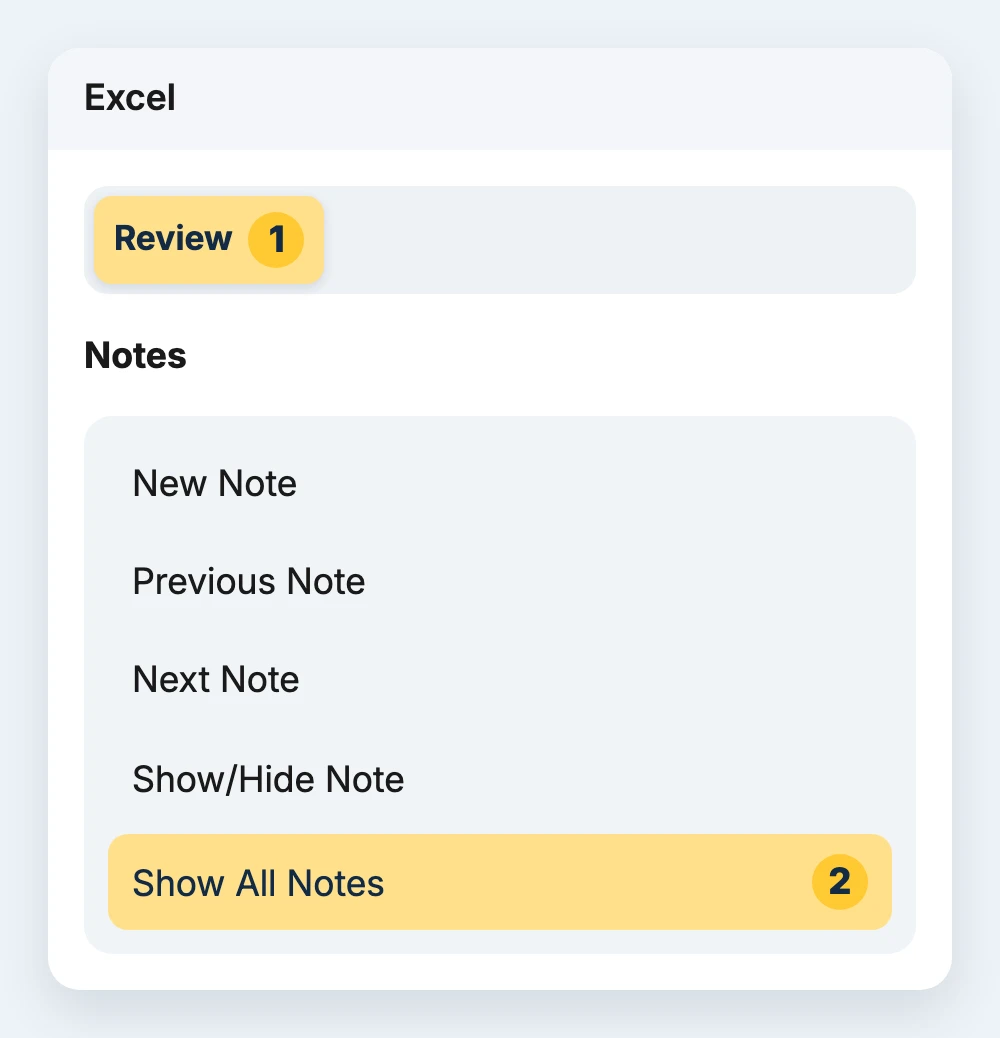
The Show Comments pane displays threaded conversations. Yellow notes have their own controls for showing or hiding them. If that pane is empty, check the Notes controls before assuming the annotations were deleted.
In Windows desktop Excel, hidden indicators can be changed through File > Options > Advanced. Under Display, find For cells with comments, show. Choose the indicator-only option if you want markers without every note staying open.
The display options include notes even though part of the setting's name still uses comments. If both the marker and note were hidden, turning the indicators back on makes annotated cells easier to find.
Check another annotated cell after changing visibility. If one note remains missing while others appear, make sure you've opened the intended worksheet and workbook copy. Visibility settings can't bring back an annotation that was deleted.
When New Note is missing or unavailable
Finish editing the current cell, select a normal worksheet cell, and try the Review route. Check whether the file is read-only or the worksheet is protected before changing Excel's installation.
On a work-managed workbook, ask the owner to check editing permissions or protection. Include the cell address and whether Notes works in a new blank workbook. Support can then check the workbook's restrictions or look for an Excel problem.
If Notes fails in editable new workbooks too, update Office, then tell support your Excel version, which device you're using, and which command you can't use. Keep the original workbook intact while support checks the app.
The Short Version
Use New Note for a cell explanation and New Comment for replies. The Review tab's Notes menu adds, edits, and displays yellow annotations. Check the Notes controls and workbook permissions before treating a missing note as lost data.
Checked November 29, 2026.
 If you have any business, I can build it online