Select the individual Outlook email and choose Forward, then remove any earlier replies quoted inside the draft. Turning off conversation grouping helps you pick the right message, but it doesn't remove old text inside it.
These are separate problems: several messages grouped together in the inbox, or several replies copied into one message's body. These steps work in Outlook's classic Windows app, new Windows app, and web app.
In this guide
Select the individual message before forwarding
Open the conversation and expand the message you want. Check its sender, time, and contents, rather than picking it just because the subject looks right. Several replies can share that subject while saying different things.
Choose Forward on that specific message. Don't select several inbox items together. In classic Outlook, forwarding several selected emails puts them all into one outgoing message as attachments.
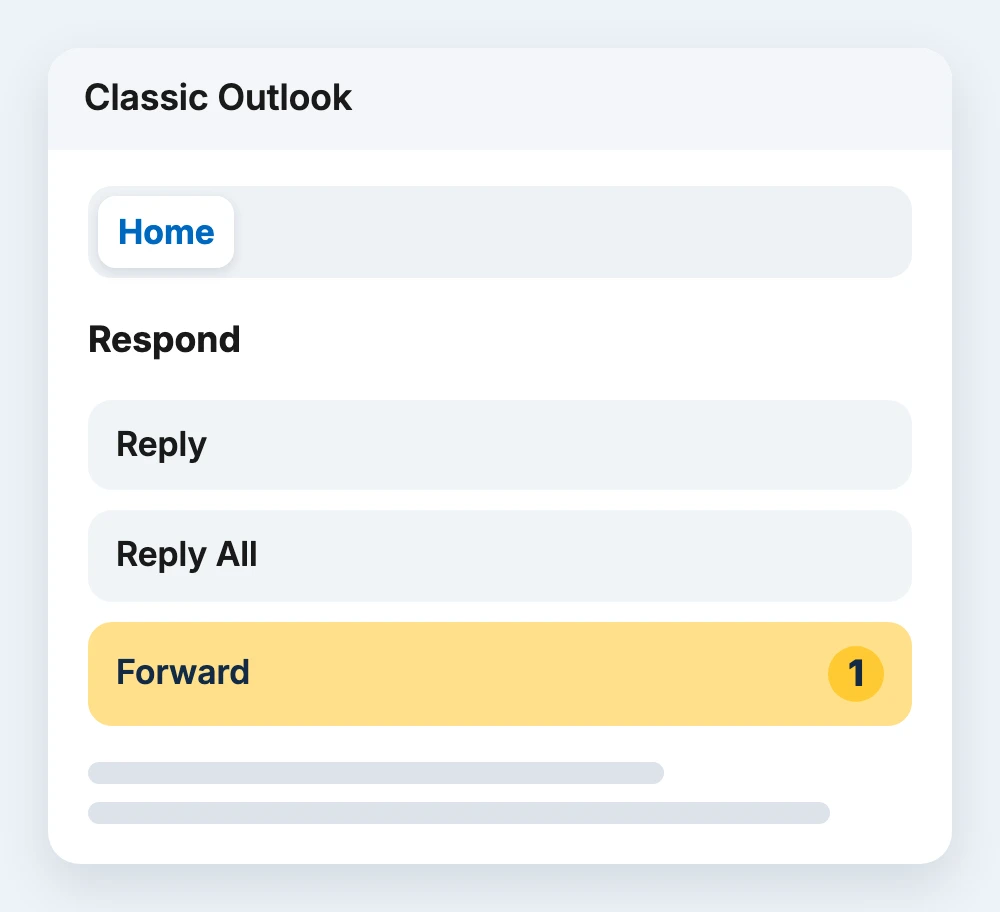
Microsoft's own forwarding instructions explain forwarding a selected email separately from sending several selected messages together. One message gives you less text to review before sending.
Look through the resulting draft before adding a recipient. If it includes older correspondence, that text may already be part of the message you selected. Choosing one message doesn't automatically strip its quoted history.
An email attached as a separate file has the same limitation. The Outlook email attachment routes preserve the chosen message, including any earlier text it contains. They aren't a way to remove the chain from its body.
Use separate inbox rows when the conversation is confusing
In classic Outlook for Windows, open the View tab and clear Show as Conversations. Choose This folder to change just that folder's view, or All mailboxes to apply the change more widely.
The emails should now appear as individual message rows. Find the message you need by its sender and date, open it, and select Forward. This reduces the chance of forwarding the wrong reply from a collapsed group.
In new Outlook, open Settings > Mail > Reading Pane. Under Message organization, find How do you want your Message List organized and select Do not group messages.
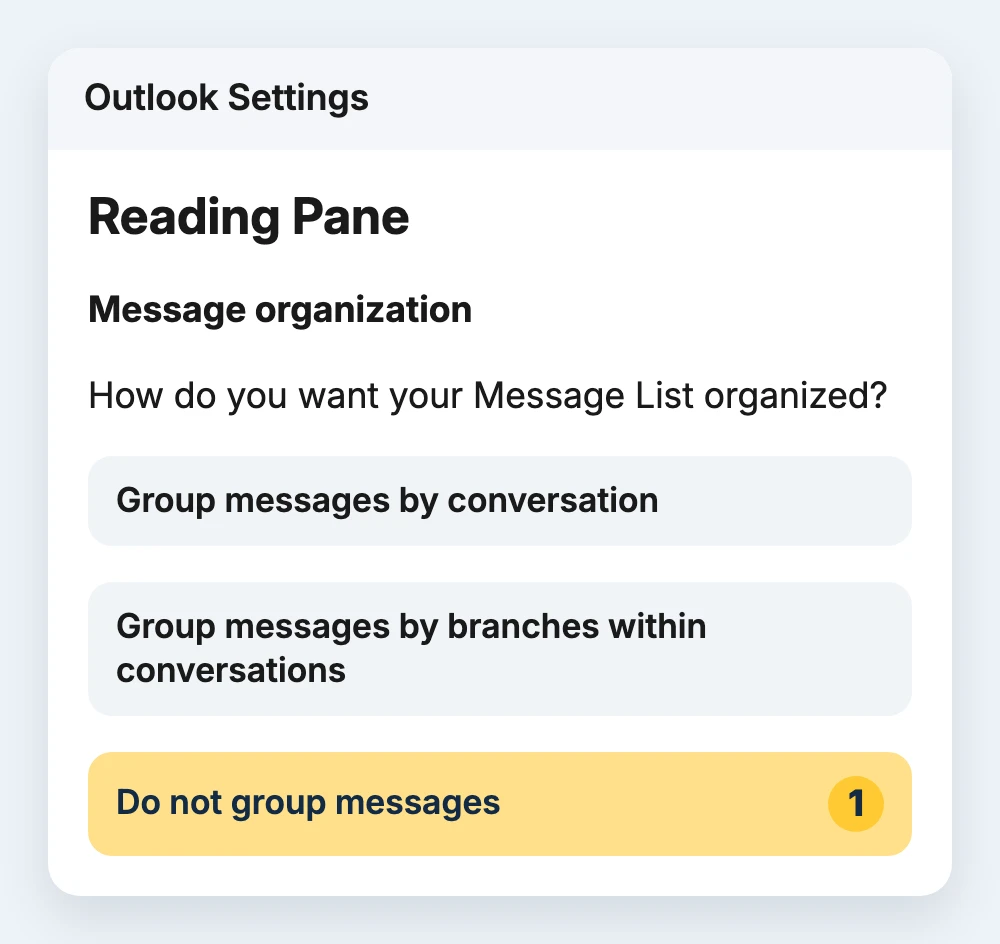
For Outlook.com or the work-account web app, the current path is also Settings > Mail > Reading Pane, then the message-organization choices. Older layouts may put conversation settings under Mail > Layout instead.
Back in the inbox, find the individual email you want. The view change affects how Outlook arranges messages; it doesn't edit the email or delete the older quoted text inside it.
If your folder already shows separate messages, leave it that way and start cleaning up the draft. Changing the view again won't solve a quoted-history problem.
Remove quoted replies in classic Outlook
Open the chosen message and select Forward. If the draft opens inside the Reading Pane, choose Pop Out to get a larger editing window. That makes it easier to inspect a long message before cutting anything.
Click in the editable message body and scroll through it. Keep the selected message's actual text. Remove the earlier replies that follow it, including their old sender details, signatures, and repeated quoted sections.
Quoted history often starts at another message header with its own sender, date, and subject. Read around that point before selecting the old block. A heading inside the current message can resemble an email header.
Deleting text from this outgoing draft doesn't delete the received message in your inbox. If you remove too much, undo the edit before continuing. You can still compare the draft with the original in your inbox.
Check that what's left still makes sense without the earlier conversation. Add a brief introduction explaining why you're forwarding it, especially when the selected reply refers to a decision the recipient hasn't seen.
Remove older replies in the newer editor
Open the selected message and use its Forward control. On a layout that places message actions in a three-dot menu, open that menu and choose Forward there.
Expand hidden quoted content in the draft, then remove earlier correspondence you don't want to send. Collapsing a quoted section leaves its contents in the draft.
The web editor may hide message history as you write. That only changes what you can see. Read the full draft to check that you've removed the older exchange.
For a tangled message, start a new email and copy only the passage you need. Label it as an excerpt and identify its sender or date, so the recipient understands that it's a shortened copy.
I'd use a fresh message when only two sentences from a long discussion are relevant. It's easier to check a short excerpt than to remove layers of signatures and earlier replies from a forward.
Check attachments and recipients separately
A normal forward includes the original message's attachments. Remove any file the new recipient doesn't need. Trimming the body doesn't remove those attachments, and an attached email can contain its own conversation history.
Review To, Cc, and Bcc, then inspect the subject and remaining text. Use Forward, rather than Reply All, when the email should go to a newly chosen recipient instead of the people in the original conversation.
This one-off task doesn't need a forwarding rule. For ongoing delivery of future incoming mail to someone else, use the separate Outlook automatic-forwarding setup.
Before sending important material outside your organization, inspect the final draft from beginning to end. Check the text and files together; removing an old name from the body doesn't remove it from an attached document.
When Outlook won't let you forward or edit it
A protected message can restrict forwarding. If Outlook displays a permission restriction, ask the sender for a version you can share, or ask your mail administrator which ways of sharing it are allowed.
If you can't forward an ordinary message, try another normal email in the same account. If the failure affects every message, report the Outlook version, account type, and exact error to support or your administrator.
Don't send the unedited original just because the cleanup is awkward. Save the draft while checking it, or use a clearly labeled excerpt when that meets the recipient's need. Read through what you're sending before you send it.
The Short Version
Select one email, forward that message, and remove older replies from the outgoing draft. Conversation settings change inbox grouping, not the email's contents. Review attachments and recipients separately before sending.
Checked November 29, 2026.
 If you have any business, I can build it online