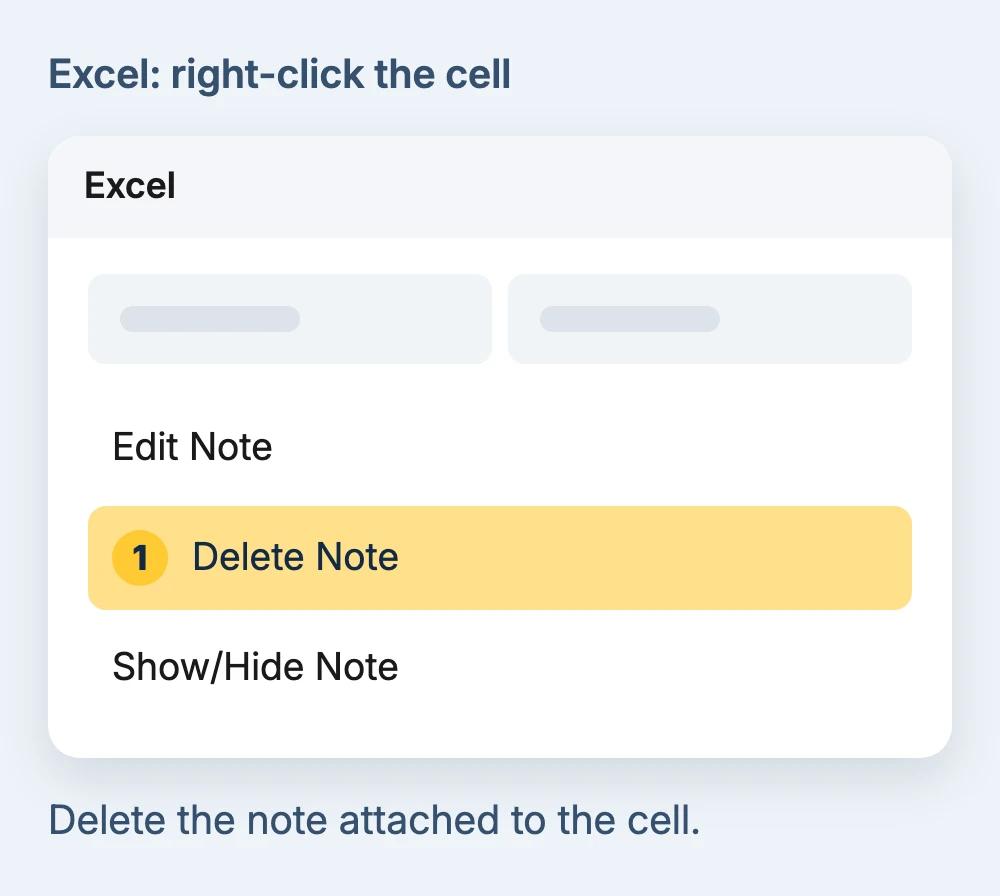
Delete an Excel note by right-clicking its cell and choosing Delete Note. The cell's value and formula stay in place. For a larger cleanup in desktop Excel, select the cells and use Home > Clear > Clear Comments and Notes.
Check which kind of annotation you're removing first. A traditional yellow note and a threaded comment use different commands, and the bulk command removes both.
In this guide
Identify a note before removing it
Microsoft 365 Excel calls its older sticky-note style reminders notes. A threaded comment has a conversation with replies. The small corner marker helps locate an annotation, but opening it tells you which type it is.
Hover over the marked cell or right-click it. Edit Note and Delete Note identify a note. A conversation with a reply box belongs to comments instead.
Microsoft's notes and comments comparison explains the naming change. Older Excel releases called the traditional notes comments, so the same workbook can show different labels on another computer.
That distinction matters if you want to remove private reminders but keep a team's discussion. I'd remove notes individually when a sheet has only a few, rather than use a command that also removes comments.
These steps remove notes and comments attached to cells. Text typed directly into a worksheet cell, a floating text box, and a sheet tab's name are different objects.
Delete a single note in Windows or on a Mac
Select the cell that holds the note, then right-click the cell and choose Delete Note. On a Mac without right-click set up, hold Control while clicking to open that menu.
Click the cell itself, rather than inside the note's text. Editing or selecting the note's words doesn't select the worksheet cell it's attached to.
After deletion, move away and hover over the cell again. The note should no longer appear. Check the formula bar or cell value to confirm the worksheet's data is still there.
If the menu says Delete Comment, open the annotation before proceeding. In a current Microsoft 365 workbook that can mean a threaded conversation, while older Excel uses that name for traditional notes.
For a threaded comment in current Excel, right-click the cell and choose Delete Comment. Choose that command only if the whole conversation, including its replies, should be deleted.
If the annotation stays visible after you used a hide command, it hasn't been deleted. Show/Hide Note changes its display, so use Delete Note when the text must be removed.
Remove annotations from a selected range
For a group of cells in desktop Excel, select the range first. Then open Home, find Clear in the Editing group, and choose Clear Comments and Notes.
The Clear command's options separate annotations from cell contents and formatting. This option leaves the selected cells' values, formulas, and formatting in place.
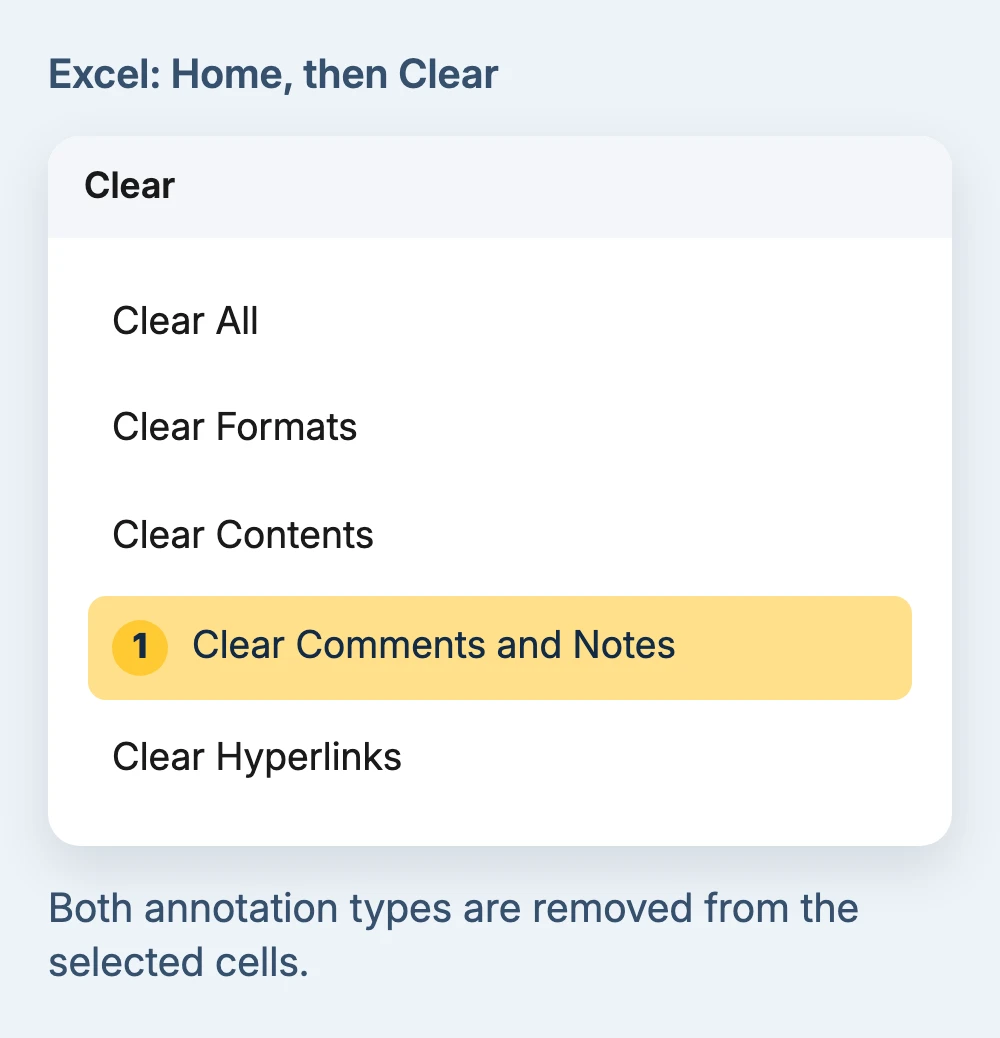
It removes both traditional notes and threaded comments in that selection. If the comments need to survive, stop and use the individual note command instead.
Start with a small range and check its results before expanding to a whole sheet. A selected block can include annotations that aren't currently open on screen.
Avoid Clear All for this task. That command also removes contents and formatting. Clear Contents, the Delete key, and Backspace change cell data rather than removing only notes.
If the goal is to remove a field from the table itself, deleting an Excel column is a different operation. It changes the worksheet's structure rather than just its annotations.
Clear an entire worksheet without clearing every sheet
Save a spare workbook copy before clearing a large selection, especially if you share the file. You'll have a copy to return to after saving and closing.
Click the worksheet's Select All button where the row and column headings meet. With that sheet selected, choose Home > Clear > Clear Comments and Notes.
Check a few cells that previously contained notes or comments. Their notes and comments should be gone while their values and formulas remain. Saving the file keeps that result.
The command applies to the current selection. It doesn't mean every worksheet in the workbook has been cleaned. Open the next relevant sheet and repeat the selection there if you need to clear its notes and comments too.
Check that worksheet tabs aren't grouped before working on a single sheet. A group selection can make editing affect more sheets than you intended; select an individual tab before continuing.
Remove a note in the browser edition
In the browser version, load your worksheet and click its annotated cell. Right-click it and choose Delete Note. For a threaded conversation, use its comment deletion control instead.
The note and comment names follow the same distinction as Microsoft 365 desktop Excel. An existing note can be removed directly; converting it into a conversation isn't required.
If your browser view doesn't offer the bulk command described for desktop Excel, perform the bulk cleanup in desktop Excel instead. Don't replace the task with deleting rows or cells.
The guide to deleting Excel rows explains that separate structural change. Notes cleanup doesn't need you to move the data or close gaps in a table.
Recover a mistake or resolve an unavailable command
Use Undo immediately if you remove the wrong annotation. Ctrl+Z on Windows or Command+Z on a Mac reverses the last edit while it's still available in the editing session.
If the workbook is read-only or you lack edit access, ask for edit access or ask the workbook owner to remove the note or comment. A protected worksheet may also restrict the operation; ask its owner to permit that change.
If an editable workbook lacks the command, tell Microsoft Support your Excel release, platform (Windows, Mac, or browser), and whether it's a note or threaded comment. These details determine which control should appear.
The Short Version
Use Delete Note on one cell, or Clear Comments and Notes on a desktop selection. The bulk option removes both kinds of annotation. Check your selection first, keep the data intact, and use Undo promptly if you remove the wrong item.
Checked November 29, 2026.
 If you have any business, I can build it online