

To delete columns in Excel, select their letter headings, right-click and choose Delete. This removes the columns themselves; the keyboard's Delete key only clears cell contents.
Save a copy of an important workbook first, since deleting a column also removes its data and can affect formulas elsewhere. Check the remaining fields and calculations before replacing the original file.
Select the fields that should leave the worksheet
Click the letter heading for one column, or drag across consecutive headings for a block. Check the field names before continuing. A worksheet column can contain information far beyond the currently visible rows.
Microsoft documents whole-column removal in its row and column guide. These steps cover Windows desktop Excel and Excel for the web.
Status: Microsoft's column deletion, Clear and reference-error instructions checked October 29, 2026. Example fields illustrate the result; no workbook was changed.
Reveal any hidden columns inside a broad selection before deleting it. The Excel Unhide controls help expose fields that would otherwise be removed unseen.
Remove a column from the header menu
In Windows desktop Excel, right-click the selected column letter and choose Delete. The ribbon alternative is Home > Delete > Delete Sheet Columns.
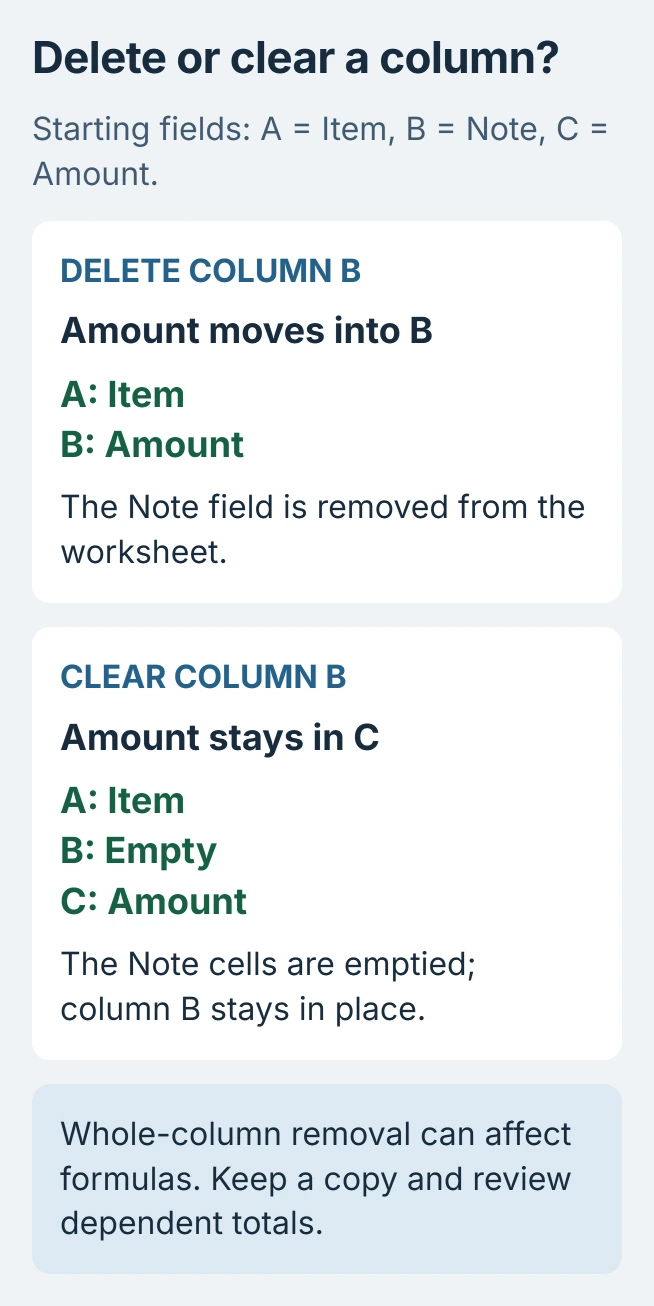
For example, removing B: Note moves the old C: Amount into column B. Column letters are reassigned; the deleted field should disappear while the retained fields move together.
In Excel for the web, select the unwanted column headers and right-click. Choose the deletion option for the Entire column, rather than shifting individual cells. Review the new field order afterward.
To remove several neighboring columns, select their complete header block first and use the same command. If Excel offers to shift individual cells left or upward, cancel and select the column letters again.
Keep the column when only its values should go
Microsoft says the Delete or Backspace key clears selected cell contents, retaining formatting and comments. That behavior is explained in its Clear command guide.
For an empty column that stays in the same position, select the intended cells and use Home > Clear > Clear Contents. For a field that is merely distracting, hide the Excel column and retain its values.
Neither of those actions is whole-column deletion. Choose according to whether the worksheet should lose the field, lose its contents, or only stop displaying it.
Undo a deletion that creates reference errors
Inspect calculations that depended on the removed fields before replacing the original workbook. A new #REF! means Excel cannot use a reference in that formula; deleting referenced cells is one documented cause.
Microsoft states that an accidental deletion should be undone to restore the references. Use Ctrl+Z in Windows immediately after the mistake, before making further edits.
A formula can also produce the wrong result without showing an error. Our check is to compare several retained records and dependent totals with the unchanged copy, especially when the workbook feeds another report.
If removal was intentional, revise the affected formulas to match the new structure. Do not substitute zero merely to hide an error. Ask the workbook author which inputs the calculation now needs.
When deletion is unavailable, confirm editing access and sheet protection with the owner. If an editable, unprotected copy still refuses the command, contact Microsoft Support with the app version and exact message.
The Short Version
Remove whole fields through their column headings. Clear Contents only empties cells, while Hide changes visibility. Verify the remaining records and calculations, and undo an accidental deletion promptly.

Isaac Smith is the founder and editor of PC Glance, a website that covers computers, laptops, and technology. He is a tech enthusiast and a computer geek who loves to share his insights and help his readers make smart choices when buying tech gadgets or laptops. He is always curious and updated about the latest tech trends.