
Hidden columns in Excel can be restored by selecting the column headers on either side, right-clicking and choosing Unhide. Missing rows use the same approach with their row numbers.
Column A and row 1 need a different selection because there is nothing before them to click. Use the Name Box or the platform's first-column menu rather than dragging through the visible data at random.
Select around the missing columns
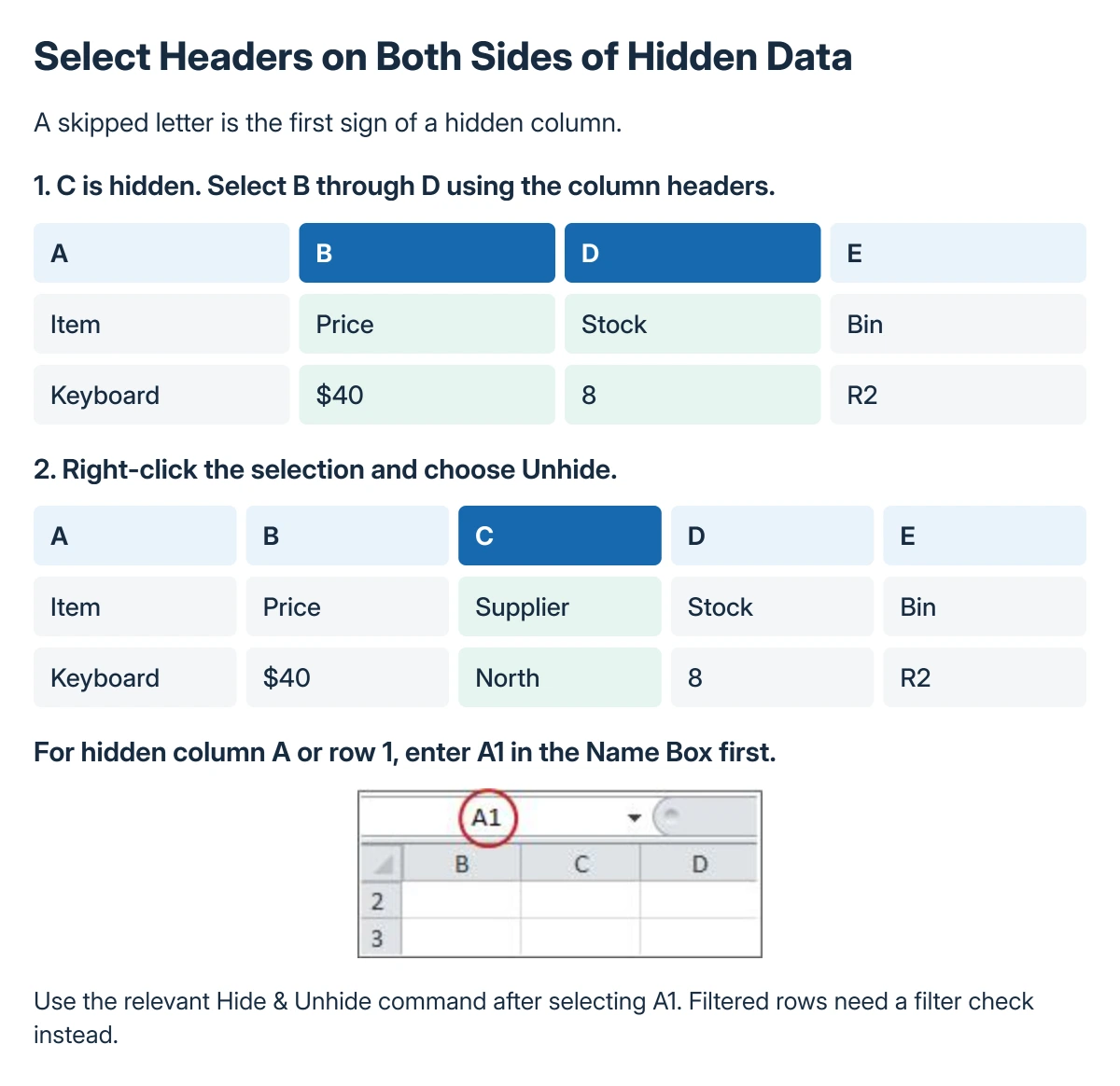
Look for a gap in the column letters. If C is hidden, select the B and D headers so the selection spans the missing column, then right-click the selected headers and choose Unhide.
Microsoft documents this in its hide and show instructions. A double line between headers is another sign that content has been hidden.
Status: Microsoft's row and column visibility controls reviewed 22 October 2026. The first-column Windows and browser procedures were checked separately; no workbook was edited.
Double-clicking the boundary marked by that double line is another documented option. Use the context menu when selecting the narrow boundary is difficult.
Restore rows with the row headers
For a missing row 5, select row numbers 4 and 6 so the hidden row falls between them. Right-click that selected header area and choose Unhide.
Work with the row numbers at the edge of the sheet. Selecting a few cell values in rows 4 and 6 is not the same as selecting the rows themselves.
If the data appears elsewhere but scrolling loses its labels, use Excel's freeze-pane controls rather than hiding more rows to imitate a fixed heading.
Reach column A or row 1 in Windows
Click the Name Box beside the formula bar, type A1 and press Enter. This selects the first cell even when its row or column is hidden.
Open Home > Format > Hide & Unhide, then choose Unhide Columns or Unhide Rows as appropriate. Microsoft's full ribbon groups place Format under Cells and the hide commands under Visibility.
Microsoft says its first-row and first-column procedure can also use Go To to select A1. Either route avoids revealing every hidden area unnecessarily.
The same Windows page offers Row Height or Column Width when a size needs setting explicitly. Choose a size suitable for the actual content rather than guessing that a missing field was deleted.
First-column controls in Excel for the web
In the browser, right-click the B header and choose Unhide Columns to reveal A. For row 1, right-click the 2 row label and choose Unhide Rows.
Microsoft states that a missing command can mean the click was outside the header or row label. Return to the letter or number instead of right-clicking the worksheet's cell contents.
For all hidden rows or columns, select the whole worksheet and apply the relevant Unhide command. Decide whether revealing every hidden field is appropriate before sharing the result.
If the restored text still looks missing
Check whether the row or column label is now visible. If it is, the remaining problem may be its size or formatting rather than visibility.
Text cut off within a visible row belongs with the Excel AutoFit row-height checks. Unhide restores a hidden range; it does not guarantee enough room for a long wrapped description.
Rows removed by an active filter need the filter inspected too. A deleted column cannot be brought back by Unhide; use Undo or an earlier saved version for an unintended deletion.
If the workbook's protection prevents formatting, ask the owner to allow the necessary change. Preserve a copy when the missing range contains important data or formulas.
The Short Version
Select headers on either side of hidden data and choose Unhide. For Windows column A or row 1, select A1 in the Name Box and use the ribbon's Unhide command.
The web version has first-column and first-row commands on B and 2. Check sizing, filtering or deletion separately if the labels return but the expected content does not.
Where to Next
Inspect the revealed values and formulas before sending the workbook. Hidden fields can contain information that was deliberately kept out of the working view.

Isaac Smith is the founder and editor of PC Glance, a website that covers computers, laptops, and technology. He is a tech enthusiast and a computer geek who loves to share his insights and help his readers make smart choices when buying tech gadgets or laptops. He is always curious and updated about the latest tech trends.