

Insert rows in Excel by selecting the row numbers where the new space should begin, then choosing Insert. Excel puts new worksheet rows before the selected rows and moves the existing records downward.
Select as many complete rows as you want to add. Inserting individual cells instead can shift only part of a record, so choose the scope before opening the command.
Select the records' full row numbers
For one new row before row 8, select the 8 row heading. Right-click that heading and choose Insert, or use Home > Insert > Insert Sheet Rows.
Microsoft documents those commands in its worksheet row instructions. The example changes worksheet structure; it does not paste new values over row 8's existing content.
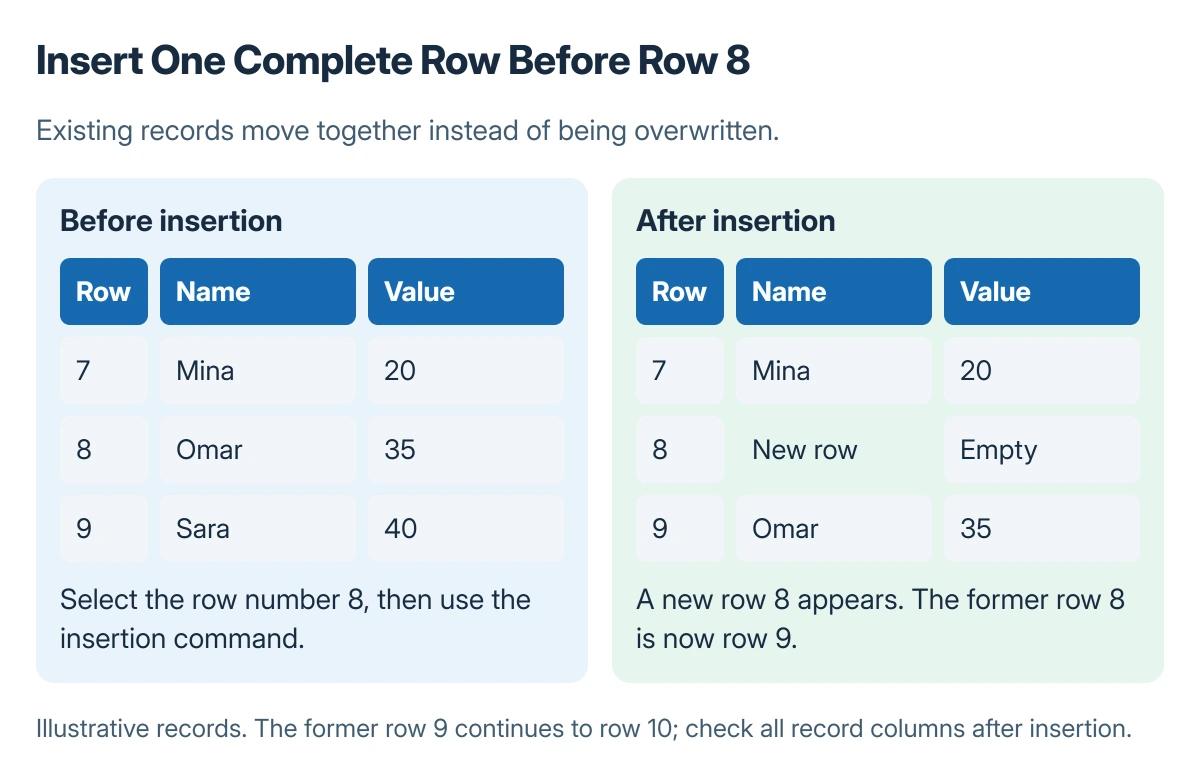
Status: worksheet insertion and table expansion documented by Microsoft, checked 23 October 2026. The example uses invented records; no workbook data was altered.
Check that every column belonging to the record moved together. If only a few cells shifted, undo the action and repeat with the whole row heading selected.
Add several rows in one operation
Select the same number of consecutive row headings as the number to insert. To create three new rows before row 8, select the headings for rows 8 through 10, then choose the insertion command.
Microsoft says Excel for the web follows the same selection-count principle. Its context-menu wording is Insert Rows; the new space appears before the selected rows.
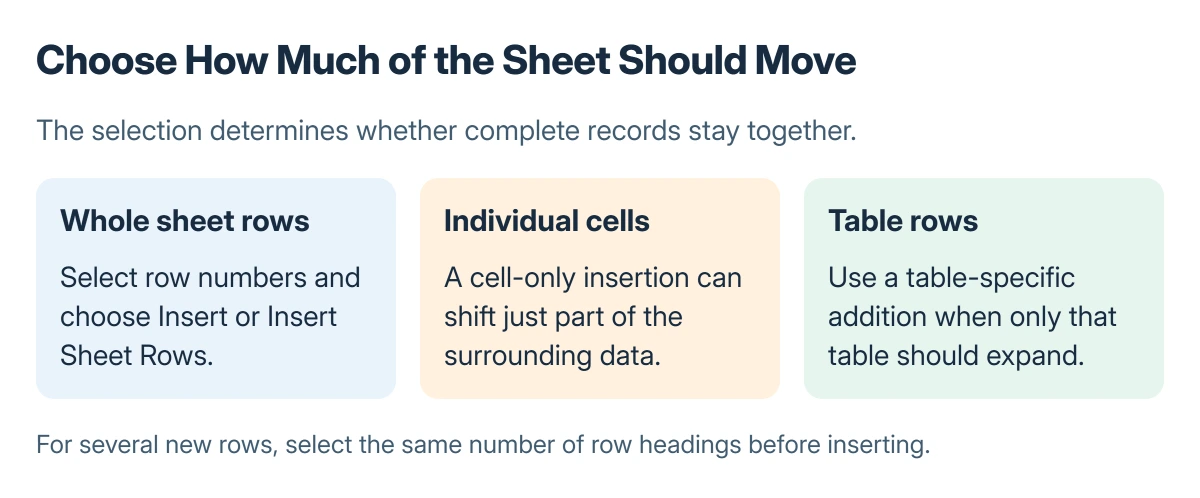
Review nearby formulas and formatting after insertion. A new row may inherit adjacent formatting, and the Insert Options control can offer a different formatting choice when it appears.
Add a table row when only the table should grow
A table can be expanded without inserting an entire worksheet row. At its end, type in the first row immediately after the table, or use the table's row-insertion controls.
Microsoft states that table size can be changed through Table Design > Resize Table. Check the new table range, particularly when unrelated information shares the worksheet.
Moving existing fields needs the column rearrangement controls. Adding rows will also not reveal records hidden by another setting; use the unhide procedure for that case.
Check the result before continuing a larger edit
Confirm the added row count, the first displaced record and the table range. Compare any important totals with the version saved before restructuring.
If insertion is unavailable, ask the workbook owner about sheet protection and the intended editing area. Avoid deleting existing records merely to create room for new ones.
The Short Version
Select complete row headings, use Insert or Insert Sheet Rows, and verify that whole records moved together. Select multiple headings for multiple additions. Use a table-specific expansion when the rest of the sheet should stay in place.
Where to Next
Enter one new record and check its formulas or validation before adding the rest. This exposes a structural problem while the change is still easy to undo.

Isaac Smith is the founder and editor of PC Glance, a website that covers computers, laptops, and technology. He is a tech enthusiast and a computer geek who loves to share his insights and help his readers make smart choices when buying tech gadgets or laptops. He is always curious and updated about the latest tech trends.