
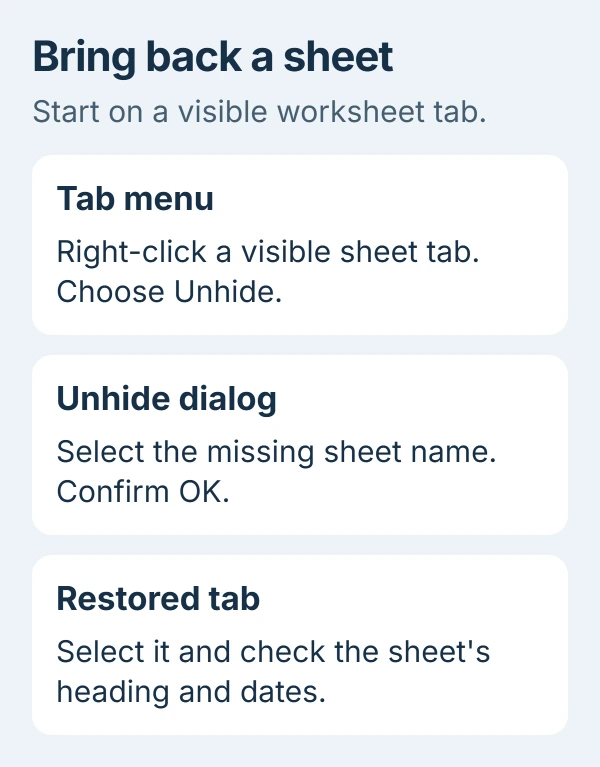
Right-click any visible Excel sheet tab, select Unhide, choose the missing sheet and confirm OK. Its tab returns along the bottom of the workbook, with the existing data still on that sheet.
If every tab has disappeared, check the tab display instead. An empty Unhide list, hidden tab strip and protected workbook are different situations, so the same command won't solve all three.
Restore a hidden worksheet from its tab menu
Open the workbook containing the missing sheet and right-click a visible tab beside the worksheet area. Choose Unhide, select the sheet by name and choose OK. Look for the restored tab before changing any cell contents.
Microsoft's worksheet visibility instructions explain this operation. Hiding changes whether a sheet is visible; formulas on other sheets can still refer to the hidden data.
Current Microsoft 365 versions can select several sheets in the dialog. Hold Ctrl on Windows or Command on Mac while selecting separate entries. If your version lets you choose only one, confirm it and repeat for the next sheet.
On Windows, the ribbon offers another route through Home > Format > Hide & Unhide > Unhide Sheet. Format is in the Cells group on the full ribbon. This opens the list of hidden sheets; it doesn't unhide an entire workbook window.
After restoring a sheet, select its tab and read its heading and dates. Sheets with similar monthly names can look alike until you check their contents.
Find tabs that are present but out of view
A workbook with many sheets may have more tabs than fit beside its horizontal scrollbar. Use the tab-scrolling controls near the bottom-left corner to look through the names before treating one as hidden.
If the scrollbar takes nearly all that space, move its divider to give the tab names more room. Give the names enough room to read, then select the sheet you need. This doesn't change its visibility setting.
Maximize Excel if your desktop is crowded. If another workbook covers the bottom of the one you need, bring the right window forward. Each workbook has its own tab strip.
I'd check the filename in the title bar before trying more recovery steps. Opening an older copy of a workbook can make a recently added sheet appear to be missing when the other copy simply never contained it.
If the problem is missing letters or numbered rows inside an otherwise visible sheet, use the row and column Unhide controls. Those commands work on a different part of the file.
Bring back the whole tab strip in Windows
When no sheet names appear, open File > Options > Advanced. Find Display options for this workbook, select the intended workbook if needed and enable Show sheet tabs. Confirm with OK.
The missing-tab troubleshooting page lists this checkbox separately from hidden worksheets. Turning it on brings back the strip with your visible sheet names. Hidden sheets stay hidden.
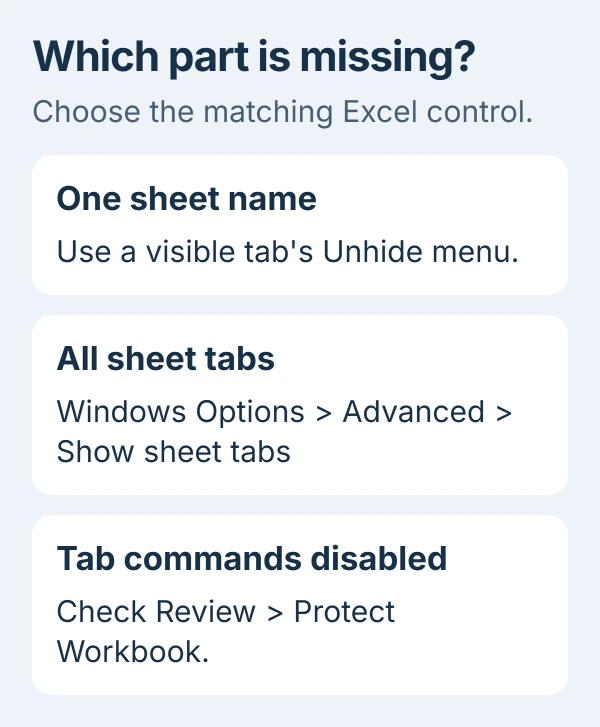
Once the strip returns, use the worksheet's Unhide menu if the name you need is still missing. Bringing the tabs back first gives you a visible tab to right-click.
These Options steps apply to the Windows desktop app. The browser version doesn't have File > Options, and the Mac's preferences use a different layout.
Check workbook structure when Unhide is unavailable
On the Review tab, check Protect Workbook. Protecting the workbook's structure can disable adding, removing, moving, renaming, hiding or unhiding sheets. If Unhide is unavailable, that protection may be the reason.
To unlock it, follow the workbook protection guide: choose Review > Protect Workbook, enter its password when requested and confirm. Then check the tab menu again.
Ask the workbook's owner for the password or a version with the required sheet visible. Protecting a worksheet's cells is a different setting, so removing that protection alone won't unlock the workbook's sheet structure.
If the structure isn't protected and Unhide lists no sheets, continue with the missing-data checks. Choosing Unhide again won't reveal something that isn't stored as an ordinary hidden worksheet.
Know when the missing sheet needs its owner
A workbook created with VBA, Excel's built-in programming language, can mark a sheet xlSheetVeryHidden. That state keeps it out of the ordinary Unhide dialog. It isn't the same as a normal hidden tab.
If a file that uses macros should contain a sheet that never appears in the list, contact its owner. Ask them to reveal that worksheet instead of enabling unknown macros just to make its name appear.
A deleted worksheet also won't appear in that dialog. Check an earlier saved version, or ask the file's sender whether they removed the sheet. Visibility commands can't recreate deleted contents.
Document Inspector's Remove All removes hidden data instead of revealing it. Its hidden-content guidance warns that removing hidden sheets can change calculations.
Review a restored sheet before sharing the workbook; it may hold notes or figures meant for a smaller audience. Hiding only changes what's shown. Controlling who can open the file needs separate protection.
For a separate working copy, duplicate the restored worksheet and verify its formulas. Save your visibility changes before closing, then reopen that saved file to check the result.
Give Microsoft Support your Excel build and the sheet names you can see. Explain whether Unhide is disabled or the missing name isn't listed. For a company template, start with your Office administrator.
The Short Version
Use a visible tab's Unhide menu for a hidden sheet. Restore Show sheet tabs when the whole strip is missing, and check workbook structure if commands are disabled. A deleted or VeryHidden sheet needs a different recovery route.
Checked November 5, 2026.

Isaac Smith is the founder and editor of PC Glance, a website that covers computers, laptops, and technology. He is a tech enthusiast and a computer geek who loves to share his insights and help his readers make smart choices when buying tech gadgets or laptops. He is always curious and updated about the latest tech trends.