

Excel's repeated personal-information warning often stops when you clear Remove personal information from file properties on save in the workbook's privacy options. This turns off automatic removal; it doesn't clean the file.
For a workbook you're about to share, inspect a separate copy first. The message can refer to content Document Inspector can't remove automatically. Stopping the warning doesn't make that copy ready to share.
In this guide
1. Turn off automatic removal for this workbook
Open the affected file in Excel for Windows. Choose File > Options > Trust Center > Trust Center Settings > Privacy Options. Look under Document-specific settings, rather than changing macro security or Protected View.
Clear Remove personal information from file properties on save. Select OK to close the settings dialogs, then save the workbook again. The setting applies to the document you're working on, so check the intended filename first.
One owner on the original discussion reported this stopped the repeated message. A later reply pointed out that turning it off leaves any private information for you to review.
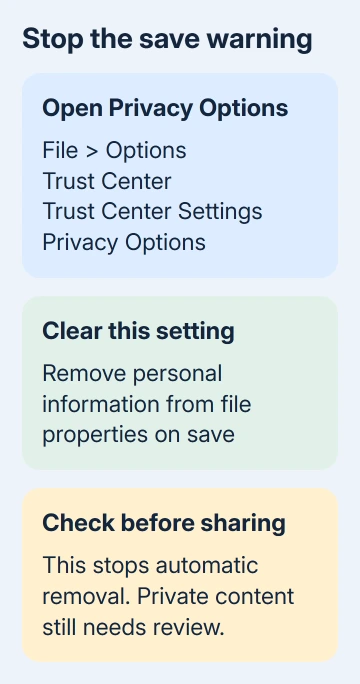
If the warning stops, you can carry on editing that workbook. Before sending it outside its intended audience, use the inspection steps in section 2. Saving without a warning doesn't tell you what private information is still in the file.
If the checkbox isn't available or the wording differs, don't switch off unrelated security controls. Record your Excel version from File > Account > About Excel, then use the Inspector route to review the file's contents.
Microsoft's privacy-options reference describes automatic removal and manual inspection separately. Some privacy controls moved in newer Office versions, so don't assume an old screenshot matches every build.
2. Inspect a copy before sharing it
Create another version using File > Save As. Some workbooks show Save a Copy instead. Give it a clear sharing filename. Some information removed by Document Inspector can't be restored afterward.
In the copy, choose File > Info > Check for Issues > Inspect Document. Review the categories offered, select the ones you need to check and choose Inspect. Wait for the results before deciding what to remove.
Look at Document Properties and Personal Information for details such as the author and other stored file properties. These stored details about the workbook are often called metadata. They aren't the figures you see in its cells.
Choose Remove All only beside a category you've reviewed and want cleared. Then select Reinspect to check the result. Each removal button applies to its category, so read the category name first.
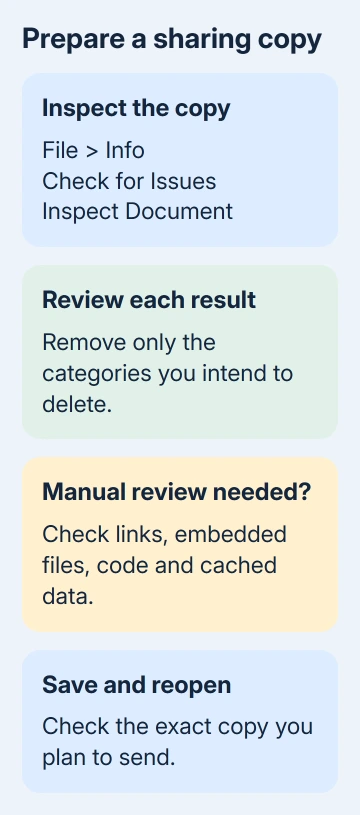
The workbook inspection guidance explains which categories can be removed and which need manual attention. Read the results as a list of content to review.
A clean result in one category doesn't mean the rest of the workbook is clear. For example, clearing document properties doesn't clear a customer name typed into a worksheet cell. Read the visible workbook as well as its inspection report.
3. Review content the Inspector can't remove
Excel can detect items it won't delete automatically because that could break the workbook. These include external workbook links, embedded files, VBA code (the code behind Excel macros) and some stored data used by analysis features.
For External links, ask which other workbook supplies the data and whether the recipient needs that connection. A file path can reveal information about the source even when the linked numbers look harmless on the sheet.
For an Embedded file, review the attached document itself. A small object in a worksheet can contain another complete file. Don't stop at the label you see on the sheet; review what's inside the attached file.
For Macros or VBA code, ask the workbook's author to review stored names, comments, paths and other private text. Code can also be necessary for buttons or calculations, so removing it changes how the workbook works.
For PivotTables and the source data they store, ask the author what source information travels with the report. A summary showing only a few totals can still carry data used to build it. Decide what the recipient actually needs.
I'd ask for a purpose-made sharing copy when the workbook contains code or links I don't understand. That gives its author a chance to keep the needed calculations while leaving out private source material.
Check formulas, charts and required buttons after any removal. If a workbook stops calculating or updating correctly, return to the original and have its author prepare the copy instead of deleting more categories.
4. Check hidden sheets and the exact file you're sending
A workbook can contain information outside the sheet that's open. Before removing a hidden worksheet, unhide the Excel tab and review its contents so you understand what it contributes.
Hidden rows and columns need the same care. Removing hidden data can affect formulas that use it. A sheet's appearance alone isn't enough to decide that the workbook has no other private information.
If the task also includes removing Windows file tags, use the format-specific tag removal steps. Explorer properties and Excel's inspection categories don't check exactly the same information.
Save the sharing copy and reopen that exact filename. Check its inspection results again after further edits, then confirm that the email attachment or upload uses this copy rather than the untouched original.
When only one workbook produces the message, focus on its privacy setting and stored contents. Reinstalling Office won't clean private content from that workbook.
When the warning continues or the control is missing
These menu paths are for Windows desktop Excel. Excel for the web and Excel for Mac don't provide the same Windows Trust Center workflow. Ask the owner to inspect a Windows desktop copy when those controls aren't available.
If the message changes to Document not saved, treat that as a separate saving failure. Keep the workbook open and report that exact message rather than assuming the file saved.
For a managed work file, ask IT whether the document-specific setting is controlled by policy. Give them the exact warning, the Excel version and whether the setting is missing, unavailable or returning after a save.
For a personal installation, open Help > Contact Support in Excel. Report whether it affects one file or every new workbook, plus any Inspector category that can't be removed. Share a nonconfidential sample if requested.
The saved discussion began with Excel 2013. A current supported version is the right place to continue troubleshooting; a fix that worked in an old forum thread doesn't make that unsupported version safe to keep using.
The Short Version
Turn off automatic removal to stop the repeated save warning. Before sharing, inspect a copy, review items that need manual attention and reopen the file you're sending. Stopping the warning doesn't remove private content.
Checked November 16, 2026.
 If you have any business, I can build it online






