
To make a calendar in Excel, open a calendar template and add your plans in the spaces provided. Windows starts at File > New with a search for calendar. On a Mac, choose File > New from Template.
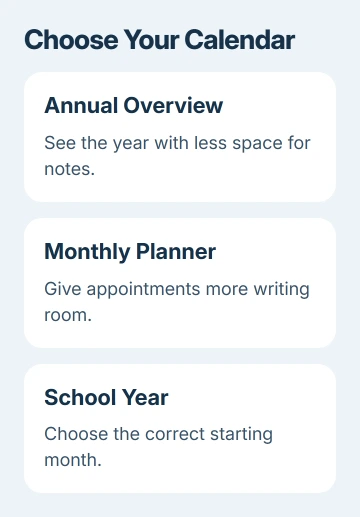
Pick the layout before entering events. A one-page annual calendar, a monthly planner, and a school-year calendar leave different amounts of room for notes, and some templates use formulas to move the dates automatically.
Choose a layout that fits the job
For a calendar you want on the wall, decide whether you need the whole year on one page or a separate page for each month. A year at a glance leaves you less room to write next to each date.
For planning appointments or assignments, look for a monthly layout with notes space. School-year templates can span thirteen months, starting in July or August, rather than following the January-to-December calendar year.
Check whether the week starts on Sunday or Monday and whether the page is portrait or landscape. These details matter when matching an existing work schedule or printing a calendar that someone else will use.
Microsoft explains the template creation steps for desktop and browser editions. Choose by the layout you need; the gallery designs can change.
I'd choose a simple monthly template for handwritten notes. A decorative annual design can look good in the gallery but leave little usable space once printed on ordinary paper.
Create the calendar in Excel for Windows
Open Excel and select File > New. In Search for online templates, enter calendar and run the search. Select a suitable preview, then choose Create to open a workbook based on that design.
Look through the workbook's sheet tabs before typing. A template may put all twelve months on one sheet or spread them across separate sheets. The first visible sheet isn't necessarily the entire calendar.
Read any instructions included in the workbook. If it offers a year or month input, use that control to change the dates. Some templates are designed for a fixed period, while others update through formulas.
Save the workbook under a name that includes its purpose and year, such as Team calendar 2027.xlsx. Keep it in a recognizable project folder instead of losing your working copy among downloads.
Check the first month and the last month after setting the year. Confirm that the date headings changed as expected before spending time entering a full schedule.
If the design doesn't fit, create a different template now. Changing from a compact annual view to a monthly planner is easier before your appointments have been entered into the first layout.
Open the Mac and browser galleries
In Excel for Mac, select File > New from Template. Type Calendar into Search All Templates, choose a design, and select Create. Follow the workbook's instructions for any year or month controls.
For Excel for the web, open File > New > Browse templates. Select Explore all templates, then search for calendar in the Excel template search box. Choose a calendar that opens in Excel, rather than Word or PowerPoint.
The public gallery also provides calendar templates. Check which app a design uses before opening it. A calendar layout in Word is a different document from an Excel workbook.
Rename the workbook when it opens in Excel for the web. Online changes are saved as you work, but a clear filename is still useful when you're choosing among several calendars later.
You'll need to sign in and access the workbook online to use the web app. If opening the template takes you to a sign-in screen, sign in before trying to edit it.
Add plans without replacing the date formulas
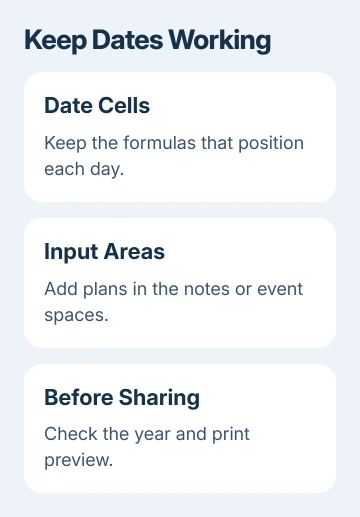
Use the labeled notes or event-entry areas. If you're unsure where to type, select a cell and check the formula bar. Before replacing its contents, see whether it's an entry you can change or a formula that calculates dates.
Date cells can contain formulas, and some apparently blank cells in those date rows contain formulas too. Don't type over them to move a date or squeeze in an appointment; that can stop the calendar updating automatically.
If you overwrite a formula accidentally, use Undo promptly. For a calendar already filled with plans, keep a saved copy before rebuilding it from a fresh template so you can move the event text across carefully.
Use Wrap Text for longer notes in the cells intended for your entries. Keep the dates separate from those notes so a longer description doesn't replace the value that positions the day.
For desktop appearance changes, open Page Layout > Themes. Choose a theme, or adjust its fonts and colors. Review the calendar afterward because a font change can alter how much text fits in a notes area.
If a month or field seems missing, check the sheet tabs and any hidden ranges before recreating it. The Excel row and column visibility controls explain how to reveal an existing hidden range.
Print the right months or share the workbook
Select File > Print, then examine the preview. Check the paper orientation, the number of pages, and whether the selected sheet includes the month you actually want.
For a template with one month per sheet, printing the active sheet can leave the other months out. Choose the entire-workbook option when you want all its sheets, then review the page count again.
In Excel for the web, Ctrl+P opens the print preview described in the template instructions. To print all sheets, use Entire workbook under the available print choices.
For online sharing, select Share > Copy Link, open Settings, and choose who can use the link and whether they can view or edit. Apply those choices before pasting the link into your message.
Use viewing access for recipients reading the schedule and editing access for people updating it with you. A printed calendar and an editable shared workbook serve different jobs, even when their dates look the same.
If a downloaded template won't update or print correctly, tell the Excel support community which template and Excel version you're using, and which step failed. Remove private events from any example workbook you share for help.
The Short Version
Choose a suitable template, set the intended year, and put plans in the designated input cells. Preserve the date formulas. Check the print preview or link permissions before sending the finished calendar.
Checked November 8, 2026.

Isaac Smith is the founder and editor of PC Glance, a website that covers computers, laptops, and technology. He is a tech enthusiast and a computer geek who loves to share his insights and help his readers make smart choices when buying tech gadgets or laptops. He is always curious and updated about the latest tech trends.