

You double-click the row border, or pick AutoFit Row Height, and your wrapped text still hides behind a row one line tall. I would check the other cells in that row before blaming Excel. Usually a single cell in it is to blame.
Since February 2012, a Super User question about this fault has collected 854,719 views. On Microsoft Q&A, a thread about wrapped text that will not fit is marked 100+, and one about merged cells is marked 60+.
Which cell is holding your row
Microsoft says on its wrap text page that you may not see all wrapped text for two reasons: "it may be because the row is set to a specific height or that the text is in a range of cells that has been merged."
Before troubleshooting the height, check the Wrap Text setting and any manual line breaks so the cell uses the intended layout.
Ours: I tested both, plus three more, in an Excel window I kept hidden on this laptop. A plain wrapped cell grew from 14.5 to 87 points as the text went in. Five other rows stayed stuck. You may have any of them.
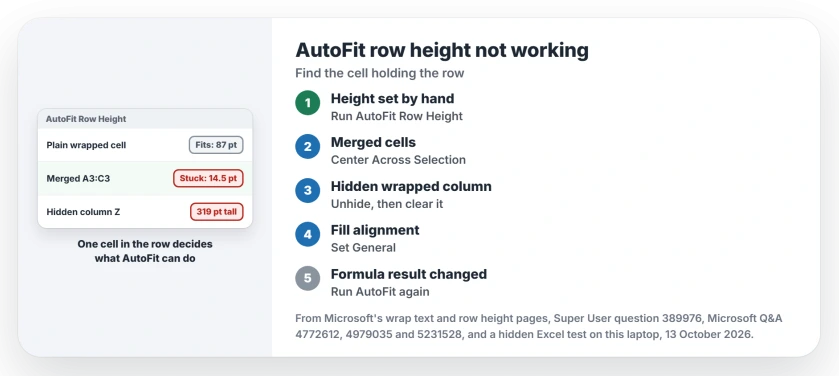
Status: Excel 16.0 build 20430, Windows 11 25H2, tested 13 October 2026. A manual height, merged cells, a hidden wrapped column, Fill alignment and formula results each kept a row from fitting.
1. You set the height by hand once
Dragging a row border fixes that row at that size, and so does typing a number into Row Height. From then on, your new text stops making it grow.
In my test, a row I had sized by hand stayed at 14.5 points even after a long sentence went in.
Select your rows, then go to Home, Format, AutoFit Row Height. That hands the job back to Excel, and here the row jumped to 87 points. It grew again to 174 on its own when I doubled the text.
Confirmed by an owner, who was editing a file someone else made. Selecting all the affected rows and running Autofit from the Format menu "Seemed to work".
For the whole sheet at once, click the Select All corner left of column A, then double-click any border between two row numbers.
For a short list inside that cell, insert Excel bullets with internal line breaks. A bullet character and a separate worksheet row are different layouts.
2. Your text sits in merged cells
AutoFit skips merged cells. My two sentences in a merged A3:C3 left the row at 14.5 points. A volunteer moderator put it flatly on Q&A: "Excel won't AutoFit Row Height for merged cells."
Moderators point you to Center Across Selection. Unmerge the cells, select them again, press Ctrl+1, open Alignment and pick it in the Horizontal list. Your text still looks centered over the columns.
Ours: the same two sentences with Center Across Selection on A4:C4 fitted to 87 points, wrapping across all three columns.
A table you paste in from Word often arrives with merged cells. We covered keeping each Word cell whole when it lands in Excel.
If your merge has to stay, set that row's height by hand. On a 30+ thread, the accepted answer posted a macro that unmerges, fits and merges again on every change.
Merged cells can also stop an array formula expanding; match the SPILL warning to its cause when results refuse to fill neighboring cells.
Before rebuilding the heading, check merge versus text joining. A merge retains one starting entry, while TEXTJOIN can combine several text values.
3. A hidden column in the same row
You cannot see this one. A Super User answer named it: "a hidden column has wrapped text in those rows".
Ours, and the result was dramatic: row 5 held one short word in A5. AutoFit still made it 319 points tall, because hidden column Z held two wrapped sentences. I cleared Z5. The row went back to 14.5.
Unhide everything first: select the whole sheet, right-click any column letter and choose Unhide. Then scan along your tall row.
For a narrow hidden range or a missing first column, choose the appropriate Unhide selection before inspecting its wrapped cells.
4. The alignment is set to Fill
On Q&A, an MVP looking at a row that would not fit told the owner: "Make sure that the horizontal alignment has not been set to Fill, but to General."
My test agreed. With Fill alignment, the sentence stayed at 14.5 points after AutoFit, even with Wrap Text on. Back on General, it fitted to 87 points. Check yours with Ctrl+1, Alignment.
5. Your text comes from a formula
AutoFit fits a formula result once, and it does not run again when the result changes.
Here a cell showing =B9 fitted to 87 points. B9 then doubled in length, and the row stayed at 87 until I ran AutoFit again.
One Q&A asker summed it up in their title: "AutoFit Row Height is not a dynamic action". Rerun it after your source data changes.
If your cell shows the formula text itself, not its result, that is a different Excel fault with its own fixes.
An extra blank line under the text?
That is the 2012 Super User complaint. AutoFit can leave a spare line at some zoom levels. Text that looks fine on your screen can also be cut off in print.
One answer blamed the font: "Excel has this problem with certain fonts and font sizes more than others."
The accepted answer: select the whole sheet, widen any column a little, double-click a row border, then double-click a column border.
The asker confirmed it: "This really does seem to work". They added that one example only worked once they "stretched the column a fair amount".
A commenter warned that widening with the whole sheet selected gave every column the same width. Try it on a copy first if your column widths matter.
The column-width sizing choices explain how a double-click fits each column separately, while dragging a selected group gives matching widths.
Hash marks instead of wrapped text?
A 2011 owner on Excel 2007 saw #### in a wrapped cell formatted as Text. Changing the format from Text to General fixed it, and a 2015 reply on the same thread thanked them for that fix.
Ours: a 408-character cell formatted as Text showed its words, not hash marks, in Excel 16.0 here. You may never see this on a current version, but if you do, try General.
Rows that stop at 409 points
Microsoft's table of row and column sizes gives a maximum row height of 409. My longest test cell stopped at 409.5 points and hid the rest. No setting raises that.
Split your text over two rows, or widen the column so it needs fewer lines.
Planning the printout while you resize? If thin dashed lines then stay on the sheet, they are page breaks Excel turned on for you.
The Short Version
- Select the rows, then Home, Format, AutoFit Row Height. A height set by hand stops growth until you do.
- Merged cells never fit. Use Center Across Selection.
- Unhide columns and look for wrapped text out of sight.
- Fill alignment blocks it. Set General.
- Formula results: run AutoFit again after the data changes.
- Over 409 points, nothing fits. Split the text.
Where to Next
Did a different cell hold your row down? Send a short description of the sheet through the comments, and my hidden Excel gets a new test from me.

Isaac Smith is the founder and editor of PC Glance, a website that covers computers, laptops, and technology. He is a tech enthusiast and a computer geek who loves to share his insights and help his readers make smart choices when buying tech gadgets or laptops. He is always curious and updated about the latest tech trends.