

Excel merges adjacent cells into a larger cell, but it does not combine all their text. Preserve any content first, then select the intended range and use the Home > Merge & Center menu.
If the goal is one text value made from several cells, join the text with a formula instead. Merging a title area and combining separate data fields are different jobs.
Protect the entries before merging the layout
Inspect every cell in the intended range. Microsoft says only the upper-left cell's contents are kept in a left-to-right layout; contents from the other merged cells are deleted.
Copy any values that need to survive to a safe location before continuing. For a heading across otherwise empty cells, keep the heading in the upper-left cell and leave the rest empty.
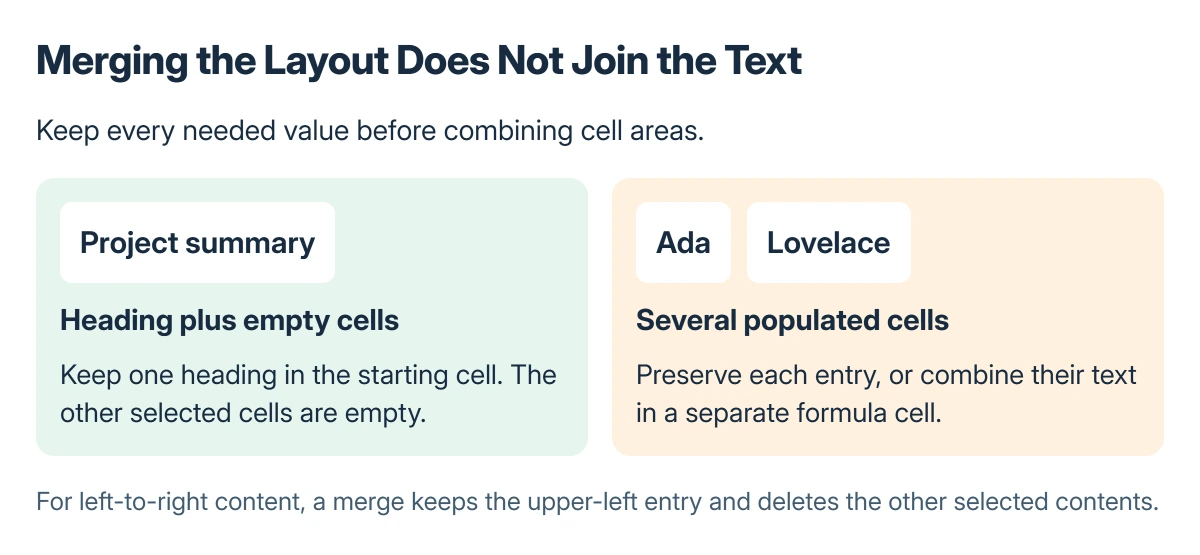
Status: Excel merge behavior, unmerge limits, disabled controls and TEXTJOIN checked 22 October 2026. Examples are explanatory; no worksheet data was changed.
Use merging sparingly inside working data. It can complicate later processing and already affects Excel row-height adjustment in ways ordinary cells do not.
Choose the merge command that fits the heading
Select the adjacent cells, open Home > Merge & Center and choose the intended action. Merge & Center combines the selected area and centers its remaining content.
Microsoft documents Merge Cells for a merge without that centering, and Merge Across for merging across rows separately, in its merge instructions.
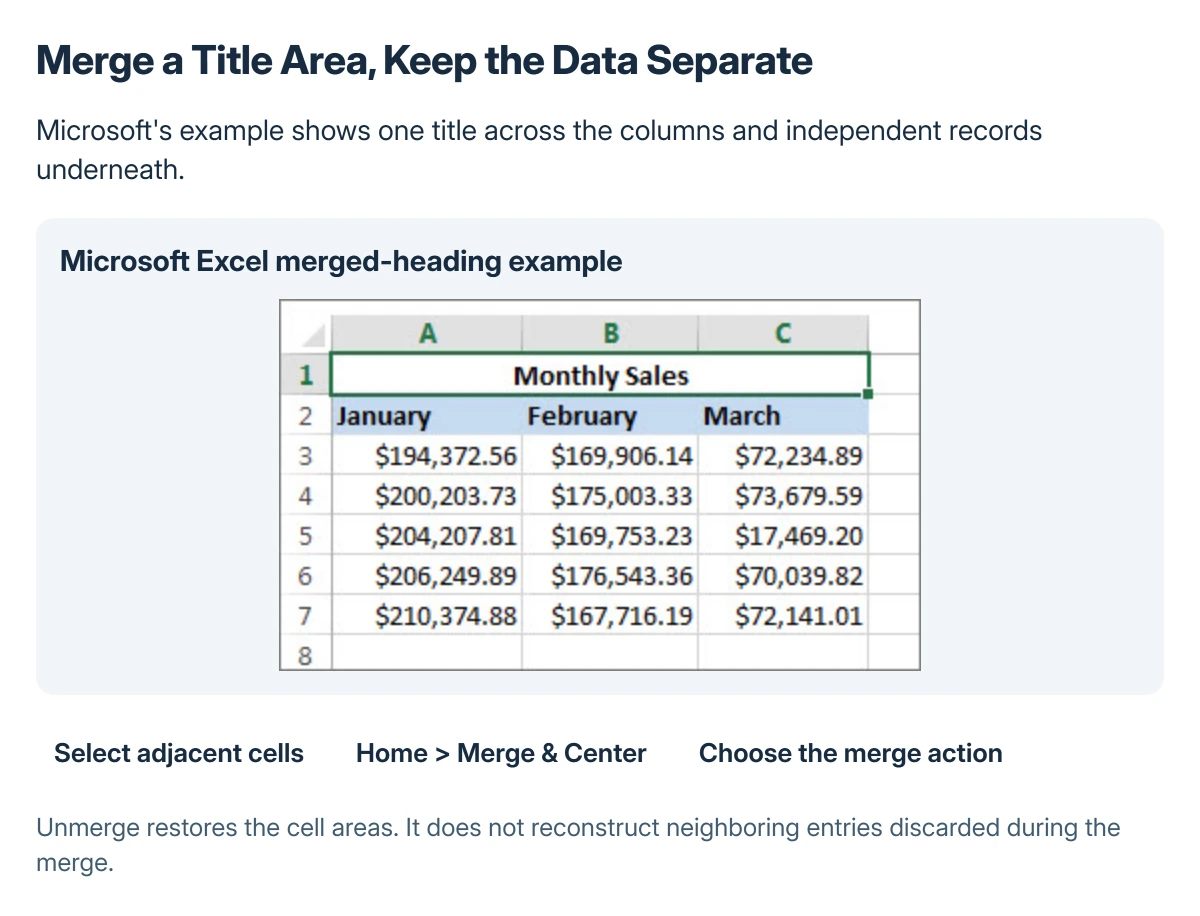
Used with permission from Microsoft.
Review the selected range before accepting a warning. Do not confirm the loss of other populated cells simply because the preview appears more centered.
Join text with a formula when every part must remain
For first and last names in A2 and B2, put this example in a separate empty cell:
=TEXTJOIN(" ",TRUE,A2:B2)Microsoft's TEXTJOIN reference explains the delimiter and the empty-cell option. In this example, a space separates the retained text values and empty source cells are ignored.
Inspect the formula's output while leaving the original fields in place. A combined display is not permission to discard source columns that another formula or process still uses.
If the merge control is unavailable
Finish editing the active cell, then reselect the range. Microsoft states that cells inside an Excel table are another reason the merge command can be unavailable.
Prefer a separate title area outside the data table instead of changing a useful table solely for a merged heading. Keep fields separate when they need to sort, filter or calculate independently.
Unmerge without assuming lost entries return
Select the merged cell and choose Unmerge Cells from the Merge & Center menu. The surviving entry remains in the starting cell; unmerging is a layout action, not a recovery method for deleted neighboring text.
For an accidental recent merge, use Undo while that action is still available. Otherwise check a saved copy or version history before overwriting more cells.
If an array formula is blocked by a merged area, the Excel spill-error guide explains that specific conflict. Persistent workbook damage belongs with its maintainer or Microsoft Support, using a preserved copy.
The Short Version
Merge a layout only after preserving every value that matters. The command keeps one cell's contents, so combine text in a separate cell with TEXTJOIN instead.
Unmerge restores the separate cell areas but does not reconstruct discarded entries. Check table membership or an unfinished edit when the merge control is dimmed.
Where to Next
Inspect the surrounding formulas, row heights and selected heading after the change. Keep the source data intact until the worksheet still behaves as intended.

Isaac Smith is the founder and editor of PC Glance, a website that covers computers, laptops, and technology. He is a tech enthusiast and a computer geek who loves to share his insights and help his readers make smart choices when buying tech gadgets or laptops. He is always curious and updated about the latest tech trends.