

Excel highlights whole cells with Fill Color, the paint-bucket control on the Home tab. Select your cells and choose a background color there. For highlighting that changes when a number or word changes, use Conditional Formatting instead.
Selecting cells and coloring them are different jobs. A selection disappears when you click elsewhere; a fill stays in the saved workbook. These steps cover the Windows desktop app, including Microsoft 365 and Excel 2024.
Select the cells, then apply a fill
Click one cell, or drag across a group of cells. Open Home, find the Font group, and open the color menu beside Fill Color. Choose a pale background that leaves the text easy to read.
Microsoft says to use Fill Color for cell backgrounds. The Windows palette shortcut is Alt, then H, then H, pressed in sequence.
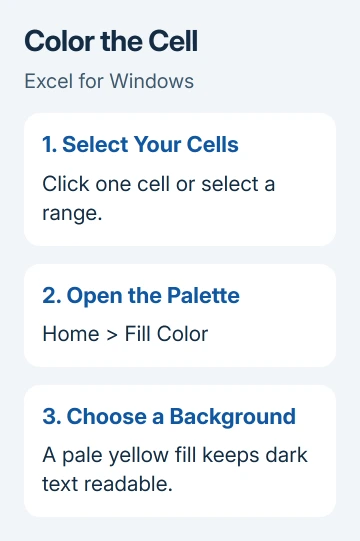
Click another cell to check the result. Your chosen background should remain on the original cells. If the apparent highlight disappears, you had only selected the range and haven't applied a fill yet.
The paint-bucket button itself repeats the last fill color. The menu beside it opens the palette so you can choose a different one. That's useful when one click keeps applying yesterday's color instead of the one you intended.
Keep the text and the background separate. Font Color, shown with a letter, changes the characters. Fill Color changes the area behind them. Choosing a yellow font on a white sheet won't produce a yellow cell.
Choose a range without coloring the wrong cells
For a rectangular block, click its first cell, hold Shift, and click its last cell. For separate cells or ranges, hold Ctrl while selecting each additional area. Release the key before opening Fill Color.
Check the selected area before applying the color. A row number selects the entire row; a column letter selects the entire column. Those are handy for a heading or status column, but much broader than a few entries.
For a precise block, click the Name Box to the left of the formula bar, type a range such as B2:D12, and press Enter. Then choose the fill. The cell addresses help when dragging keeps overshooting your data.
Coloring a cell doesn't combine its contents with its neighbors. When a heading needs to span several columns, the Excel merge options explain which command keeps the layout you want.
I'd color only the cells you need to mark. A whole-sheet fill can hide the familiar gridlines and makes a small set of marked entries harder to spot.
Make the highlight follow a value automatically
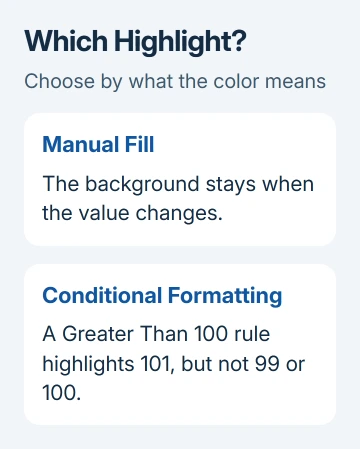
A manual fill stays in place even when you replace the cell's number. Use a conditional formatting rule when the color should mean something, such as a total exceeding a limit or an entry containing a particular word.
For a simple numeric example, select your numbers, then open Home > Conditional Formatting > Highlight Cells Rules > Greater Than. Enter 100, choose a format, and select OK.
Numbers greater than 100 should now show that format. Exactly 100 doesn't meet a Greater Than rule. Change one test entry to 101 and then 99 to see whether the appearance follows the value.
For words, choose Text that Contains from Highlight Cells Rules. Enter the word you're looking for and choose the appearance. This matches text containing that word, so use Equal To when the whole cell must match a specific value.
Keep the rule's range in mind. A rule applied to B2:B12 doesn't automatically mean every cell in column B is covered. Open Conditional Formatting > Manage Rules to inspect which cells the rule applies to.
The conditional formatting controls also handle dates and duplicate values. Choose the rule that expresses your actual question rather than manually coloring every new match.
Emphasize selected words in one entry
Excel doesn't provide Word's text-highlighter tool for individual words within a cell. A cell fill colors the whole cell. For one word or number inside ordinary text, change that portion's font color or make it bold instead.
Enter cell-editing mode with a double-click. Drag over the characters you want to mark, then use Home > Font Color or Bold. Press Enter to finish editing and check that the surrounding text kept its original appearance.
This changes individual characters in text you've typed. A formula cell is different: editing it exposes the formula rather than letting you style selected words in its displayed result. Use whole-cell formatting for that result.
The distinction matters in lists containing a name and a note in the same cell. A pale cell fill marks the whole entry; a different font color can draw attention to just the note.
Reuse a highlight without repeating every choice
Select a cell with the formatting you want to copy. On Home, double-click Format Painter, then select the destination cells or ranges. Press Esc when you've finished copying the formatting.
Format Painter copies formatting beyond the background, including number formats. Check a date, currency amount, or percentage after using it. If only the background should change, applying Fill Color directly is the simpler choice.
For a reusable workbook style, open Home > Cell Styles > New Cell Style. Name it, choose Format, open Fill, and select the background. Accept the settings in each dialog, then apply your new style from Cell Styles.
A named style is helpful when several sections need the same appearance. Review the style settings before applying it to existing tables so the result still fits the workbook's fonts and number formats.
Remove the color or deal with a blocked control
Select manually colored cells, open the Fill Color menu, and choose No Fill. That removes their manual background without deleting their values. Don't press Delete expecting it to remove formatting.
For a highlight set by a rule, select the affected range, then choose Home > Conditional Formatting > Clear Rules > Clear Rules from Selected Cells. Removing a manual fill doesn't remove the rule that paints the cell again.
A protected worksheet can block formatting changes. Ask the workbook owner which formatting changes you can make. The cell protection settings explain how editing permission and formatting permission differ.
When a shared workbook still behaves differently, send its owner the affected cell addresses and say whether the color comes from Fill Color or a rule. That gives them a specific setting to check without changing the whole sheet.
The Short Version
Fill Color gives a lasting background. Conditional Formatting makes the color follow your data. For selected characters, change their font color. Remove the same kind of formatting you originally applied.
Checked November 8, 2026.

Isaac Smith is the founder and editor of PC Glance, a website that covers computers, laptops, and technology. He is a tech enthusiast and a computer geek who loves to share his insights and help his readers make smart choices when buying tech gadgets or laptops. He is always curious and updated about the latest tech trends.