

Stale conditional colors in Excel 2010 can mean the formula hasn't recalculated or the sheet isn't refreshing its formatting. Choose Formulas > Calculation Options > Automatic, then check whether the number and color change.
If you need Manual mode, F9 can update a formula's answer while leaving the formatting stuck, as Excel 2010 owners reported. If the number changes but its color doesn't, check the worksheet property in step 3.
In this guide
1. Check whether the number changes with its input
Open the affected worksheet and choose a formula cell whose conditional color is wrong. Change one of its input cells to a value that should cross the formatting threshold. Check the calculated number before looking at its fill color.
For example, a rule that colors negative results should change when a calculation moves from 10 to -10. If the cell still reads 10, calculation comes first. If it reads -10 with the previous fill, move to the formatting checks.
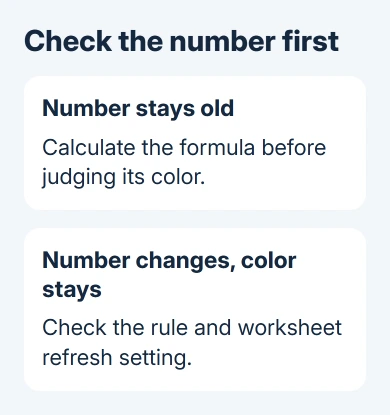
Choose Formulas > Calculation Options > Automatic in Excel 2010 for Windows. Edit the input again. The formula's result should change without another calculation command, and the conditional color should change with it.
This setting affects other open workbooks in desktop Excel. Recalculation can be slow in a large workbook you've kept in Manual mode. If your workbook needs that mode, leave it Manual and use F9 to calculate before checking the color.
When Excel hangs during a conditional-color sort, compare sorting values without the rule; a stale fill calls for its own checks.
F9 recalculates changed formulas across open workbooks; Shift+F9 calculates the active worksheet. For a number that stays stale, the Excel calculation guide covers that separate failure.
Don't replace the formula with a typed number to make its color change. That removes the calculation the workbook needs. Once the number updates correctly, continue only if the old formatting remains.
2. Confirm that the rule still covers the cell
Select the affected cell and open Home > Conditional Formatting > Manage Rules. In Show formatting rules for, choose This Worksheet so you can see rules outside the current selection too.
Find the rule that should set the fill. Check its condition and Applies to range. A rule covering A3 can't update A4, and a rule for values greater than zero shouldn't match a negative answer.
Select the rule and choose Edit Rule to inspect its comparison or formula. Use Apply after a correction, then alter the input once more. Check that the color changes again when you change the value, without reopening this dialog.
If pressing Apply corrects the color only until the next calculation, make a note of that. It matches the refresh problem owners reported, rather than a rule checking the wrong cells or values.
For a rule that checks a different cell, compare its row and dollar signs with the another-cell formatting examples. A fixed reference can keep checking the same input while other rows change.
Look at rule order when several rules assign different fills to the same cell. A higher-priority rule, or Stop If True, can prevent the expected appearance. Correct the conflicting rule rather than deleting every rule on the worksheet.
3. Turn worksheet formatting calculation back on
Excel has a worksheet property named EnableFormatConditionsCalculation. Microsoft's property reference explains that False leaves existing conditional formatting visible but stops Excel from checking the rules again when values change.
The default is True. Excel 2010 doesn't normally start with this turned off. A worksheet set to False needs that property restored before its colors can respond normally.
Save a backup copy before changing workbook properties. Then use the Visual Basic editor, which contains the worksheet's settings:
- Press Alt+F11 to open the editor.
- Choose View > Project Explorer if the workbook list isn't visible.
- Expand your workbook and Microsoft Excel Objects.
- Select the affected worksheet, using its tab name to identify it.
- Choose View > Properties Window, or press F4.
- Find EnableFormatConditionsCalculation and change False to True.
- Return to Excel, recalculate, and change the test input again.
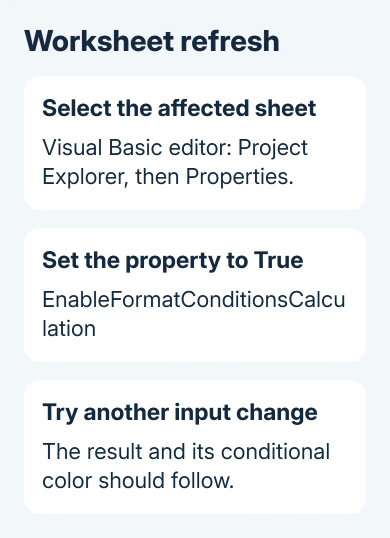
Select the worksheet itself, not ThisWorkbook or a code module. The property belongs to each sheet, so another affected tab needs its own check. A True value on Sheet1 doesn't tell you how Sheet2 is set.
This property check needs no new macro. Alt+F11 also avoids a misleading part of the old forum advice: Excel 2010 uses File > Options > Customize Ribbon to enable Developer, rather than the Excel 2007 Office-button path.
Save the modified workbook. Reopen your copy and repeat the input change. If the property has returned to False, ask the workbook's author to check its existing code for a command that switches formatting calculation off.
4. Escalate a refresh failure that survives those settings
When the property already reads True, a one-time toggle might not keep it working. One owner said the earlier suggestions failed, but code that ran whenever the worksheet calculated fixed it.
That code turned formatting calculation off and back on each time. How it affects your workbook depends on the workbook's other code and settings. I'd have its maintainer review it before adding an automatic event to a business file.
Send the maintainer one affected formula, its input and its rule. Include whether F9 updates the number, whether Apply refreshes the color, and the property value. This helps them tell calculation trouble from stuck formatting.
Have IT recreate the small example in a new workbook. When the original alone fails, they can examine its rules and code. If a clean example fails too, give IT the Excel 2010 build and that sample file.
Excel 2010 is an old release. Ask IT to run the sample in a supported Excel release before adding an event workaround. Keep the original workbook available so they can compare behavior without losing its formulas.
The Short Version
Watch the number, then its color. Correct calculation mode or the rule's range as needed. If the number updates but the fill stays stale, check EnableFormatConditionsCalculation on that worksheet and restore True if it's False.
Checked November 16, 2026.






