Pasted text can inherit a nearby paragraph or list style when Word merges formatting. Choose Keep Source Formatting for this paste. If separate lists keep joining, turn off Merge pasted lists with surrounding lists.
The right option depends on whether you want the original formatting, the destination's style, or a numbered list that stays separate. Changing fonts won't fix unwanted list merging. Start with the paste result you actually want.
In this guide
1. Pick the formatting for this paste
Save a backup before changing important headings or numbering. Paste a short sample in the troublesome position, then select the Paste Options button that appears beside the inserted text.
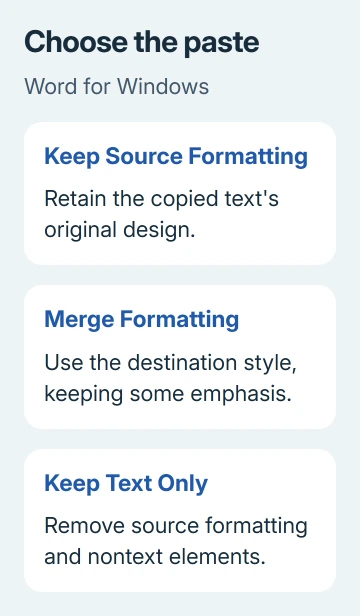
Choose Keep Source Formatting when the copied text should retain its original appearance. Choose Merge Formatting when it should fit the destination paragraph. Keep Text Only removes the source formatting and nontext elements.
Check the result at the insertion point, not just the first word. Look at the paragraph's indentation, bullet or number, spacing, and style. A familiar font can hide the fact that Word assigned the paragraph to the surrounding list.
If the button doesn't appear, open File > Options > Advanced. Under Cut, copy, and paste, enable Show Paste Options button when content is pasted, then choose OK and paste formatted text again.
The button might not appear for text copied from a plain-text editor. For the comparison, use the same formatted passage that originally caused the problem. That way, you're comparing what happens to the same text and formatting.
If choosing the correct option fixes one paste but ordinary Ctrl+V keeps producing the unwanted result, change the matching default next. If the text still joins a neighboring list, continue to the list controls.
2. Change the default for the correct source
In Windows desktop Word, choose File > Options > Advanced and find Cut, copy, and paste. Several dropdowns control different situations. Change the one matching where your copied text comes from.
- Pasting within the same document applies when source and destination are in one file.
- Pasting between documents applies when the text comes from another Word file.
- Pasting between documents when style definitions conflict handles matching style names with different definitions.
- Pasting from other programs applies to content copied from a browser or another app.
For example, two documents can both have a style called Heading 1 but use different fonts, sizes, and spacing for it. Use the style-definitions-conflict dropdown for that situation.
Changing only the other-programs dropdown won't control that Word-to-Word paste.
Choose the preferred behavior for that situation, select OK, and repeat the same sample paste. If it now pastes the way you want, you've changed the right default. A one-time paste choice can still override your default later.
The paste-formatting controls distinguish these cases. Keep Source Formatting carries the source styling; Merge Formatting uses the destination style while retaining some emphasis such as bold or italic.
I'd keep the automatic choice that suits most of your work and use the Paste Options button for exceptions. Changing every dropdown to plain text can be inconvenient if you routinely copy tables, pictures, or carefully formatted headings.
3. Stop an independent list joining the surrounding list
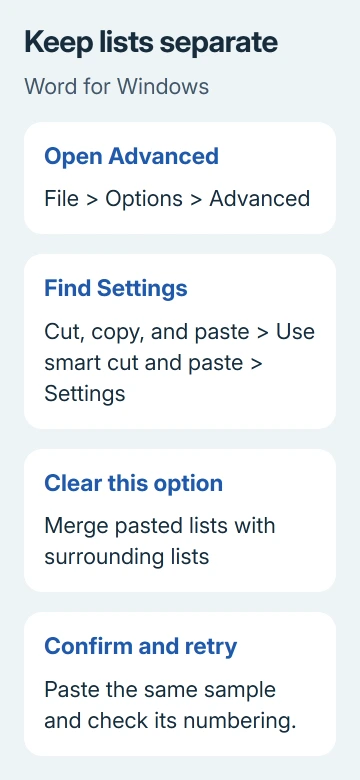
When pasted items inherit nearby bullets, numbers, or indentation, open File > Options > Advanced > Cut, copy, and paste. Find Use smart cut and paste, then select its Settings button.
Clear Merge pasted lists with surrounding lists, confirm the settings, and paste your sample again. That checkbox controls whether pasted items take on the surrounding list's formatting.
Keeping a list separate is a different choice from keeping its font or text color.
One owner resolved this style-and-bullet problem by clearing that option and Smart style behavior.
Smart style behavior has no effect in current Word, so clearing that older checkbox won't repair the problem there.
If you have an older edition with both boxes, the historical report explains why advice mentions them together. In current Word, use the paste dropdowns for style behavior and the list-merging checkbox for lists.
Check a complete pasted list, including its first and last entries. The result should stay separate when that's what you wanted. If numbering still continues from another list, make the numbering choice for that paste next.
4. Choose whether the numbering should continue
The Paste Options choices for lists depend on the source and destination. For a numbered list, Continue List joins the destination sequence, while New List retains a separate original sequence.
When pasting bullets into a numbered list, Keep Source Formatting keeps the bullets. Merge Formatting converts them to the destination's numbers. Pick the option that fits how you want those items to appear in your list.
For numbered items pasted into bullets, Don't Merge List keeps the original numbers. Merge List converts them to the surrounding bullets. Choose based on whether the inserted material belongs to the existing list.
Don't use Keep Text Only as a guaranteed way to remove list markers. By default, Word can preserve bullets and numbers even with text-only pasting. Check what stayed in the pasted text before assuming Word kept all its original formatting.
If the style still seems wrong, click in the pasted paragraph and check Home > Styles. Compare it with the source paragraph. Check whether Word changed the paragraph's style or just its font; those need different corrections.
For a style that changes when you select it without pasting anything, use the separate wrong-style selection checks. This paste repair doesn't address the older Styles pane selection bug.
When the settings still don't explain the result
Repeat the paste in a blank test document. If it behaves there, keep a short source-and-destination sample from the affected document for your support request.
Mention whether you pasted inside a list and whether you selected the paragraph endings when copying.
For supported Word, use Help > Contact Support where available, or ask workplace IT to review the sample. Give them the Word version from File > Account > About Word, the paste choice, and the dropdown or list-setting result.
If Word closes instead of changing the formatting, follow the Word paste-crash guide. A crash requires checking the application as well as the pasted material.
The Short Version
Use the appropriate paste choice and its matching default. Disable list merging for independent lists. Use Continue List or New List for numbering.
The old Smart style behavior checkbox has no effect in current documented Word behavior.
Checked November 17, 2026.