A corrupted .DS_Store file can stop OneDrive syncing a Mac folder. Remove that file from the affected folder, then reopen OneDrive. It holds Finder's folder-view preferences, so removing it leaves your documents intact.
A .DS_Store file normally doesn't upload. If documents sync and only that hidden file is absent online, that's expected. Use the repair when OneDrive reports an error or the folder stops syncing.
In this guide
1. Identify the folder behind the warning
Read the sync warning from the menu-bar OneDrive cloud. Note the exact filename and the folder containing it. This repair applies to .DS_Store, including its leading period, rather than every file with an unfamiliar name.
Check a normal document in that folder too. If it opens and its latest changes reach your other working copy, you don't need to remove .DS_Store just because it isn't online.
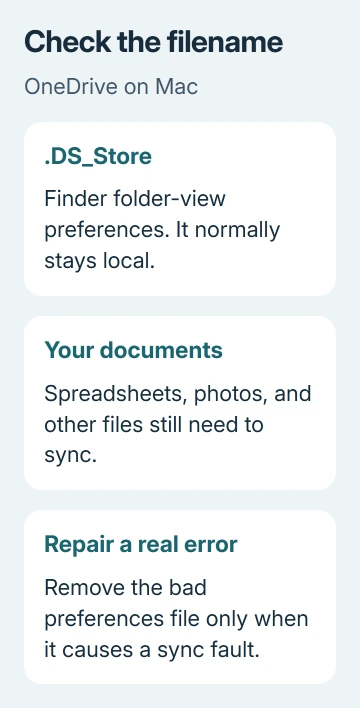
Finder uses .DS_Store for details such as icon positions and window appearance. It isn't your Word document, photo library, or spreadsheet. A new copy can appear again as Finder stores the folder's viewing choices.
The OneDrive file restrictions explain that these local system files normally don't sync. If they arrive in the cloud during a migration, the sync app can remove the cloud copy while leaving the local one.
If the warning names a normal document, use that message to decide your next step. A permissions problem, an invalid document name, or an upload blocked by account access won't be repaired by removing an unrelated Finder preference file.
2. Quit OneDrive before changing the file
Save your work in apps using the affected folder. Exit OneDrive through the cloud menu, remove the damaged file, then reopen the sync app. Older releases show Quit OneDrive directly or within their menu controls.
Current OneDrive reset instructions describe the Mac quit route as Preferences > Pause > Quit OneDrive. Menu labels can differ with the installed release; choose the option that quits the sync app.
Leave your account linked and keep the OneDrive folder and its documents in place. Quitting the app simply stops that sync session while you work on the named local file.
In a saved Microsoft forum report, an owner confirmed the issue was fixed after advice to quit OneDrive, remove .DS_Store files from the synced area, and reopen the app.
The replies also explained that the synced area meant the OneDrive folder you see in Finder.
The old reply used a broad recursive deletion command. I'd use the folder-specific repair for an error that names one folder. That removes the file named in your warning without searching through every synced library.
3. Open Terminal at the named folder
Open Finder > Applications > Utilities > Terminal. Keep the affected folder visible in another Finder window. Find the folder's icon without opening the folder. You'll drag that icon into Terminal to enter its exact location.
Type cd followed by a space. Drag the affected folder icon into Terminal, then press Return. Dragging enters the full path and handles spaces in it for you. Typing just the folder's name might not take you to the right place.
Run this read-only command next:
pwdTerminal prints the current folder's full path. Match it to the folder in the error before deleting anything. If it names your home folder or a different library, repeat the folder-selection step rather than continuing there.
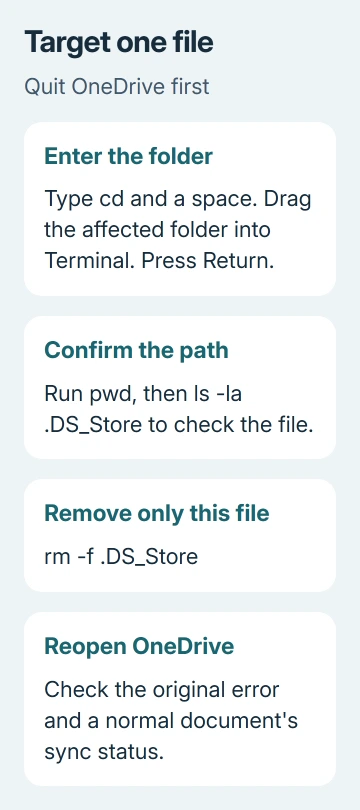
You can check the named file without changing it by running:
ls -la .DS_StoreIf Terminal reports a missing .DS_Store file, stop the deletion step. Check whether the error points to a deeper folder, a different synced library, or a cloud item rather than the local folder you selected.
The right path depends on where your copy of OneDrive keeps that folder. Don't substitute an old internet example's /Users/ path or assume every Mac stores OneDrive in the same place. Finder's folder icon supplies your own location.
4. Remove only .DS_Store and reopen OneDrive
Once the folder path and file match, run the command in Microsoft's folder-specific removal instructions:
rm -f .DS_StoreThis command targets that one filename in the current folder. Keep it exactly as written; don't add a wildcard, a recursive option, or another folder name.
Removing .DS_Store can reset that folder's view preferences, which is the intended tradeoff.
A successful removal usually leaves only the Terminal prompt. An error such as Permission denied means the removal didn't complete. No message is normal here; you don't need to try a command that removes more files.
The removal instructions are for an administrator account. If permissions stop the command, or your employer manages the Mac, ask its administrator to remove the named file using the documented process.
Send the folder path and exact permission error.
Open OneDrive again from Applications. Let it check the folder, then look at the cloud menu for the original error. Check that a normal document can sync before treating the repair as complete.
If .DS_Store appears again but syncing works, leave it alone. Finder can create another preferences file. Once syncing works, leave any new .DS_Store files that Finder creates in place.
5. Check the next error instead of repeating deletion
If the same folder still won't sync, record the new message and the OneDrive version. A filename error on another document needs the OneDrive naming and path checks, not another cleanup of the same preferences file.
If OneDrive itself doesn't resume, close it normally and use the OneDrive restart guide for the installed Mac edition. A full account reset is a separate step and can require setting up its sync choices again.
For a work or school library, give IT the folder location and sync-client warning to review. Include your macOS version, OneDrive version, exact filename, and whether other documents upload.
Have them escalate through Microsoft 365 support if the documented repair fails.
For a personal account, open Help & Settings in the cloud menu to reach support. Describe the result of removing that file. Did the warning reappear immediately, or did opening the folder again bring it back?
The Short Version
Confirm that .DS_Store is the file causing a real sync error. Quit OneDrive, enter the affected folder in Terminal, verify the path, and remove only .DS_Store. Reopen OneDrive and check document syncing.
The hidden file's normal absence online isn't a fault.
Checked November 17, 2026.