

Locking Excel cells takes two parts: set their Locked property, then turn on Protect Sheet. The Locked checkbox alone does not stop anyone editing an unprotected worksheet.
For a form, leave calculation cells locked and unlock only the cells people should fill in. This guide uses desktop Excel for Windows; the browser has a different protection panel.
Unlock the cells intended for input
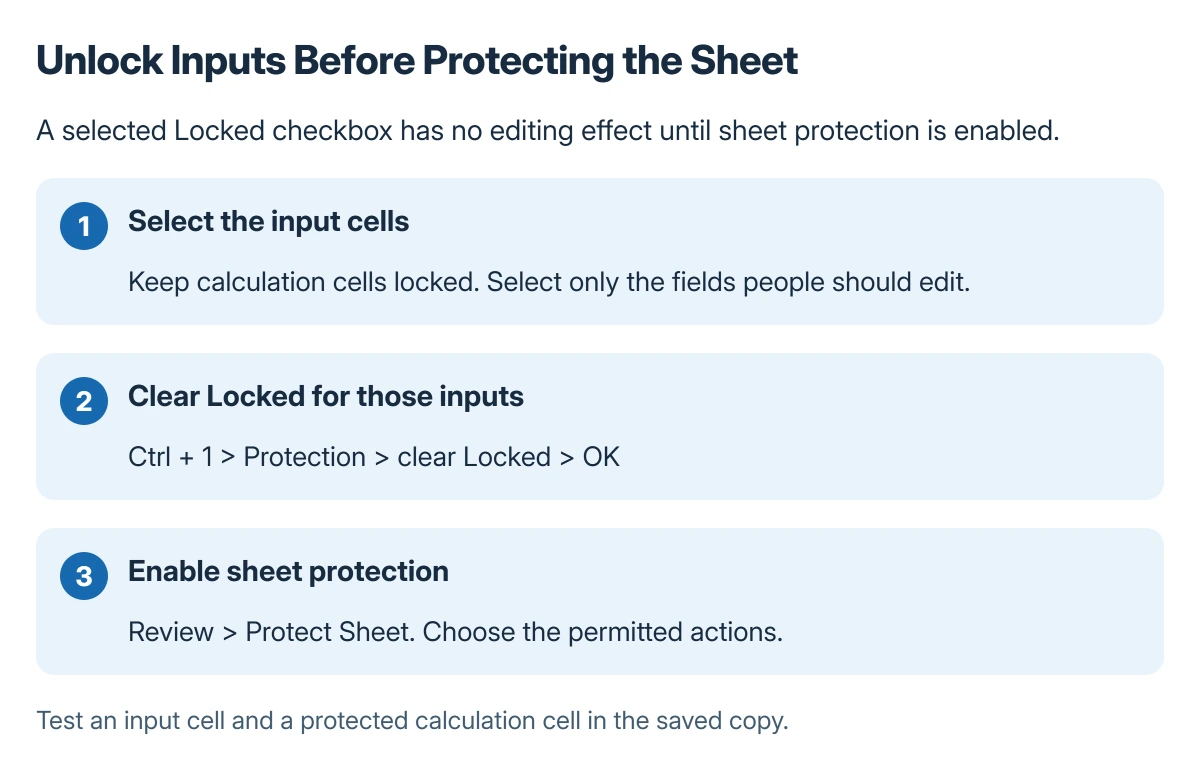
Save a separate copy before changing a shared template. Select the input cells, press Ctrl + 1, open Protection, clear Locked, and select OK.
Microsoft documents this order in its worksheet protection instructions. Cells start with Locked selected, so an unchanged worksheet normally needs its input cells unlocked first.
Status: Microsoft's desktop Excel cell and sheet protection instructions checked 22 October 2026. Protection settings and worksheet security are distinguished; no workbook was edited.
For example, an order form might allow edits to quantity cells while preserving calculated totals. Select those quantity cells rather than unlocking the entire sheet and losing track of which formulas need protection.
Build the total with the intended multiplication formula and cell references, then preserve that calculation cell while leaving quantity inputs editable.
Turn on Protect Sheet and choose allowed actions
Open Review > Protect Sheet. Review the allowed actions, including selection and formatting, then confirm. If using a password to unprotect the sheet, enter it and confirm it when requested.
Microsoft says the password is optional, and it cannot retrieve a forgotten password. Keep it in the approved place for the workbook rather than relying on memory alone.
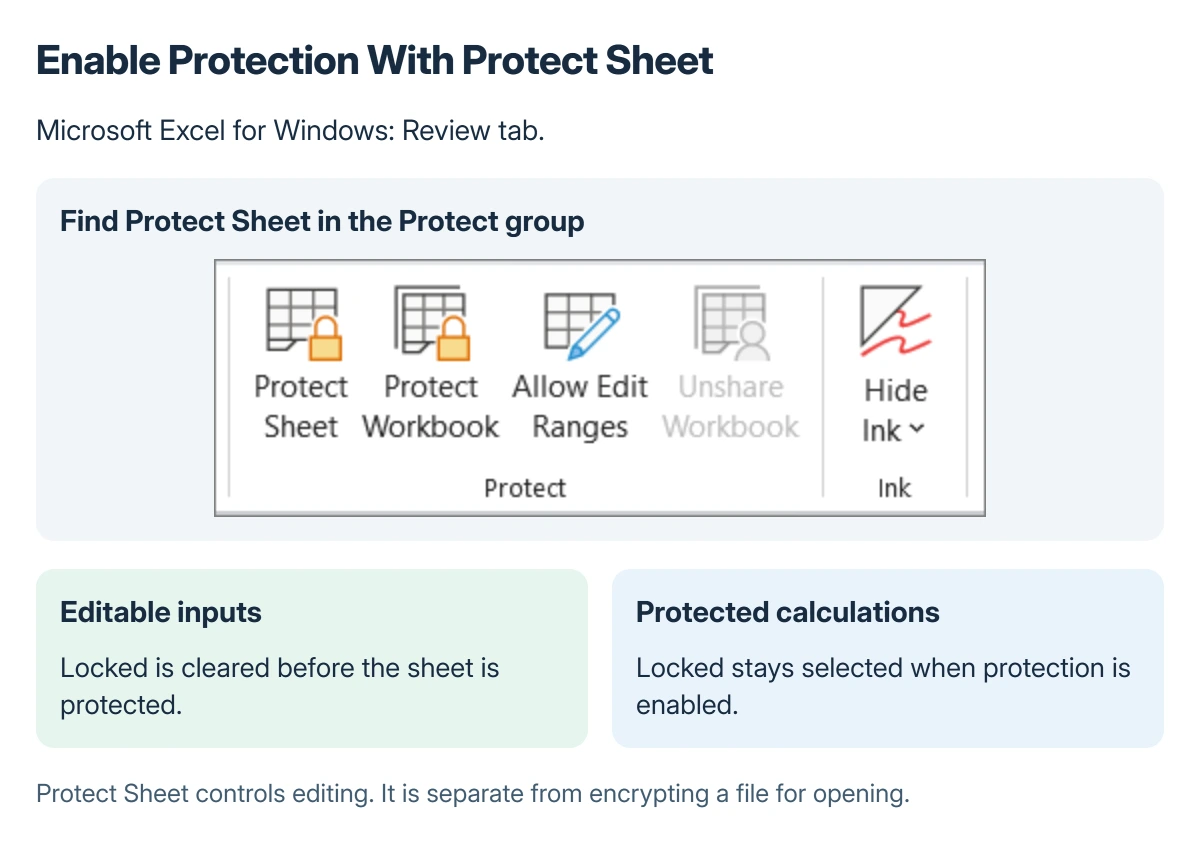
Used with permission from Microsoft.
Check an input cell and a protected calculation cell in the saved copy. The input should remain editable; Excel should prevent an unauthorized change to the protected cell.
If an input checkbox is part of the form, check its behavior separately. Excel's in-cell checkbox guide distinguishes those values from older floating controls.
Formatting permissions can affect the form too
Microsoft states that allowed actions are chosen when sheet protection is enabled. Permit only the formatting or row operations that people actually need to complete the sheet.
Set important column widths and wrapped text layout before handing out the template. An editable cell does not automatically mean every formatting command is permitted.
For completion marks, strikethrough formatting may need to be applied before protection or included in the permitted formatting actions.
To change the design later, use Review > Unprotect Sheet, entering the password when required. Adjust the cell properties or allowed actions, then protect the sheet again.
Keep cell protection separate from file security
Worksheet protection controls editing within a sheet. Microsoft warns that it is not a security feature for protecting sensitive information from access.
Protecting workbook structure and encrypting a file for opening are different tasks. Do not assume Protect Sheet prevents someone who already has the file from reading its contents.
If the protection belongs to someone else's workbook, ask its owner for the permitted changes. For a company template, confirm the required access with the person responsible for that file.
The Short Version
Unlock the cells that should accept input, then enable Review > Protect Sheet. Choose allowed actions and test both an input cell and a locked cell. Store any password safely; sheet protection is not file encryption.
Where to Next
Try the template with the same permissions its recipients will have. Confirm that they can finish the intended task without exposing calculation cells to accidental edits.

Isaac Smith is the founder and editor of PC Glance, a website that covers computers, laptops, and technology. He is a tech enthusiast and a computer geek who loves to share his insights and help his readers make smart choices when buying tech gadgets or laptops. He is always curious and updated about the latest tech trends.