

The Excel strikethrough shortcut is Ctrl + 5 on Windows. Select the cells first, then press the shortcut to apply or remove the line through their contents. On Mac, Microsoft's shortcut is Shift + Command + X.
Strikethrough is visual formatting. It does not delete a value or tell a formula to exclude that value from a calculation.
Select the cells before applying the shortcut
Select one cell or the intended range. Press Ctrl + 5 in Excel for Windows, then inspect the selection. Press the same shortcut again when the formatting should be removed.
Microsoft documents the Windows and Mac combinations in its Excel shortcut list. Use the combination for the installed app rather than assuming every browser and operating system shares the Windows shortcut.
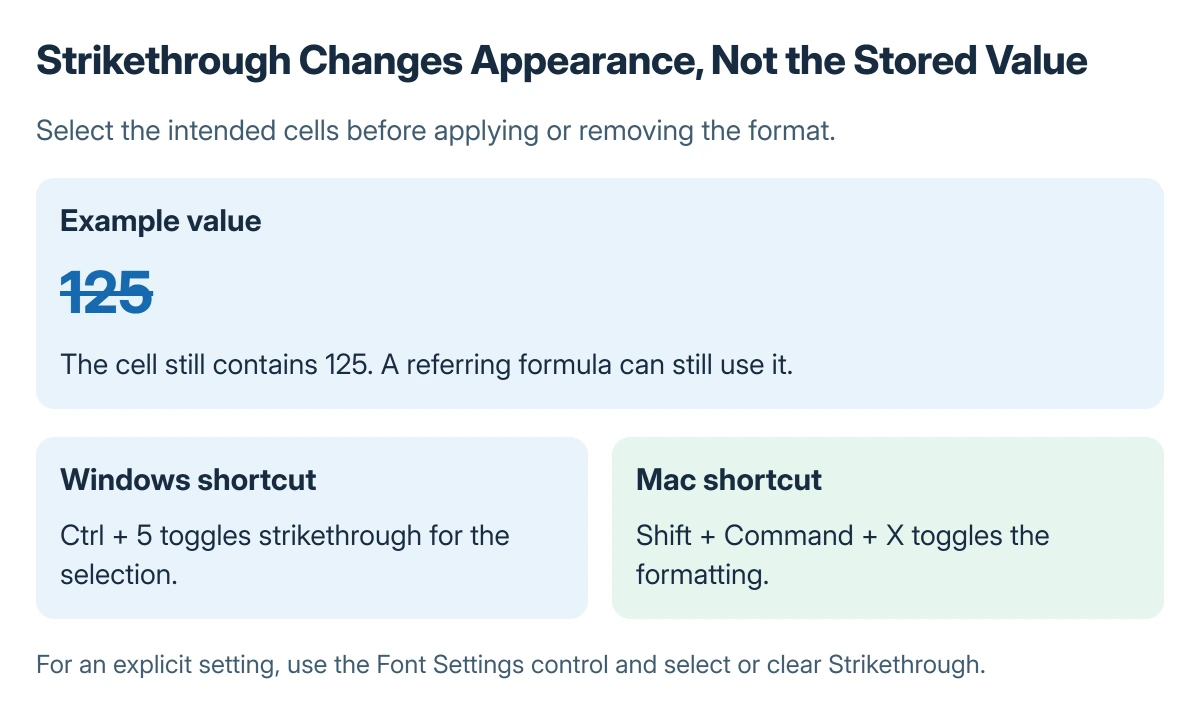
Status: Excel strikethrough commands documented by Microsoft, checked 23 October 2026. The sample is typeset artwork; no spreadsheet was modified.
For mixed selections, inspect more than one result. A range containing different formats can require an explicit setting rather than assuming a toggle has produced the intended uniform appearance.
Set the option explicitly through the font controls
Microsoft says the Strikethrough checkbox is available through Home > Font > Font Settings, which opens the relevant formatting dialog. Select the option and confirm with OK.
To remove the effect, open the same setting and clear the checkbox. The font Strikethrough instructions describe that explicit apply-or-remove route for Excel for the web.
A browser may intercept a shortcut before the workbook receives it. Use the displayed font control when a key combination performs an unrelated browser action.
Keep visual completion separate from workbook logic
Microsoft states that strikethrough can show edits or completed tasks. A crossed-out number remains cell content, so review any totals or formulas that refer to it.
For a task list that needs a true-or-false completion value, consider Excel checkboxes. That supplies a value a formula can use instead of relying only on the appearance of a label.
If formatting controls are unavailable on a protected worksheet, check the worksheet protection permissions. A password or permission restriction is a different problem from pressing the wrong shortcut.
The Short Version
Select cells and use Ctrl plus 5 on Windows or Shift, Command and X on Mac. Set or clear Strikethrough through the font controls when an explicit choice is needed. The data still exists after its appearance changes.
Where to Next
Check the selected range, the app version and worksheet protection when the effect does not change. For completed items that should affect calculations, store that completion as data.

Isaac Smith is the founder and editor of PC Glance, a website that covers computers, laptops, and technology. He is a tech enthusiast and a computer geek who loves to share his insights and help his readers make smart choices when buying tech gadgets or laptops. He is always curious and updated about the latest tech trends.