

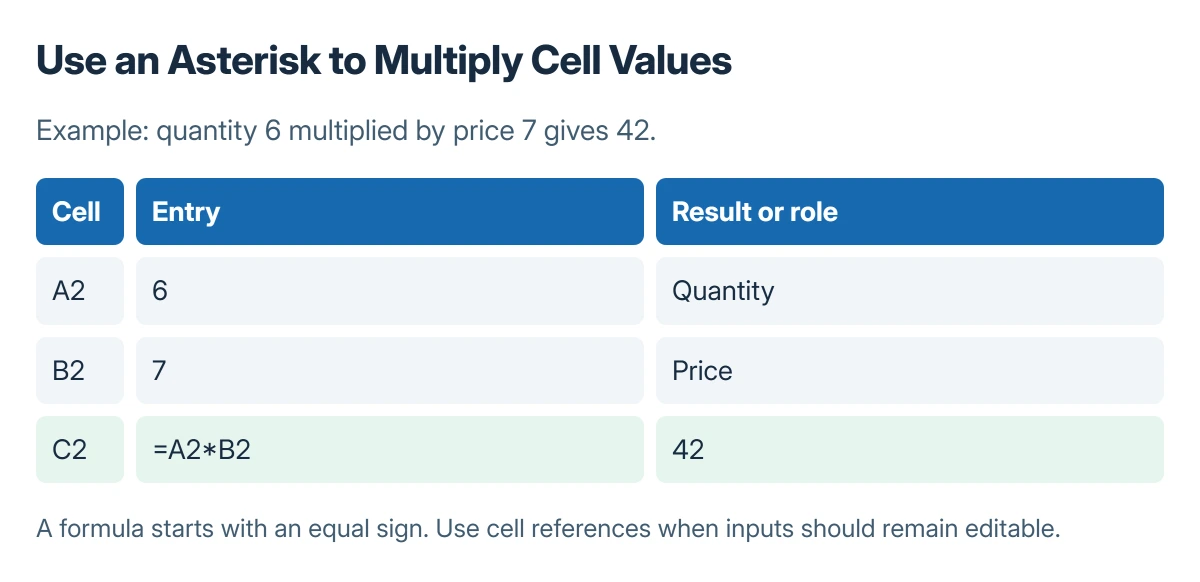
Multiply in Excel with an asterisk, not the letter x. Enter =6*7 in a blank cell and press Enter to calculate 42. For values already in A2 and B2, use =A2*B2 instead.
Cell references let the result change when the inputs change. A shared factor needs an absolute reference when the formula is copied through several rows.
Start with a formula and the correct operator
Select an empty result cell. Type an equal sign, the first number or cell reference, an asterisk, and the second number or reference. Press Enter to calculate the result.
Microsoft says multiplication uses * in its multiplication and division instructions. A number typed without the leading equal sign is not the same as entering a formula.
Status: Excel operators and references documented by Microsoft, checked 23 October 2026. Example products were verified as arithmetic, not through a live workbook.
For the example, place 6 in A2, 7 in B2, and =A2*B2 in C2. Change one input and check that the result follows the new value.
Microsoft documents ordinary calculation order in its simple formula instructions. For =(A2+B2)*C2, the parentheses make the addition happen before the multiplication.
Lock a shared factor when filling the formula downward
Suppose amounts are in A2:A3 and a common factor is in E1. Enter =A2*$E$1 in B2, then fill downward. The next row should use =A3*$E$1.
Microsoft states that dollar signs make the reference absolute, keeping the named cell fixed when a formula is copied. Only the row-specific input should advance in this example.
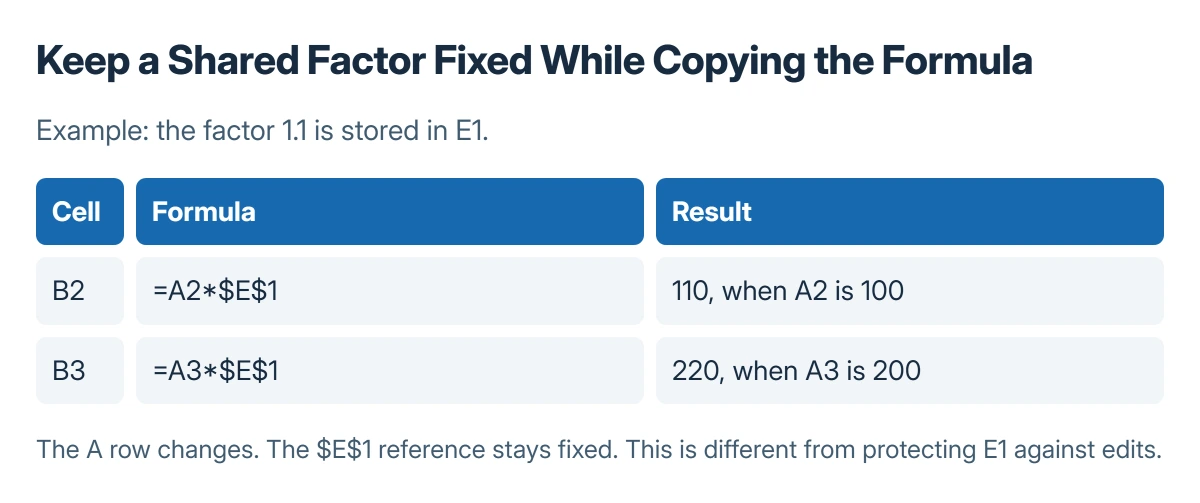
With a factor of 1.1, the amounts 100 and 200 produce 110 and 220. Inspect a copied formula instead of checking only the first result.
An absolute reference does not prevent someone from editing the factor cell. The cell protection procedure covers that separate worksheet control.
Use PRODUCT for several numbers or a range
The PRODUCT function multiplies its arguments. For adjacent numeric inputs in A2:A4, =PRODUCT(A2:A4) provides a range-based calculation instead of writing every multiplication separately.
Choose the inputs deliberately. Multiplication is different from adding the same numbers, and the selected range should not include unrelated records.
If the cell displays the formula itself instead of a calculated value, use the formula-display checks. That addresses the workbook's display or input behavior rather than changing the multiplication operator repeatedly.
The Short Version
Begin with an equal sign and use an asterisk to multiply. Reference input cells for reusable calculations, keep a shared factor absolute when filling downward, and use PRODUCT when multiplying a suitable range.
Where to Next
Compare an unexpected result with the referenced input cells and a manual calculation. Check a copied row for an accidentally shifted factor before replacing a working formula.

Isaac Smith is the founder and editor of PC Glance, a website that covers computers, laptops, and technology. He is a tech enthusiast and a computer geek who loves to share his insights and help his readers make smart choices when buying tech gadgets or laptops. He is always curious and updated about the latest tech trends.