

In Windows Excel, copy the formula's cell with Ctrl+C, select its destination and press Ctrl+V. Then check the new formula, because cell references can move with it.
A formula intended for the next row usually needs that adjustment. A shared input that must stay in place needs a fixed reference instead. Check that choice before copying across a large range.
Copy the cell into the intended destination
Select the formula's cell once, rather than selecting text inside the formula bar. On Home, choose Copy, click the destination cell, then choose Paste. Keep the destination empty or save its contents first.
Microsoft documents the distinction between moving and copying formulas. Copy leaves the original in place; Cut moves it and treats references differently.
Status: Microsoft formula-copy, paste and cell-reference guidance checked October 29, 2026. Menu steps focus on Excel for Windows. Examples are explanations, not workbook test results.
Click the pasted cell and read the formula bar. The displayed number alone cannot confirm that the formula uses the intended inputs, especially when several rows happen to contain equal values.
Let row references advance when each record is different
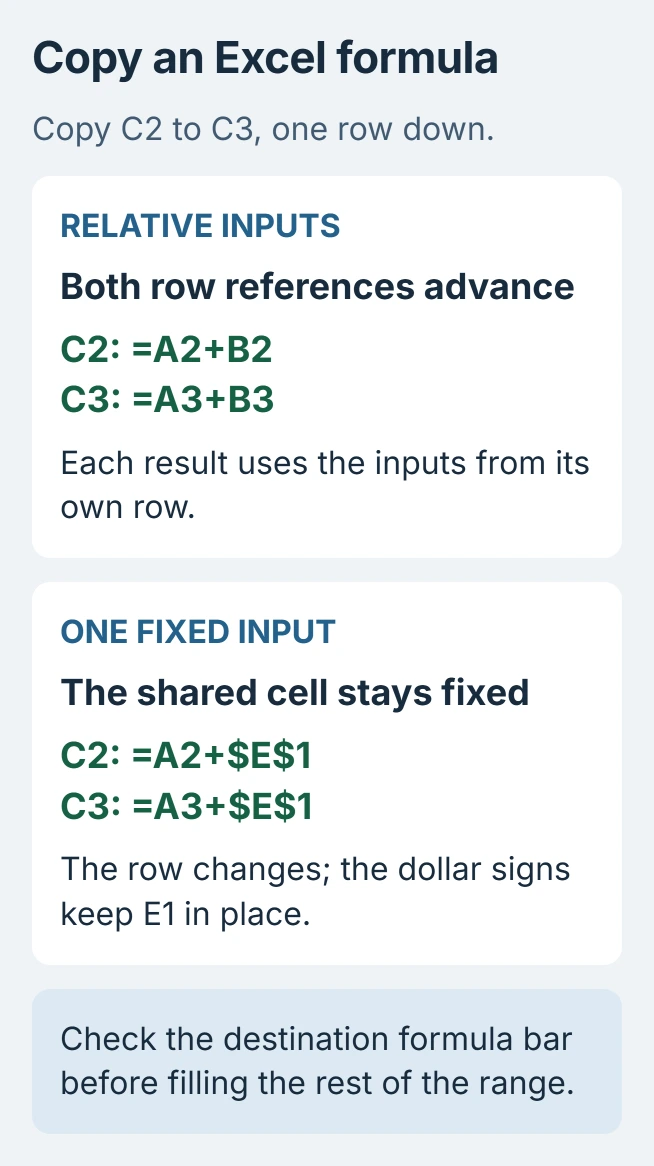
Suppose C2 contains =A2+B2. Copying that cell to C3 produces =A3+B3. The new result uses the next record's inputs, which is normally the desired behavior for a list.
Microsoft says relative references follow the copy's position. A horizontal copy can change column letters too. Inspect both letters and row numbers when pasting somewhere distant.
For adjacent destinations, drag the small fill handle at the selected cell's corner through the required range. Stop at the last intended record. Review the first copied formula before extending it through the remaining rows.
Keep a shared input fixed with dollar signs
An input shared by every calculation needs an absolute reference. For a constant in E1, use $E$1 inside the source formula. The dollar signs preserve both its column and its row during a copy.
For example, =A2+$E$1 copied one row down becomes =A3+$E$1. The row input advances while the shared input stays put. This also applies to a common multiplication factor.
Only fix the parts that must stay fixed. $E1 keeps the column; E$1 keeps the row. Microsoft states these mixed-reference rules separately from a fully absolute reference.
In Windows desktop Excel, select the reference while editing the formula and press F4 to cycle through the forms. Typing the dollar signs directly also makes the intended reference explicit.
Choose formulas or values when pasting
To retain destination formatting in desktop Excel, open Home > Paste > Paste Special, select Formulas, then confirm. Use Values instead when the recipient needs only the current answers.
A pasted value cannot recalculate from the original inputs because it contains no formula. Check the formula bar after pasting to confirm which kind of content arrived.
For a formula that is present but keeps an old answer, review the Excel calculation-mode controls. Copying it repeatedly will not correct Manual calculation.
For an unexpected result, compare the source and destination references, then undo the paste before changing more cells. If valid references still behave incorrectly, send Microsoft Support a small example with private data removed.
The Short Version
Copy the formula cell, verify its new references and then fill the required range. Use dollar signs for inputs that must remain fixed. Choose Formulas to preserve destination formatting, or Values for an answer that no longer recalculates.

Isaac Smith is the founder and editor of PC Glance, a website that covers computers, laptops, and technology. He is a tech enthusiast and a computer geek who loves to share his insights and help his readers make smart choices when buying tech gadgets or laptops. He is always curious and updated about the latest tech trends.