

Start an Excel formula with =, enter the calculation, then press Enter. For example, =B2+C2 adds two cells, while =SUM(B2:B8) totals a continuous range. Put the formula in the cell where you want the answer.
Use cell addresses when the answer should change with your data. Typing =25+15 works, but those numbers stay fixed inside the formula. Using the cells that hold them makes the calculation easier to check and update.
Choose an empty cell for the answer
Open your worksheet and click an empty cell for the answer. Keep it separate from the cells holding the numbers you're adding. Typing a formula into a cell that already contains a value replaces that value.
For a small example, put 25 in B2 and 15 in C2, then select D2. The column letter and row number together identify each cell. D2 will hold the answer without changing either input.
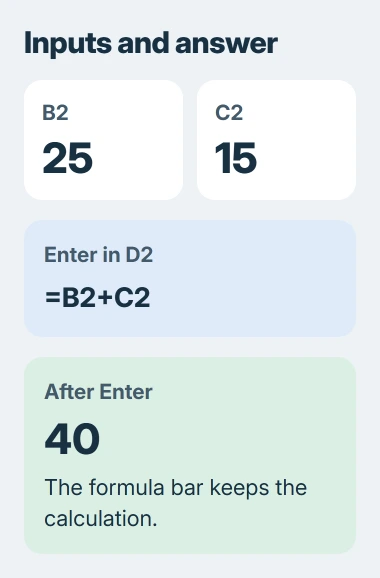
Microsoft says to start in the result cell, enter the calculation and press Enter. On a Mac, that key is labeled Return.
I'd use a tiny example like this before building a calculation across your actual accounts or inventory. The expected answer is easy to check, and you can see exactly which part of the formula does what.
Build the formula by selecting its inputs
With D2 selected, type an equals sign, click B2, type +, then click C2. Excel inserts the addresses as you select them. The finished entry should read =B2+C2.
Press Enter. D2 should display 40. Select D2 again and look at the formula bar over the worksheet. The cell shows the answer; the bar shows the calculation that produced it.
You can type the full formula instead of clicking its inputs. Both methods create the same calculation. Clicking is useful when the numbers are already visible and you want to avoid entering the wrong row number.
Now change B2 from 25 to 30. With automatic calculation enabled, D2 becomes 45. That's the practical reason to use cell references: you change the input once instead of rewriting every calculation that depends on it.
Use Esc to cancel a formula you haven't finished entering. Once you've entered it, select its cell and edit the formula bar to change an input or a sign such as +. Press Enter again to save the change.
Choose a function with Formula AutoComplete
A function is a named calculation that Excel already knows how to perform. When you know its name, start typing it after the equals sign. For example, type =SU in an empty result cell to bring up matching suggestions.
Use the keyboard to select SUM in that list, then press Tab to insert it. Double-clicking the list entry works too. Read the description beside the suggestion so you don't select a similarly named function by mistake.
Excel inserts the function name and opening parenthesis. Enter the inputs it needs, then add a closing parenthesis. For B2 and C2 in the same row, =SUM(B2:C2) is a complete example.
The colon means the continuous range from the first cell through the last. In this two-cell example, it includes both amounts. Press Enter to confirm and check that the result agrees with the original addition.
The Formula AutoComplete controls can save typing, but choosing a function doesn't tell it which cells to use. Finish entering the formula before checking the answer.
If the list doesn't appear in Windows desktop Excel, open File > Options > Formulas. Under Working with formulas, enable Formula AutoComplete. A missing suggestion list doesn't stop you from typing a formula yourself.
Use Insert Function when you don't know the name
Select an empty result cell, then choose Insert Function, the fx control beside the formula bar. A search box opens so you can find a function without typing the whole formula from memory.
In Search for a function, describe the calculation you need and choose Go. Or choose a category or All to browse. Select a function to see what it does and which inputs it needs, in order.
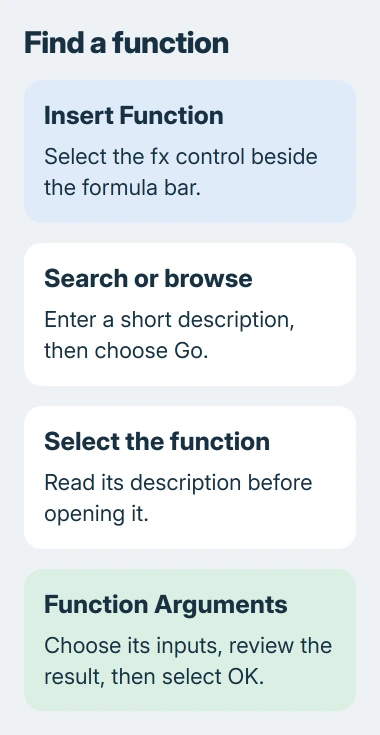
Double-click the function you want to open Function Arguments. Arguments are the inputs a function needs. Enter the cell addresses, or select the cells in your worksheet, then check the result shown in the dialog.
Use Help on this function when you don't recognize an input name. Read the description to check that the function does what you need, then fill in the fields and choose OK.
The Insert Function instructions cover the search and category choices. Use this dialog for functions you don't know; a short formula such as =B2+C2 is quicker to type directly.
For a column total specifically, use the separate AutoSum procedure. It explains the proposed range and what to check when a blank row or subtotal interrupts the list.
Check other calculations without changing the entry method
Addition uses +, subtraction uses -, multiplication uses *, and division uses /. For the same two inputs, =B2*C2 multiplies their values and =B2/C2 divides the first by the second.
Multiplication and division happen before addition and subtraction. With B2 containing 30 and C2 containing 15, =B2+C2*2 returns 60. Excel doubles C2 before adding B2.
Parentheses change that order. =(B2+C2)*2 returns 90 because Excel adds the two cells first. Use parentheses when they express the calculation you actually need, rather than changing operators until the number looks right.
For a longer list, enter and check the first formula before extending it. The formula-copying guide explains how references move between rows and how to keep a shared input fixed.
When the answer doesn't appear as expected
If the cell shows your formula instead of an answer, use the formula-versus-result checks. If the answer won't update, check Excel's calculation setting.
For a wrong number, select the result and check that its formula uses the cells you intended. Check each range's starting and ending cells, parentheses and whether your entries are numbers before typing the same formula again.
If a small, correct example still fails in a new workbook, give Microsoft Support the formula, sample inputs and exact error. Replace private figures with sample data before sharing the workbook.
The Short Version
Select an empty cell for the answer and begin with =. Use Formula AutoComplete or Insert Function to choose a calculation and enter its inputs. Press Enter, then check both the formula and its answer.
Checked November 5, 2026.

Isaac Smith is the founder and editor of PC Glance, a website that covers computers, laptops, and technology. He is a tech enthusiast and a computer geek who loves to share his insights and help his readers make smart choices when buying tech gadgets or laptops. He is always curious and updated about the latest tech trends.