

To sum a column in Excel, select an empty cell immediately after its numbers, choose Home > AutoSum, check the highlighted range and press Enter. Excel inserts a SUM formula and displays the total in the selected cell.
Check the range before accepting it, especially when the column contains gaps or a subtotal. AutoSum proposes cells; it cannot know which entries belong in the total.
1. Put the total after the last amount
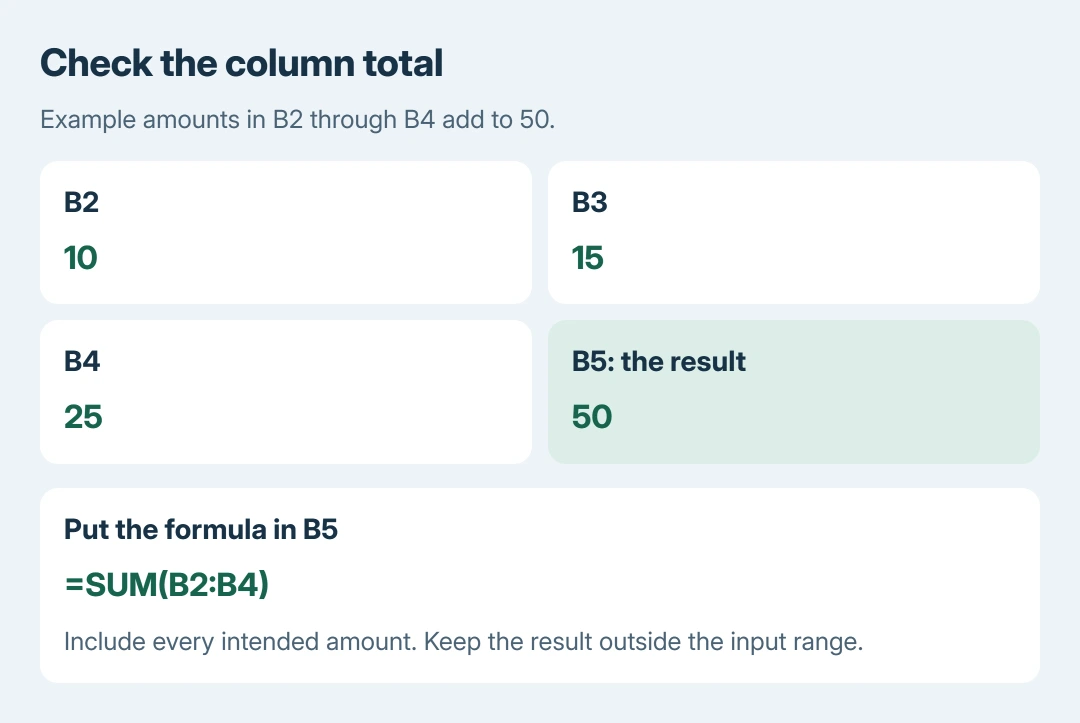
Choose an empty result cell immediately beneath the list. For example, with amounts in B2:B4, select B5. Keep a text heading outside the numeric range.
Choose Home > AutoSum or Formulas > AutoSum. Microsoft says both locations provide the AutoSum command. Excel displays a proposed formula before committing the answer.
Status: Excel AutoSum, SUM and Mac instructions verified October 28, 2026 from Microsoft documentation. The numeric example is illustrative; Excel was not operated.
Confirm that the highlighted cells cover the intended amounts. Correct the range if needed, then press Enter. Select the result afterward and inspect the formula bar for its stored calculation.
The example uses 10, 15 and 25, giving 50. Its formula is =SUM(B2:B4). A colon includes the cells between the two references, including both ends.
2. Type the range when AutoSum selects the wrong cells
Click the intended result cell and enter the SUM formula directly. Replace the example references with the first and last cells in the actual list. Press Enter to calculate.
For a list running from B2 through B100, use =SUM(B2:B100) in a cell outside that range. Including the result cell in its own calculation creates a circular reference.
A blank row does not have to divide a manually specified SUM range. Specify the complete span when amounts on both sides of a gap belong together.
Microsoft documents SUM arguments and references. Use selected ranges deliberately; avoid summing every cell in a column when the result itself sits in that column.
For several neighboring columns, select the empty result cells under them and choose AutoSum. Inspect each inserted range. Microsoft states that AutoSum can create multiple column totals in the same operation.
3. On a Mac, confirm the selection and press Return
In Excel for Mac, select the empty cell after the list, then choose Formulas > AutoSum. Adjust the highlighted selection if it omits intended amounts and press Return.
Microsoft's Mac column-total instructions also describe a quick check: select the numeric cells and look at the status bar's sum. That shows a total without inserting a formula into the sheet.
In the browser version of Excel, use either AutoSum location. The result should appear in the selected empty cell rather than replacing an amount in the list.
Why is the total wrong or still unchanged?
SUM ignores text values in referenced cells. Digits imported as text can therefore be skipped by the total. Check imported entries before relying on the answer.
For an equals sign and expression that remain visible, follow the formula-as-text checks. An old numeric answer after an input changes needs the calculation-mode checks.
Take an unexplained result to the workbook author or Microsoft Support using a short, nonsensitive sample. Include the formula and its input cells, rather than only the displayed total.
The Short Version
Choose the empty cell after the list, run AutoSum and verify its range before accepting. Type SUM with explicit references when the proposed range is incomplete. Treat text-formatted amounts and stale answers as separate problems.

Isaac Smith is the founder and editor of PC Glance, a website that covers computers, laptops, and technology. He is a tech enthusiast and a computer geek who loves to share his insights and help his readers make smart choices when buying tech gadgets or laptops. He is always curious and updated about the latest tech trends.