Notes pages often ignore the changes you make to the Notes Master, and PowerPoint has no button that reapplies it to every page at once. The Reapply master box in Notes Layout does it, but only one notes page at a time.
For a whole deck, one owner's trick does the job: switch every notes header and footer off with Apply to All, then turn them back on. The pages rebuild those boxes from the master, formatting included.
If the Notes Master itself looks wrong, with the slide too big or the notes running off the page, reset it first and then come back to the pages.
In this guide
1. Reapply the master on each notes page
For slides, Home > Reset sorts out slide master changes that don't show. Notes pages have no Reset button. They have Notes Layout, which only works on the page in front of you.
- Save your Notes Master changes and click Close Master View.
- Go to View > Notes Page.
- Right-click the notes page somewhere away from the slide image and the notes text, and choose Notes Layout.
- Tick Reapply master, leave Slide image and Body ticked, and click OK.
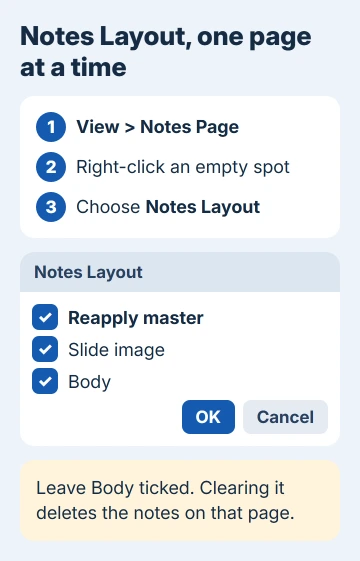
Don't clear Body in that box, because that deletes the notes on that page. If it happens, Ctrl+Z brings them back, though you may need to press it a couple of times.
Microsoft's steps for broken notes pages say to repeat this on every page that's wrong, which is fine for a handful of pages. For a deck of 80 slides, try fix 2 first.
It doesn't always behave, either. One owner on PowerPoint 2016 found Reapply master shoved the notes box to the left edge and left the old fonts alone. If that happens to you, undo it and move on to fixes 2 to 4.
2. Switch the notes headers and footers off, then on
This trick fixes the whole presentation in one go. It works through the Header and Footer box, which changes every notes page together.
- With your Notes Master edits saved, go to View > Notes Page so you can watch the result.
- On the Insert tab, click Header & Footer and open the Notes and Handouts tab.
- Clear every box (Date and time, Header, Page number and Footer), then click Apply to All. The pages lose those boxes, while the master keeps your edits.
- Open Header & Footer again, tick the items you want back and click Apply to All.
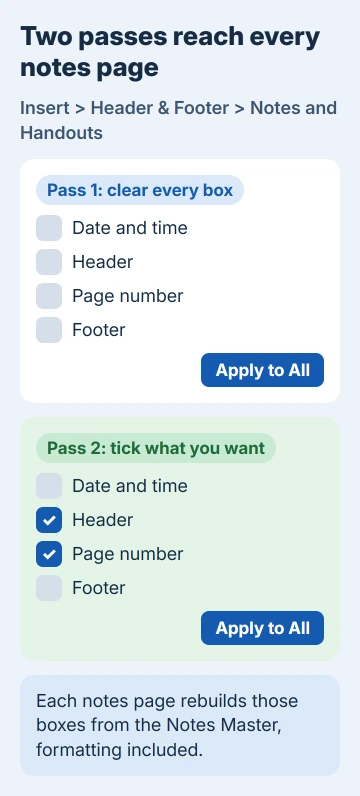
The owner who confirmed this said their changes showed up with the right formatting after the second pass. If you don't want page numbers or a footer at all (the original asker didn't), just leave them cleared after step 3.
These changes only touch notes pages and handouts, not the slides themselves. You can open the same box from File > Print, through the Edit Header & Footer link under the settings.
Another owner suggested that route back in 2011: clear all the boxes there, then reapply the master on each notes page in Notes Page view.
3. Reset a Notes Master that looks broken
Sometimes the master itself is the problem. One owner saw the slide image blow up and the notes run off the page after opening a template made in PowerPoint for Mac on a Windows PC. These steps rebuild it.
- Go to File > Print > Printer Properties, change the paper size to anything other than your usual one, and click OK. On some printers the paper size is under Advanced.
- Open Printer Properties again, set the paper size back (Letter in the US) and click OK.
- Go to View > Notes Master, right-click where the page is empty and choose Notes Master Layout.
- Clear every box and click OK. The master goes blank.
- Open Notes Master Layout again, tick every box and click OK. The default layout comes back with the right page size.
- Make your own changes, such as a smaller slide or a bigger notes box, and click Close Master View.
Your notes pages may still show the old layout after this. Run fix 2 for the whole deck, or fix 1 on any page that's left.
4. Paste the slides into a clean file
When a deck has been through many hands, its notes pages can carry old settings that none of the fixes so far will shift. An owner with a library of 3,000 slides got around it this way on PowerPoint 2016.
- Create a new file from your template with File > New, so it starts with the Notes Master you want.
- Open the old deck, select the slides in the thumbnail pane and copy them.
- In the new file, paste and choose Use Destination Theme from the paste options.
Their notes then followed the new master, including a smaller slide image and a bigger notes box.
Use Destination Theme was the step that mattered. Inserting the slides from the old file, instead of copying and pasting them, didn't work for them.
It isn't perfect. The same owner later found it failed on decks that had gone back and forth between Keynote and PowerPoint many times.
When nothing works
A Quick Repair of Office, a new Windows user profile and starting PowerPoint in safe mode all failed for one owner whose Reapply master had stopped working. That points to the file rather than Office, so I wouldn't start with a repair.
For a long deck you can't rebuild, PowerPoint volunteers point to free add-ins and macros, small programs that reapply the Notes Master to every page for you. They run code inside PowerPoint, so only use one from a source you trust.
Once the pages look right, print the slides with your notes or save them as a PDF. If a single page still won't change, Microsoft's support team can check the file with you; start from Help > Contact Support in PowerPoint.
The Short Version
Notes pages don't reapply the Notes Master on their own. Use Notes Layout > Reapply master page by page, or clear every box in Insert > Header & Footer > Notes and Handouts, click Apply to All, then tick what you want and apply again.
If the master itself looks broken, reset it through Notes Master Layout.
Checked November 20, 2026.
 If you have any business, I can build it online