
Excel lists circular references under Formulas > Error Checking > Circular References. Select a listed address and inspect its formula. The reference can lead directly back to that cell or pass through other cells before returning.
Open the cell Excel has identified
Microsoft documents the Circular References menu for desktop Excel on both Windows and Mac. Open Formulas > Error Checking > Circular References, then select a cell address.
Read the formula bar after Excel selects the cell. If the command is disabled, select a worksheet cell first. If it is missing, search Excel for Circular References. Web and mobile users should open the workbook in desktop Excel.
Status: Microsoft's desktop Excel circular-reference and tracing instructions checked October 28, 2026. The formulas illustrate a loop. No Excel file was used.
Follow the inputs when the formula does not name itself
Select the listed cell and choose Formulas > Trace Precedents. This shows the cells supplying its inputs. Select Trace Precedents again to reveal another level of inputs.
Microsoft's formula-tracing instructions distinguish precedents from dependents: precedents feed the selected formula; dependents use its result. Start with precedents to follow what the formula needs.
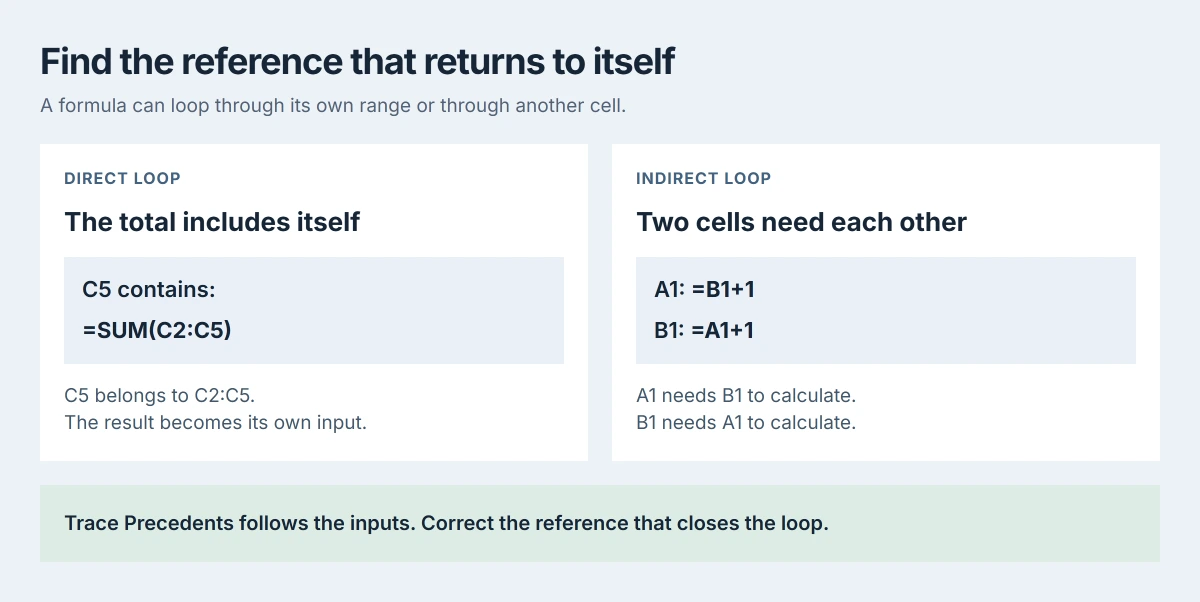
An indirect loop can contain =B1+1 in A1 and =A1+1 in B1. Neither formula names its own cell, but each needs the other's answer. Follow the references until the chain returns to a cell already visited.
A reference on another sheet can produce a black arrow toward a worksheet symbol. Double-click it, then double-click the required reference in the Go To list. An external workbook must be open to trace into it.
Tracing has limits: Microsoft lists closed external workbooks, named constants and PivotTable reports as untraceable. A beep can mean the trace has ended or the item cannot be traced; it does not prove the formula is correct.
Correct the input or range that closes the loop
Save a separate copy before editing a workbook that matters. Microsoft says to move the formula or change its references so it stops referring to itself in its broken-formula guidance.
For a total in C5, =SUM(C2:C5) includes the result cell. If the intended inputs are C2:C4, correct it to =SUM(C2:C4). Our column-total guide explains how to check AutoSum's selected range.
For an indirect loop, identify which cell should contain an independent input or refer to a different source. Do not replace a formula with an arbitrary number just to silence the warning. The intended calculation determines the correction.
After editing, check the answer against the intended input cells. For a cell showing its formula as text, use the formula-display checks. Text display and circular calculation have separate causes.
Check whether another loop remains
Reopen Circular References after each correction. Continue until the status bar no longer reports it. A status-bar warning without an address can refer to another worksheet. Another open workbook can also contain the remaining loop.
Keep intentional iteration separate from accidental loops. Microsoft states in its iteration guidance that iteration repeatedly calculates a formula, using limits for repetitions and acceptable change.
On Windows, use File > Options > Formulas > Enable iterative calculation. On Mac, use Excel > Preferences > Calculation > Use iterative calculation. Enabling it allows loops; it does not correct a mistaken reference.
Ask an iterative workbook's author which inputs and stopping conditions it needs before changing them. For an unresolved accidental loop, give the author or Microsoft Support the formulas and a small sample without private data.
The Short Version
Circular References points to a cell in the loop. Trace its inputs for an indirect loop, then correct the returning reference. Check remaining worksheets and ask the author before changing intentional iterative models.

Isaac Smith is the founder and editor of PC Glance, a website that covers computers, laptops, and technology. He is a tech enthusiast and a computer geek who loves to share his insights and help his readers make smart choices when buying tech gadgets or laptops. He is always curious and updated about the latest tech trends.