

You type a formula, press Enter, and the cell shows =A1+B1 instead of the answer. Or a sheet that worked yesterday shows formulas everywhere.
It is usually not a broken file. I tested each cause on this laptop's copy of Excel, and each one leaves a clue you can spot in seconds.
The Super User question from September 2014 has 371,378 views, and Microsoft Q&A still sees new versions of it in 2026.
First, see how much of the sheet it hits
Look at the rest of your sheet before you change anything, because every formula showing as text means one switch is on. Only one cell or block? Then the cells themselves are set up wrong.
A number that stays unchanged after an input edit needs the calculation-mode checks instead of this display repair.
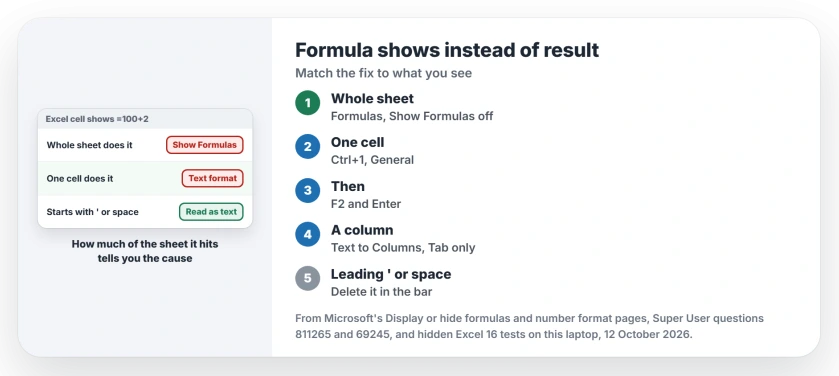
Status: Microsoft's pages on showing formulas and on text formats, three Excel tests on this laptop, and Super User owners, put side by side on 12 October 2026.
1. The whole sheet: Show Formulas is on
Microsoft says the fix is one button. Its page on showing formulas reads "Select Formulas and then select Show Formulas to switch between displaying formulas and results".
To create a fresh total once formulas evaluate normally, select a column range with AutoSum and check the cells it includes.
A customer list needs a distinct-entry total when repeat orders should count as one customer.
The shortcut is Ctrl with the grave accent key, and the same press flips it back. On a US keyboard that key also carries the tilde, left of the 1 key.
One press by accident flips your sheet. A Super User reader called the toggle "ruin my spreadsheet with no undo". German Excel uses Ctrl and # instead, another noted.
Ours: the switch belongs to one sheet. In the test, turning it on for Sheet1 left a new sheet in the same workbook showing results. So one sheet full of formulas beside normal ones points straight at it.
The same box sits in File, Options, Advanced, under the display options for your worksheet. An owner fixed theirs there. They cleared Show formulas in cells instead of their calculated results.
Practice the relationship between entered amounts and calculated answers with a small learning workbook.
Dashed lines that stay across a sheet after printing are switched off from the same list, with the Show page breaks box.
2. One cell: it was formatted as Text
Microsoft describes the Text format as one that "displays the content exactly as you type it, even when you type numbers". So a formula typed into such a cell stays plain text.
Microsoft also warns that numbers stored as text can cause "an uncalculated formula showing instead of a result". The original asker saw it after a double-click and Enter, and a later answer reproduced that with a Text cell.
Changing the format back is not enough. Ours: a Text cell holding =100+2 still showed =100+2 after it was switched to General. Only entering it again, the same as pressing F2 and then Enter, made it show 102.
So select your cell, press Ctrl and 1 and pick General, then press F2 and Enter.
Reported working by owners. The 2009 asker accepted an answer with that fix, which ends "Press F2, then Enter".
A whole column of them
Set the column to General first. Then run Data, Text to Columns and press Finish, or use Find and Replace to swap = for =. Ours: both brought a whole column of text formulas back to results.
Check the delimiter boxes before you click that Finish, and leave only Tab ticked. Ours: with Comma ticked, =SUM(1,2) came apart as =SUM(1 in one cell and 2) in the next.
Before a wider text cleanup, review how Excel chooses replacement matches to keep the edit within the intended worksheet.
3. A character in front of the equals sign
An apostrophe or a space before the = makes Excel read your line as text. The 2009 accepted answer said "be sure there isn't a ' before the = sign", and a commenter added "Or a space or anything else".
Ours: '=100+2 displayed as =100+2, with the apostrophe hidden in the cell, while a leading space showed up in front of the formula.
Click in the formula bar, delete everything before the =, and press Enter. One owner found that a single Backspace before the = fixed cells where no character was visible at all.
Once Excel evaluates the entry, check the multiplication operator and references if the calculated total still differs from the intended arithmetic.
A deduction needs the minus operator and subtraction cell order. Reversing the two inputs changes the sign even when Excel evaluates the formula correctly.
Cleaning stray characters out of many cells with Replace has its own trap: a lone star in the search box matches everything. Put a tilde in front of it.
When the result shows an error instead
Text formulas can also break the other cells that use them in their own math. Ours: in the test, =D1*2 pointing at a text formula in D1 returned #VALUE! So an error two cells away from you can start here.
For a calculated error that remains, inspect the formula's input types before concealing it with a fallback result.
For #SPILL! specifically, read Excel's reason for refusing the output before changing number formats; occupied cells and tables need different repairs.
For a Circular References warning, locate the loop in the calculation. Changing text display cannot remove that dependency.
I would check the alignment as well. Text sits left in a cell by default, and numbers sit right. The same split between text and numbers is behind VLOOKUP returning #N/A on values you can see.
It also stops Remove Duplicates from matching values that look the same. Clean your formats before either job.
Imported dates can be trapped as text in the same way, and the fix for Excel not recognizing dates turns them back into real ones.
A save prompt on a workbook you never edited is the reverse problem, formulas that recalculate too often, and TODAY or OFFSET can trigger it.
The Short Version
- Whole sheet: turn off Show Formulas.
- One cell: set General, then F2 and Enter.
- A column: General, then Text to Columns with only Tab.
- Delete any apostrophe or space before the =.
Where to Next
Which cause caught your sheet, the shortcut, the Text format or a stray apostrophe? Found a fourth cause? Add a comment with the steps, and I can test it on this laptop.

Isaac Smith is the founder and editor of PC Glance, a website that covers computers, laptops, and technology. He is a tech enthusiast and a computer geek who loves to share his insights and help his readers make smart choices when buying tech gadgets or laptops. He is always curious and updated about the latest tech trends.