

DATEDIF can work in Excel even when it doesn't appear in the function suggestions. Type the complete formula directly into a cell, including the starting date, ending date, and unit, then press Enter.
Microsoft keeps DATEDIF to support older Lotus 1-2-3 workbooks. You don't need to reinstall Excel because a suggestion is missing. If the formula returns an error, check its spelling, dates, and unit.
In this guide
1. Enter a complete formula instead of waiting for a hint
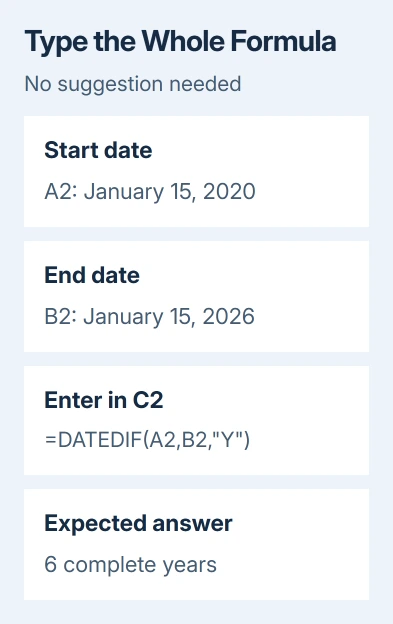
Start in an empty area of your worksheet so you can check the calculation without changing an existing report. Put =DATE(2020,1,15) in A2 and =DATE(2026,1,15) in B2.
Select C2 and type this formula, then press Enter:
=DATEDIF(A2,B2,"Y")The result should be 6, meaning six complete years. The formula has three parts: the earlier date, the later date, and whether to count years, months, or days.
Don't wait for a pop-up argument guide before entering the commas and closing parenthesis. The DATEDIF function instructions give the syntax even when the editing hints don't help.
This example checks whether only the suggestion is missing or Excel can't calculate the formula. If it returns 6, the function is available. Replace A2 and B2 with the date cells in your own worksheet rather than changing Office settings.
These steps work in the desktop Excel versions listed on that support page, including Microsoft 365, Excel 2024, and Excel 2021 on Windows and Mac. They don't require an add-in or a downloaded function pack.
2. Choose years, months, or days for the result you need
Use Y for completed years, M for completed months, or D for the number of days. Put the unit inside straight quotation marks, as the formula shows. Without them, Excel can mistake those letters for a defined name instead of a unit of time.
For the January 2020 to January 2026 example, calculate completed months with:
=DATEDIF(A2,B2,"M")The result is 72. That's the total completed months, not the number of months left after subtracting complete years.
Use YM when you need the months left after counting complete years. For example, a start date of January 15, 2020 and an end date of March 15, 2026 give six completed years and two additional months.
The YD unit counts the difference in days while ignoring the years. It's a different question from the total time between two dates, so don't swap it for D just because both results are measured in days.
For a person's age, completed years usually match the question. Subtracting the year numbers alone counts a birthday that might not have happened yet. I'd decide what the answer needs to mean before choosing the unit.
3. Read the error before changing the workbook
#NUM! can appear when the start date is later than the end date. Compare the actual dates in the two input cells, then put the earlier one first to count the time between them.
A zero result can be correct. January 15 to February 14 is less than one completed month, so M returns zero. A report that expects a fraction of a month needs a different calculation, not a repair to DATEDIF.
With #NAME?, look closely at the function name and the unit's quotation marks. The name is DATEDIF, with one F at the end. Retype the small example from section 1 before copying a longer expression from another document.
If the formula remains visible in the cell, use the separate formula showing instead of a result checks. Text formatting and Show Formulas affect the display; they don't mean DATEDIF was removed.
When the whole worksheet stops refreshing, follow the Excel formula calculation checks. Those settings affect the whole workbook, so check them when other formulas stop updating too.
4. Give Excel real dates instead of ambiguous text
Dates copied from another system can look right while remaining text. Changing their appearance with a date format doesn't necessarily turn them into date values that formulas can use.
The DATE examples avoid that uncertainty. =DATE(2026,3,15) builds March 15, 2026 from separate year, month, and day values. It doesn't rely on whether your computer reads 03/04 as March 4 or April 3.
Try the calculation with dates made using DATE first. If that works and the imported cells fail, correct the imported date values. Keep the original column until you've checked several converted records against their source.
For an interval ending today, use:
=DATEDIF(A2,TODAY(),"Y")A2 contains the starting date. The answer changes as the current date changes, which suits age calculations but not a report that needs to keep a fixed end date.
For a fixed report, put that end date in B2 and keep the original formula. That makes the date being used visible to anyone checking the sheet later, instead of quietly calculating against today's date.
5. Avoid the MD unit when accuracy matters
The MD option tries to count the days left after ignoring months and years. Microsoft says this argument can produce a negative number, zero, or an inaccurate result. Don't build a payroll or deadline calculation around it.
If you only need elapsed days, subtract the two date cells: =B2-A2. Format the result cell as General or Number if Excel displays another date instead of the count.
That subtraction answers a clear question: how many days separate these date values? It doesn't calculate business days, completed months, or a count that includes both the start and end date as whole days.
For a years-and-months display, calculate Y and YM separately. Leave out the extra days unless the report has a clear rule for handling different month lengths.
If the example fails, ask your Office administrator or Microsoft Support for help. Include the Excel version, exact formula, two input dates, and error text. Use sample dates so the support request doesn't expose a private employee record.
The Short Version
Enter DATEDIF directly; a missing suggestion doesn't mean the function is unavailable. Check the date order and unit if the result looks wrong. Use real date values, and avoid the MD argument because it has known accuracy problems.
Checked November 12, 2026.






