

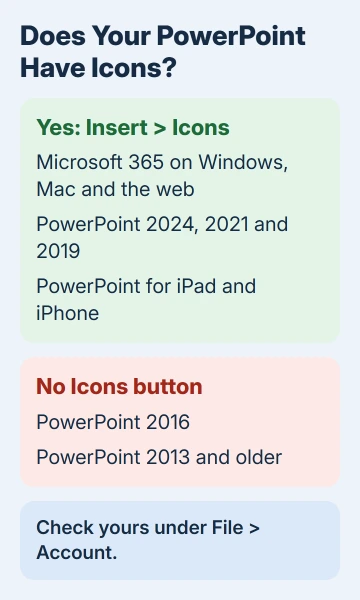
PowerPoint 2016 and older never had an Icons button. Insert > Icons belongs to Microsoft 365 and to PowerPoint 2019, 2021 and 2024, on Windows and Mac, so a 2016 copy can't show it however you set the ribbon.
Check your version under File > Account first. On a Microsoft 365 copy, a missing or grayed-out button comes from an out-of-date copy, a narrow window, privacy settings that block online content, or a customized ribbon.
In this guide
1. Check which PowerPoint you have
In PowerPoint, click File > Account. Under Product Information you'll see the product name, such as Microsoft 365 or Office Home and Student 2016, along with the version and build number.
On a Mac, open the PowerPoint menu and choose About PowerPoint. The window shows the version number and whether it's a one-time purchase such as Office 2019 for Mac.
Microsoft's own Icons page lists Microsoft 365, 2024, 2021 and 2019 on Windows and Mac, plus PowerPoint for iPad and iPhone, and nothing older. If your copy says 2016 or 2013, skip to step 6.
2. Update Microsoft 365
Icons reached subscribers through an update, and a copy that hasn't had that update simply doesn't have the button. Click File > Account > Update Options > Update Now. If Update Now isn't there, choose Enable Updates first.
That's how one owner got the button their colleagues already had, after moving their copy to the normal update channel (the schedule that decides when new features arrive).
As they put it: "Switching to normal channel helped and all pending updates installed together with Icons feature."
On a work PC, IT decides the update channel, so that's a question for them. On a Mac, Microsoft AutoUpdate handles updates, and updating Office on Windows and Mac covers both routes.
3. Look inside the Illustrations group
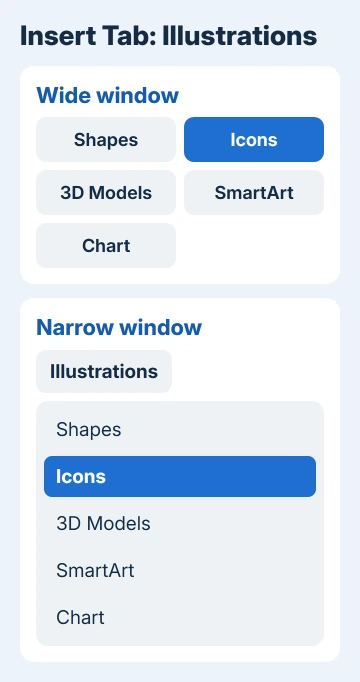
Icons sits on the Insert tab in the Illustrations group, beside Shapes, 3D Models, SmartArt and Chart. When the PowerPoint window is narrow, the ribbon folds that whole group into a single Illustrations button, and Icons seems to disappear.
Maximize the window, or click Illustrations and pick Icons from the menu that drops down.
When it opens, the Icons window has a search box near the top left and categories down the side. Click one or several icons to select them, then click Insert at the bottom right.
They're vector drawings, made of lines and shapes rather than pixels, so you can resize and rotate them without them going blurry. To recolor one, right-click it and choose Fill.
The same library also opens from Insert > Pictures > Stock Images, where Icons is one of the tabs along the top next to Images, Cutout People and Stickers. If that window won't load, the Stock Images service error has its own fix.
4. Grayed out? Allow online content
The icons download from Microsoft as you browse them, which makes the feature one of Office's connected experiences: features that pull content from the internet. With those switched off, the button has nothing to load.
With a personal Microsoft account, go to File > Account > Account Privacy > Manage Settings and turn on the connected experiences for downloading online content. On a Mac, the same switches are under PowerPoint > Preferences > Privacy.
Work and school accounts don't show those switches at all, because your organization's admin decides them. If the button is gray on a work PC, that's for IT: ask whether online content is blocked for your account.
The icons also need an internet connection, since they don't live on your PC.
5. Reset a customized Insert tab
Changes to the ribbon, made by you or by an add-in, can remove the button. Go to File > Options > Customize Ribbon, click Insert in the right-hand list, then choose Reset > Reset only selected Ribbon tab.
Reset all customizations also works, but it resets every tab and the Quick Access Toolbar too, so you'd lose any other ribbon changes.
You can also try adding Insert Icons from the All Commands list in the same window. If it isn't listed there, your copy doesn't have Icons yet and needs the update in step 2, which is what the owner who switched channels found.
6. On PowerPoint 2016 or older
PowerPoint for the web is the free way in. It has Insert > Icons (it's the only Office web app that does), so you can build the slide there with a free Microsoft account and download the file.
Without a subscription, the web version and Office 2021 get part of the stock library, not all of it. The full set of icons comes with Microsoft 365.
To get the button in the desktop app itself, you need PowerPoint 2019 or later, or a Microsoft 365 plan. No update or setting adds it to a 2016 copy.
If the button still won't show
Repair Office next. On Windows 11, right-click Start, choose Installed apps, click the three dots beside Microsoft 365 and choose Modify. On Windows 10, choose Apps and Features from the same menu, select Microsoft 365 and click Modify.
Start with Quick Repair, which is faster. If it changes nothing, run Online Repair, the thorough one.
Safe mode tells you whether an add-in is to blame: hold Ctrl while you open PowerPoint, then choose Yes when it asks about safe mode. If Icons appears there, turn your add-ins off one at a time under File > Options > Add-ins.
If none of that brings it back on a Microsoft 365 copy, contact Microsoft support from Help > Contact Support inside PowerPoint and mention your version and build from step 1.
The Short Version
PowerPoint 2016 and older have no Icons button; Microsoft 365 and PowerPoint 2019 or later do. On Microsoft 365, update Office, widen the window or open the Illustrations group, and use Insert > Pictures > Stock Images as a second route.
A gray button means online content is off in Account Privacy or blocked by IT. Reset the Insert tab if a customization removed it, and use PowerPoint for the web on an older copy.
Checked November 19, 2026.






