Microsoft Office updates use File > Account > Update Options > Update Now on Windows. On Mac, choose Help > Check for Updates for a direct installation, or App Store > Updates for a store copy.
The right updater depends on where you installed Office from. On a work computer, the update controls may be hidden because your organization decides when to install new versions.
In this guide
Find the Office app and version you're updating
Open a desktop app such as Word or Excel. These steps update the apps installed on your computer. Office in a browser doesn't have the same update menu, even if you use the same account for both.
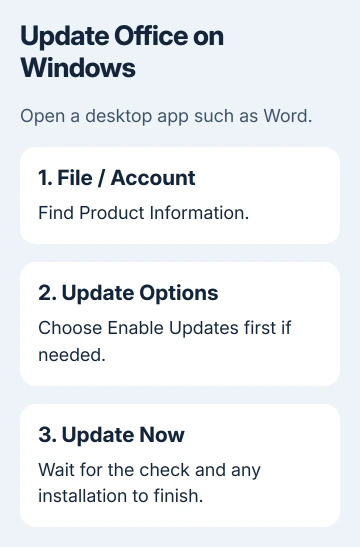
On Windows, open File > Account and read Product Information. In classic Outlook, use File > Office Account instead. Record the product name and version for help with a missing update control.
On a Mac, open Word and choose Word > About Word from the menu bar. This identifies your Office version and shows which license you have: a subscription to Microsoft 365 or a one-time purchase.
Save your open documents before starting. The updater may ask you to close the apps to finish installing, so save those edits before it interrupts your work.
Updating the apps and buying a newer Office edition are different jobs. Checking for updates gets updates for the product you already own. It doesn't automatically turn a one-time license into a subscription.
Update Office inside Word or Excel on Windows
Open File > Account. Under Product Information, select Update Options > Update Now. If Update Now isn't available but Enable Updates is shown, enable updates first and then check again.
The app checks for available updates and installs what it offers. Leave your internet connection active, close Office programs when prompted, and let installation finish before returning to your documents.
Microsoft explains this route in its Windows Office update instructions. Close the results window once the check or installation finishes.
Reopen the app and look at its product information if you need to confirm the installed version. Don't judge the result just by whether the toolbar looks different. Check that the update finished.
If nothing new appears, your current updater isn't offering an update for this installation. It doesn't mean that every Microsoft 365 customer has exactly the same features on the same day.
For a computer where no Office app will open, use the Office repair procedure that applies to your installation. You'll need a working app to reach the normal update menu.
Handle a missing Update Options button
If the Account page shows About but no Update Options, the installation can use volume licensing or have updates managed by company policy. On a work computer, ask the help desk which update route it uses.
Tell IT the product name, version and missing update control. They can check its policy and update channel, which sets when Office gets releases. Don't replace the work installation with a personal download just to make a button appear.
On a personal PC, identify your Office installation source before switching updaters. Windows Update and Office's own updater don't work the same way for every type of license.
If Office itself disappeared after a Windows update, use the Office removal recovery guide. A missing application and an installed application with a hidden update control need different next steps.
If an update fails, save the exact error and check that the PC can connect to the internet. Keep that message for support rather than just running the same check again.
Use Microsoft AutoUpdate for a direct Mac installation
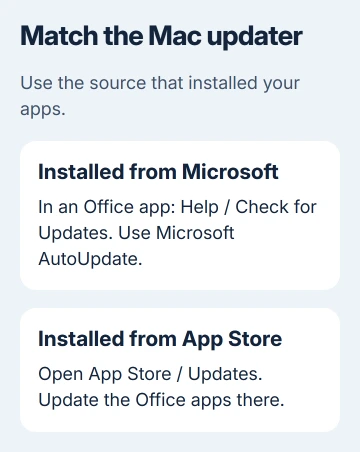
Open Word, Excel or another Office app. In the Mac menu bar, select Help > Check for Updates. If Microsoft AutoUpdate opens, choose Update or Update All for the available apps.
Follow any request to close apps, let the updater finish, then reopen the app you need. Check that the update finished before returning to the document you were working on.
The Mac Office update guidance also covers automatic updates. Keeping them enabled avoids relying on a manual check only after an app develops a problem.
If AutoUpdate says it can't run in the background, open System Settings > General > Login Items & Extensions on versions with that label. Under Allow in the Background, enable Microsoft AutoUpdate.
Some macOS versions name that page Login Items. Look for permission to run in the background, rather than the list of apps that open at sign-in. They're separate controls on the same page.
If Microsoft AutoUpdate is absent, ask Microsoft Support about restoring the missing updater. For a managed Mac, send that request to IT so they can handle any required installation permission.
Update App Store and mobile installations in the store
For Office apps downloaded from the Mac App Store, open App Store > Updates. Choose Update beside an Office app or Update All. Those copies receive their future updates through the store rather than Microsoft AutoUpdate.
I'd check the installation source before reinstalling anything on a Mac. A perfectly working updater can appear to ignore an app simply because that app belongs to the other update route.
For the iPhone and iPad apps, tap your profile picture inside the App Store. Find the available app updates, then select Update beside Word, Excel or the relevant app, or choose Update All.
Open the app again when the update finishes and sign in if requested. Updating Word on one device doesn't update Word on a second device; check the computer or tablet where the original problem occurs.
When an update still won't install
Read any operating-system requirement the updater shows. If the Office update needs a newer supported macOS version, checking for it again won't get it installed on your current version.
For persistent failures, use Microsoft Support's Office installation and update help. Provide the operating system, Office product and version, installation source, error text, and whether other Office apps update successfully.
If work supplies Office, give IT the error and installation details. Ask whether your Office version is still supported and whether a policy or update channel is delaying the update. Use their answer to choose the next repair or upgrade.
The Short Version
Use Update Now inside Office on Windows. On Mac, match the updater to the installation source: Microsoft AutoUpdate or App Store Updates. Missing controls on a managed installation need its administrator's help.
Checked November 10, 2026.