
An Authentication Session Expired message can mean Office for Mac can't access your sign-in details in the keychain. Allow the Office app to use that password store before reinstalling Office or changing your Microsoft password.
The keychain is the Mac's password store. Check it first when your account works elsewhere but Word, Excel or PowerPoint keeps sending you back to sign-in in one Mac user account.
In this guide
1. Let Office access its saved sign-in details
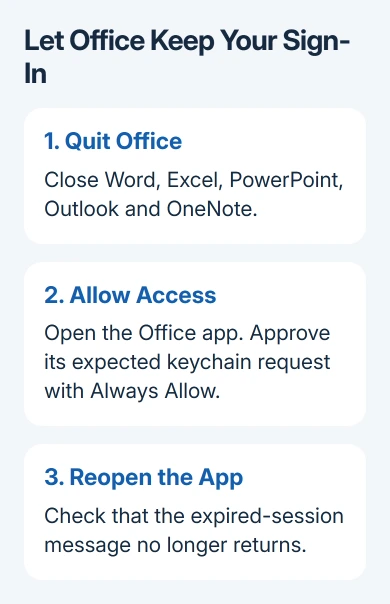
Save open work, then quit Word, Excel, PowerPoint, Outlook and OneNote. Use each app's Quit command, rather than just closing its window, so another Office app isn't still using the saved account details.
Open Keychain Access through Spotlight. This is a separate utility from the newer Passwords app. If its sidebar is hidden, choose View > Show Sidebar, then select your login keychain.
On older macOS releases with a lock icon for that keychain, lock it and reopen one Office app. This was the sequence that several owners said fixed the expired-session error in the original discussion.
A permission dialog may appear asking whether Word or another Office app can use information stored in your keychain. Enter the keychain password when requested, then choose Always Allow for the Office app you're opening.
The keychain password is usually your Mac login password. It can differ if the Mac password changed without updating the keychain. If the keychain rejects your password, sort that out before your next Office sign-in.
Sign in to Office again if asked. Quit and reopen the app afterward. Success means the app remembers the account and opens without returning to the expired-session message. If the warning comes back, check the app's location next.
2. Put the Office apps back in Applications
Office can repeatedly request keychain access after its apps have been moved out of the normal /Applications folder. A desktop shortcut can still point to an app in its usual folder. Check where the app itself is stored.
In Finder, select Applications in the sidebar. Look for Microsoft Word, Microsoft Excel and the other installed Office apps. If you moved an app into a different folder, return it to Applications while it is closed.
Open the app from that folder and approve its keychain request. If your Mac has more than one copy of Word, it could keep opening a different copy. Starting it from Applications lets you check the copy you just put there.
Microsoft's keychain permission instructions connect this exact authentication message with keychain access. They also warn that a permission dialog can appear several times for an app.
Approve each expected Office request, then check whether sign-in stays saved. If the apps are already in their normal folder and the same request returns every launch, check the app's permission to use that saved password.
3. Correct a denied permission without clearing the keychain
Choosing Deny prevents the app from retrieving a saved password. Allow Once only grants access for that request, so it can lead to another prompt later. Always Allow is the choice for ongoing access by that app.
When the permission dialog names a particular saved item, note that item's name. In Keychain Access, select the login keychain, locate that item and double-click it. Open Access Control to see which apps can use it.
Add the Office app to the permitted apps if needed, then choose Save Changes and enter your keychain password when asked. Give access only to that app, rather than every application, to stop the Word prompt.
These steps help when Office has been denied access. Removing every Microsoft, Office or Outlook item can affect several accounts and make your sign-in problem harder to sort out.
Reopen Word. If it remembers your account, the sign-in details were saved but Word couldn't access them. If the keychain rejects its password, use Apple Support's login-keychain password help before changing Office files.
4. Check the account and the installed Office release
Office still needs an account with a license, even after keychain access works. Use the purchaser's account or the one that accepted the shared subscription. Creating a fresh Microsoft account won't move an existing desktop license to it.
For a shared subscription, confirm that the invitation was accepted with the account being entered in Word. Being able to open documents in a browser doesn't mean the same account has a license for the desktop apps.
The Office purchase and account guide explains how the license follows its account. Check that relationship before buying another copy or asking someone to send a new product key.
Open Word > About Microsoft Word to record the version. For a supported installation downloaded from Microsoft, use Help > Check for Updates. For a copy installed from the App Store, open that store to update Word.
The Office update steps for Mac cover both routes. Office 2016 for Mac lost support in October 2020. Plan an upgrade if that old copy still won't sign in.
When the expired session still returns
The original asker could sign in from another Mac user account, but reinstalling Office didn't help their usual account. That points to that account's saved sign-in details. Reinstalling the apps doesn't necessarily repair those details.
Later replies included successful keychain fixes and continued failures. One owner couldn't satisfy the keychain password prompt. If that's what you're seeing, sort out the keychain password before resetting your Microsoft password again.
For supported Office, use Help > Contact Support if offered, or Microsoft Support's Microsoft 365 activation help. Ask for help restoring Office keychain access and keeping the account signed in.
Include the error, Word and macOS versions, and the item named by the keychain dialog. Say whether other Office apps fail and whether the account works in another Mac user profile. Never send either password.
The Short Version
Restore Office's login-keychain permission, keep the apps in Applications and check the licensed account. A rejected keychain password needs its own repair. Reinstalling Office alone didn't fix the original report.
Checked November 16, 2026.






