Office's audio-capture error means Dictate couldn't start using your microphone. Check microphone access for the app, then select and test the correct input in Windows Sound settings before changing Office itself.
The same symptom in Word on the web needs browser permission too. If your microphone records in another app, focus on Office, microphone permission, and the online dictation service. The microphone itself is working.
In this guide
1. Allow the microphone for the version of Word in use
On Windows 11, open Start > Settings > Privacy & security > Microphone. Turn on Microphone access, then check the app-access controls on that page. A disabled system permission stops recording before Dictate can hear speech.
For desktop Office, check Let desktop apps access your microphone if shown. Desktop apps can share this switch instead of having a separate entry for each app. Enable Word's separate permission if Windows lists one.
Windows 10 uses Start > Settings > Privacy > Microphone. Enable microphone access on the device, then allow apps to use it. Installed Office also needs the Allow desktop apps to access your microphone setting enabled.
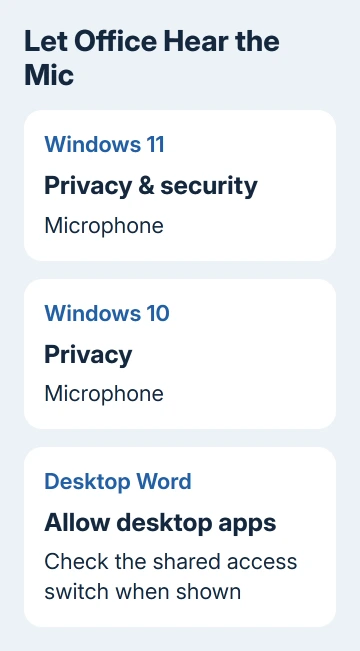
Microsoft's microphone permission instructions explain these access controls. Close Word after changing them, reopen your document, and try Home > Dictate again.
If permission is unavailable because your organization manages it, send the exact message to IT. Ask them to allow microphone access for Word or the browser you're using. You'll need IT to change a grayed-out company control.
If Dictate starts listening and your words appear, the access change solved the capture problem. If the same error returns, check whether Windows can hear the selected microphone next.
2. Select the input that actually carries your voice
Open Settings > System > Sound. Under Input, choose the microphone you want Word to use. A laptop can list its internal microphone, a USB headset, a webcam microphone, and a Bluetooth device at the same time.
Check the headset's physical mute button or boom position before testing. The device can remain listed in Windows while its own mute control stops your voice reaching it. Reconnect a loose USB plug directly to the computer.
On Windows 11, open the selected input device's properties. Use Start test under the microphone test controls, say a short sentence, then select Stop test. If your build offers playback, listen to that sample.
On Windows 10, select the intended device under Choose your input device. Speak and watch Test your microphone. Watch for movement in the input indicator as you speak.
If the test records silence, try the internal microphone and another connected mic. When the alternative records, check the original mic, cable, and driver. Leave the working input selected and retry Dictate.
I'd check the input before reinstalling Office. A recording test takes little time, and reinstalling Word won't repair a muted headset or make an unplugged microphone available to Windows.
3. Give browser Word its own microphone permission
For Word in a browser, Windows permission alone won't let the website use your mic. Open the document, choose Home > Dictate, and allow the site's microphone request.
If the request was previously blocked, open the site's controls beside its address. Find the microphone permission, change it to Allow, and reload the document when prompted. Save any unfinished changes before reloading.
Check that Windows permits the browser to use the microphone as well. Here, Edge or Chrome needs access because it's running Word. Changing only the installed Word app's permission doesn't grant the browser access.
Say a short sentence and check whether your words appear. A listening indicator without recognized words is different from the original failure to start capturing audio. Recheck the chosen input if it listens but hears silence.
On a Mac, use System Settings > Privacy & Security > Microphone and allow Word or the browser as appropriate. Older macOS uses System Preferences > Security & Privacy > Privacy > Microphone.
Quit and reopen the affected Mac app if asked after changing access. Desktop Word and Word in the browser remain separate permission choices, just as they are on Windows.
4. Check the Dictate service requirements
Dictate needs a microphone and reliable internet. In desktop Word, check that the signed-in account has the required Microsoft 365 subscription. Installing Office alone doesn't mean your account includes Dictate.
Open another website to check whether the computer is online. If the connection needs a hotel or workplace sign-in, finish that first. Then return to the document and retry dictation instead of repeatedly toggling the microphone.
The Word Dictate instructions cover the feature's requirements and microphone checks. Keep the chosen dictation language matched to the language you're speaking.
If Dictate is missing entirely, treat that as a different symptom from the capture error. Check your account, app version, and available features before spending time adjusting a microphone that Word hasn't tried to open.
When the microphone works in Windows but capture fails only in Office, update the Office apps. Close and reopen Word after the update, then repeat the short dictation attempt.
5. Use the remaining symptom to choose support
If your microphone fails the Windows test, ask for help fixing the audio device. Give the computer or headset manufacturer your model and the recording-test result. Include whether an alternative microphone records on that computer.
If Word itself stops opening, use the Word startup checks for that separate failure. You don't need to rebuild all your Office settings just because recording fails inside a document you can still edit.
If recording works but Office capture still fails, use Word's Help options to contact Microsoft Support. Include the error text, Word release, operating system, selected input, and whether desktop or browser Word fails.
On a work computer, give those details to your help desk first. Tell them if a permission is locked or dictation works on another approved connection. They can review account access and network restrictions before checking the audio device.
The Short Version
Allow microphone access for Word or its browser. Test the chosen Windows input, then check browser permission and Dictate's connection and license requirements. Report an Office-only failure with the recording result.
Checked November 15, 2026.