

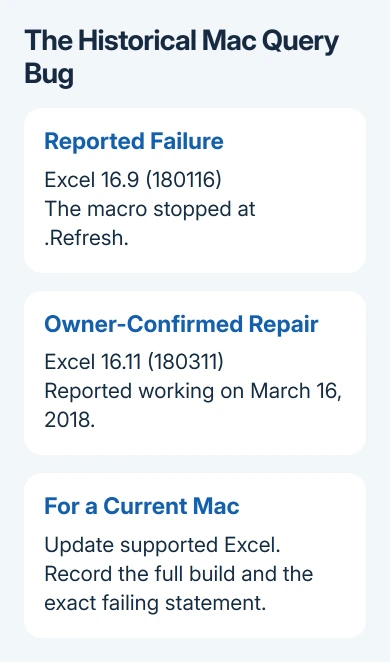
Excel for Mac 16.9 broke some VBA web queries. An owner reported a repair in 16.11 (180311), so update Excel before rewriting a previously working macro. Note which line fails too: error 1004 can mean several different things.
The historical report named QueryTables.Add, but its code actually stopped at .Refresh. That changes what you need to check: Excel creates the query first, then tries to fetch its data.
In this guide
1. Update Excel before changing working VBA
Make a spare copy of your workbook before editing its macro. Keep its existing macro-enabled format, such as .xlsm, so the copy still contains your VBA code.
Choose Excel > About Microsoft Excel and note the full version and build. The original failure followed an update to 16.9 (180116). The later successful report named 16.11 (180311), rather than simply saying the latest version worked.
For Excel installed directly from Microsoft, choose Help > Check for Updates. Install the offered update for supported Excel, restart it and run the copied workbook's macro again.
For a store copy, open the App Store's Updates section instead.
The Office update instructions explain the Mac update routes. Match the updater to your copy's source instead of adding a second Excel installation.
An old thread's Office Insider suggestion isn't a reason to join a preview program today. That suggestion came while the repair was being developed. The result to look at is the owner's later success with a specific build.
Microsoft stopped supporting Mac Office 2016 in October 2020. Plan a supported upgrade if that's still installed. The 16.11 reference explains the old regression; it isn't an installer recommendation for today's Macs.
2. Check whether Add or Refresh is raising the error
When VBA displays error 1004, choose Debug if that button is available. Note the highlighted statement and the full error text. The procedure name or thread title won't necessarily tell you which line failed.
QueryTables.Add creates the query table. .Refresh connects to the source and brings back its results. A query can therefore be created successfully and still fail when Excel tries to retrieve or place the data.
Microsoft's QueryTables.Add reference describes the connection and destination arguments. Its example creates a QueryTable first and then calls Refresh, which makes the two stages easier to recognize.
If the highlighted line is .Refresh, keep a note of the connection type, requested address and destination sheet. Those details help show whether Excel can't fetch the data or whether Add refers to a sheet, range or query it can't use.
If Add itself fails, check that the worksheet and destination range exist before changing refresh settings. A renamed sheet or a range belonging to another worksheet needs attention even when the Office version is current.
Keep passwords, tokens and private server addresses out of public posts. Replace those details in your sample, but keep the connection string's structure so someone helping you can still understand the macro.
3. Keep the connection and destination on the same sheet
The Add method's Destination must be a range on the same worksheet as its QueryTables collection. Using ActiveSheet for one part and a saved sheet variable for another can accidentally refer to different sheets.
Compare both sheet references. Which sheet is active for ActiveSheet.QueryTables.Add, and which was assigned to ServerData for Destination:=ServerData.Range(…)? They need to refer to the intended destination sheet.
Activate the expected destination sheet, then run the unchanged copy. If that changes the result, review the sheet references with the author. Choosing the sheet checks the cause; fixing the code's sheet references makes the repair last.
Don't copy the private server address from the old discussion. It belonged to that owner's system, not an Excel download or a public test service. Use a data source you're authorized to access.
The original macro cleared cells before refreshing. If yours does too, use the spare workbook until retrieval succeeds. A failed import can otherwise leave those cells empty even though the source data is intact.
4. Treat BackgroundQuery reports as build-specific
The original macro used .BackgroundQuery = False, which tells Excel to finish fetching data before the macro continues. Another owner reported a similar preview-build failure with Refresh BackgroundQuery:=False.
The 16.12 preview failure was posted February 28, 2018. The 16.11 (180311) success report came on March 16. Those dates and versions don't support a claim that every numerically newer build was already fixed.
Keep the full build number with each result. If a current supported Excel version still fails, report that version's behavior directly, rather than treating the old successful build as a universal answer to error 1004.
A synchronous refresh makes the macro wait for data. A background refresh lets later instructions run while it loads. Don't switch it just to suppress an error if the next calculations depend on imported data being ready.
For an import that works but leaves linked values stale, use the Excel model-link guide. An external workbook link and this QueryTable use different refresh operations.
When the updated workbook still won't refresh
Give your macro's maintainer the smallest failing procedure, highlighted statement, Excel build and macOS version. Ask them to compare the connection, sheet references and refresh behavior in supported Mac Excel.
If that small example fails with an accessible source in supported Excel, send it through Help > Feedback or Microsoft 365 support. Include the untouched copy's result to help support tell an update fault from later code edits.
The Short Version
The old Mac regression has an owner-confirmed repair in 16.11 (180311). Update supported Excel and preserve a workbook copy. If error 1004 remains, check the failing line, worksheet references and refresh settings.
Checked November 16, 2026.
 If you have any business, I can build it online






