
To send someone a link to an Excel financial model, save the workbook in OneDrive or SharePoint and use Share > Copy Link. Choose who can open it and whether they can edit before sending the link.
To use the model's numbers in another workbook, you'll need a formula that refers to its cells instead. A sharing link gives access, a clickable shortcut opens the file, and a formula reads its values.
Choose what the link needs to do
Use a sharing link when a colleague needs to open the model. Use a hyperlink when a dashboard or document needs a clickable shortcut. Use a workbook link when another spreadsheet needs values from the model.
A file path on your own computer isn't a useful sharing link for someone elsewhere. Even when the filename looks right, the recipient doesn't have access to your laptop's folders.
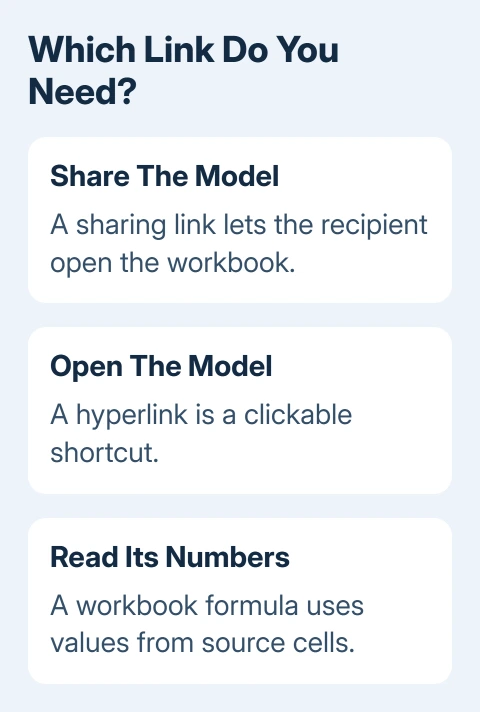
I'd start with view access when sending a completed financial model for review. Give edit access when the recipient is meant to change assumptions or calculations, rather than making every reviewer an editor by default.
Keep a copy of the model before changing its storage location or external formulas. That gives you the original calculations to compare if the shared version starts behaving differently.
Save the workbook online and copy its sharing link
In desktop Excel, save or upload the workbook to your OneDrive or your organization's SharePoint document library. Check that the title bar shows the saved workbook's name rather than an unnamed, unsaved file.
Microsoft explains the upload in its workbook sharing steps. Select Share. If Excel asks you to upload first, pick the cloud location and finish saving.
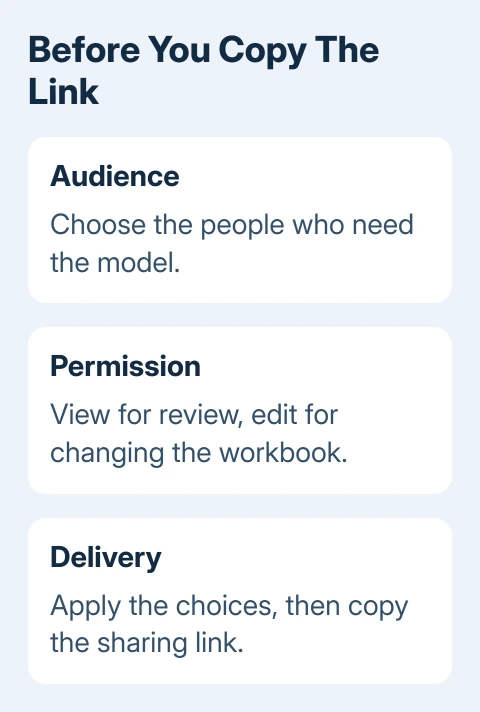
Open the link settings or permissions control before copying. Choose who should have access, such as Specific people, then choose Can view or Can edit to match what they need to do. Select Apply, then Copy Link.
Some accounts show an editing checkbox or a pencil menu instead of those exact permission labels. Read the access description in the dialog before confirming. Work and school accounts can restrict external sharing.
Paste the copied link into your email or message. Include a short note saying which model version it opens and whether the recipient should review or change it. This avoids an unexplained spreadsheet arriving in their inbox.
On a Mac, the same basic desktop workflow is Share, choose access, then copy or send the link. For the browser version, load your workbook in Excel for the web, then select Share to choose who gets access and whether they can edit.
For financial records, use the narrowest audience that fits the task. A link that allows anyone holding it to open the file can be forwarded. Hiding a worksheet isn't a substitute for choosing the right sharing audience.
Point a reviewer to a particular sheet or range
Open the model in Excel for the web and select the worksheet, range of cells, table, or chart you want the reviewer to see. Right-click the selection and choose the offered Link to this Sheet, Range, Table, or Chart command.
Review the link's access settings, apply them, then copy it. When the recipient opens the link in the browser, Excel highlights that part of the workbook. Desktop Excel doesn't keep the same selection highlight.
Treat that link as a convenient starting point, not a restriction to one small part of the model. If someone should receive only a summary, prepare a separate summary workbook rather than assuming a range link hides everything else.
Use clear sheet names before sharing. A sheet named Summary or Assumptions is easier for your reviewer to recognize than several unnamed copies. If you reorganize the model, check the saved link again.
Put a clickable model link inside another workbook
Copy the model's approved sharing link first. In the workbook that will contain the shortcut, select a cell and choose Insert > Link. Enter a descriptive label and paste the copied address into the address field.
The keyboard shortcut is Ctrl + K in Excel for Windows and Command + K in Excel for Mac. In the browser version, use Insert > Link so the workbook's link dialog receives the command.
For example, use a label such as Open the forecast model. Once you confirm, clicking the link in that cell opens the address. It doesn't pull revenue, costs, or any other values into the surrounding worksheet.
For an unwanted clickable address, remove the hyperlink while keeping its label. A formula's external cell reference is a separate kind of link.
Link a number from the model into a second workbook
Open the saved model alongside the receiving workbook in desktop Excel, on Windows or Mac. Select the receiving cell and type =, then select the model's source cell and press Enter.
Excel builds a reference that includes the source workbook, worksheet, and cell. A simple example is =[Forecast.xlsx]Summary!$B$8. The receiving cell displays that source value rather than opening a web page.
Use the workbook-link instructions for this formula workflow. Selecting the source cell lets Excel add the correct punctuation when names contain spaces.
The dollar signs keep the reference on the same cell when you copy the formula. Closing the source workbook can add its file path to the formula. That longer formula can be normal; it doesn't automatically mean the link is broken.
Excel for the web requires the source and receiving workbooks in supported online locations accessible through your Microsoft 365 account. It can also require you to trust the workbook links before refreshing them.
Use a values copy for a figure that should stay fixed. A formula link still relies on the source workbook. The external-link guide covers removing it later.
Check access and refresh before handing it over
Have the other person try your link while signed in to the account you gave access to. Being able to open it as the owner doesn't tell you whether they can. Adjust Share > Manage access if the intended person is blocked.
For a formula link, check that the receiving workbook shows the expected value and can refresh from the source. If it still shows an old value, check source access and any trust prompt before changing the financial formula itself.
If company policy blocks sharing, send IT the error and both file locations. Ask whether the recipient and source location are allowed. Editing a financial formula won't remove an access restriction.
The Short Version
Use Share and Copy Link to give someone access. Use Insert Link for a shortcut, or a cell reference for model values in another workbook. Check the recipient's access and formula refresh before delivery.
Checked November 9, 2026.

Isaac Smith is the founder and editor of PC Glance, a website that covers computers, laptops, and technology. He is a tech enthusiast and a computer geek who loves to share his insights and help his readers make smart choices when buying tech gadgets or laptops. He is always curious and updated about the latest tech trends.