

Excel for the web can ask for Ctrl+Click even when a workbook's links previously opened with one click. Hover over the linked cell and click the link in its popup, or right-click the cell and use Link > Open Link when available.
Both let you open the link without the shortcut, but neither changes the click behavior everywhere. Changing Excel for Mac's preferences won't change how other people open the shared workbook in their browsers.
In this guide
1. Open the link from its popup
Move the pointer over the linked cell and pause. When a link preview or popup appears, move onto the actual link inside it and click. That opens the link instead of just selecting the spreadsheet cell.
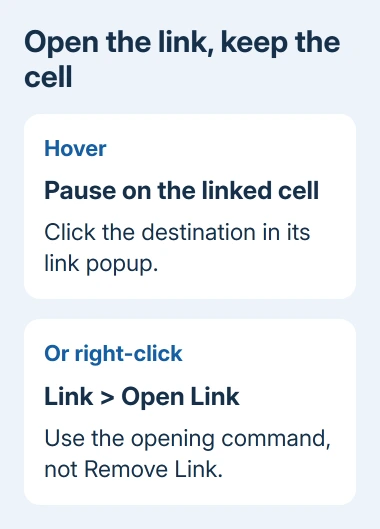
One owner on Microsoft's forum opened links this way: clicking the popup link made the destination the active tab. A separate reply confirmed the context menu worked. Neither reported a way to remove the shortcut requirement.
Check the destination before editing the workbook. An internal link should reach its intended sheet or cell; a web link should reach its address. If only the cell is selected, you haven't opened the link yet.
If the popup doesn't appear, click the cell once and try hovering again. Don't double-click as a replacement for following a link: that can put the cell into editing mode, where Excel is waiting for changes to its contents.
For a shared index with many links, try this on one known destination first. It tells you whether the links still work before you ask the workbook owner to rebuild them. Use the context menu next if the popup is difficult to reach.
2. Use the cell's Open Link command
Right-click the linked cell. In the menu that appears, look for Link, then Open Link. The wording and grouping can vary with the Excel interface, so use the opening command offered for that existing link.
The successful report described selecting the cell, right-clicking, then using Link options > Open link. Choose the equivalent opening command on your screen. Edit Link changes the destination, and Remove Link removes it.
On a Mac, a two-finger trackpad click or Control-click opens the context menu when configured that way. Control-clicking to display a Mac menu is a different action from the Ctrl+Click shortcut shown by Excel in a browser.
On a Chromebook, use a two-finger tap on the touchpad for the right-click menu. That gets you to the same opening command without a mouse. You don't need Windows-only Excel settings for this.
If the menu doesn't offer a link command, confirm that the cell contains a real link. Text that looks like an address, or has link-like formatting, isn't enough. Ask the owner to inspect that cell if other linked cells work normally.
For cleanup rather than navigation, the separate Excel hyperlink removal guide keeps the cell's text while taking away its destination. Don't use that command to repair links you still need readers to follow.
3. Check the browser version before changing desktop options
Look at where the workbook is open. A browser tab showing Excel with a OneDrive or SharePoint address is Excel for the web, even if its owner created the file in the Mac or Windows desktop app.
The workbook owner edited it in Excel for Mac, but other people opened the shared link in their browsers. The change affected those viewers. Searching the Mac app for an Advanced checkbox couldn't change their browser's link handling.
The thread also includes a Chromebook reader whose File > Options showed only regional format settings. That explains why the suggested Windows desktop instructions didn't match what they saw.
Microsoft's Excel link instructions explain links to web addresses, other documents and workbook locations. Check both the target and the platform before changing how the link was made.
Excel's HYPERLINK function also has platform limits. In Excel for the web, that function supports web addresses only. An inserted worksheet link and a HYPERLINK formula aren't interchangeable across all versions.
If one internal link fails while the others open, have the owner verify its target sheet and cell. If every link still works through the popup, the immediate issue is how the browser opens links, not a collection of broken destinations.
4. Keep the desktop app as an optional route
Open the shared workbook in the desktop app if you have access to it and prefer its link behavior. Use Excel's Open in Desktop App option when offered, or use installed Excel to open that cloud workbook.
Keep the shared file in its original location. Downloading a separate copy just to change link behavior can leave you reading an older index while its owner updates the online workbook. That's a separate problem from the click requirement.
On Windows or Mac desktop Excel, try one existing link and check the destination. Don't assume a change in the desktop app will carry over to web viewers, and don't replace a workbook's working links just because its menus differ.
I'd use the popup or context menu for occasional links. For repeated work in a large index, the desktop app can be more convenient, provided you can open the correct shared copy and have permission to its destinations.
5. Separate a click requirement from an access failure
If you reach a sign-in screen or permission request, the link has opened. Sign in using the target's authorized account, or request access from its owner. Access to the index doesn't grant access to every linked file.
A link reaching the wrong sheet or a missing file needs correction. Tell the owner which cell you used and where it went. Include a reference such as Index!B6 to identify the exact cell.
For an index that needs a new destination, create the appropriate Excel link. A clickable shortcut opens a file; a formula link reads its values. Choose the kind the reader needs.
Desktop Excel rejecting a linked PDF from a shared drive is an object-insertion fault, separate from opening a worksheet hyperlink.
Report the remaining behavior with a small example
Tell your Microsoft 365 administrator or workbook owner which browser you use, the viewing or editing mode, and whether the popup and context menu work. Include one harmless example cell and its intended destination.
For personal Microsoft 365 support, use Help in the app or Windows Get Help. Explain that you want to change how clicks open links in Excel for the web. The owners' reports don't confirm a setting that turns off Ctrl+Click everywhere.
The Short Version
Click the link in its hover popup, or open it through the cell's context menu. Both routes bypass the displayed shortcut. Desktop preferences don't control how shared-workbook viewers navigate in a browser.
Checked November 16, 2026.
 If you have any business, I can build it online






